# Kjetil Furås — Full Content
> Full text of all 36 articles from kjetilfuras.com. Personal blog by Kjetil Furås, an IT consultant covering Microsoft Azure, automation, DevOps, AI agents, Claude Code, and homelab.
# Automatiser bilagsføring med Fiken API og Claude Code
URL: https://kjetilfuras.com/automatiser-bilagsforing-fiken-api | Date: Sun Aug 23 2026 00:00:00 GMT+0000 (Coordinated Universal Time) | Category: Automation
Jeg videresender kvitteringer til Fiken-inboksen med en gang de kommer. Så blir de liggende. En kveld i måneden satt jeg og førte dem manuelt: finn leverandøren, velg konto, velg MVA-kode, last opp PDF-en, neste. Fire klikk, tretten ganger i måneden. Over femti klikk, alle like.
Så skrev jeg en Claude Code-skill som gjør det via Fiken API-et. Den leser inboksen, leser PDF-en, foreslår konto og MVA basert på hva jeg gjorde forrige gang, viser meg forslaget, og bokfører når jeg sier ja.
Jeg godkjenner fortsatt hvert eneste bilag. Det er ikke et system som fører regnskapet mitt uten tilsyn. Det er et system som gjør de fire klikkene for meg.
Her er hele flyten, med ekte kode.
## Hva den faktisk gjør
Bare ett trinn tar en avgjørelse. Bare ett krever meg.
Ni steg, fra ubrukt bilag til bokført kjøp med vedlegg:
- **Finner bilaget** i Fiken-inboksen
- **Laster ned PDF-en** med samme token
- **Leser PDF-en**: leverandør, beløp, dato, valuta, MVA
- **Slår opp leverandøren** i kontaktregisteret
- **Foreslår konto og MVA-kode** fra tidligere kjøp hos samme leverandør
- **Viser meg forslaget** og venter
- **Poster kjøpet**
- **Laster opp PDF-en** som vedlegg
- **Bekrefter** og rydder opp
Steg fem er hele poenget. Resten er rørlegging.
## Autentisering
Fiken bruker OAuth2. Du oppretter en app under innstillingene, får `client_id` og `client_secret`, og kjører engangs-oppsettet som fanger callback-en og lagrer tokens lokalt.
Alt går mot `https://api.fiken.no/api/v2`, og hver forespørsel er scopet til ett selskap:
```bash
BASE="https://api.fiken.no/api/v2/companies/$COMPANY_SLUG"
AUTH="Authorization: Bearer $TOKEN"
```
## Steg 1: Finn ubrukte bilag
Fiken-inboksen er et eget endepunkt. `status=false` betyr ubrukt, altså ikke koblet til et bilag ennå.
```bash
curl -s -H "$AUTH" "$BASE/inbox?status=false&sortBy=createdAt%20desc" \
| jq '.[:10] | .[] | {documentId, name, filename, createdAt}'
```
Er det bare ett ubrukt, tar skillet det. Er det flere, spør den hvilket.
## Steg 2 og 3: Last ned og les PDF-en
Responsen inneholder `documentUrl`. Samme bearer-token gir deg fila:
```bash
curl -s -H "$AUTH" -L "$DOC_URL" -o /tmp/fiken-bilag/$DOC_ID.pdf
```
Så leser Claude PDF-en direkte. Ingen OCR-tjeneste, ingen regex mot tekstlag. Modellen er multimodal og leser kvitteringen slik du ville gjort. Den henter ut leverandør, fakturanummer, dato, valuta, og netto- og bruttobeløp.
Det siste er viktigere enn det høres ut. Utenlandske leverandører legger på MVA på ulike måter, og noen bruker forenklet ordning. Beløpene må leses fra dokumentet, ikke antas.
## Steg 4 og 5: Foreslå konto fra historikk
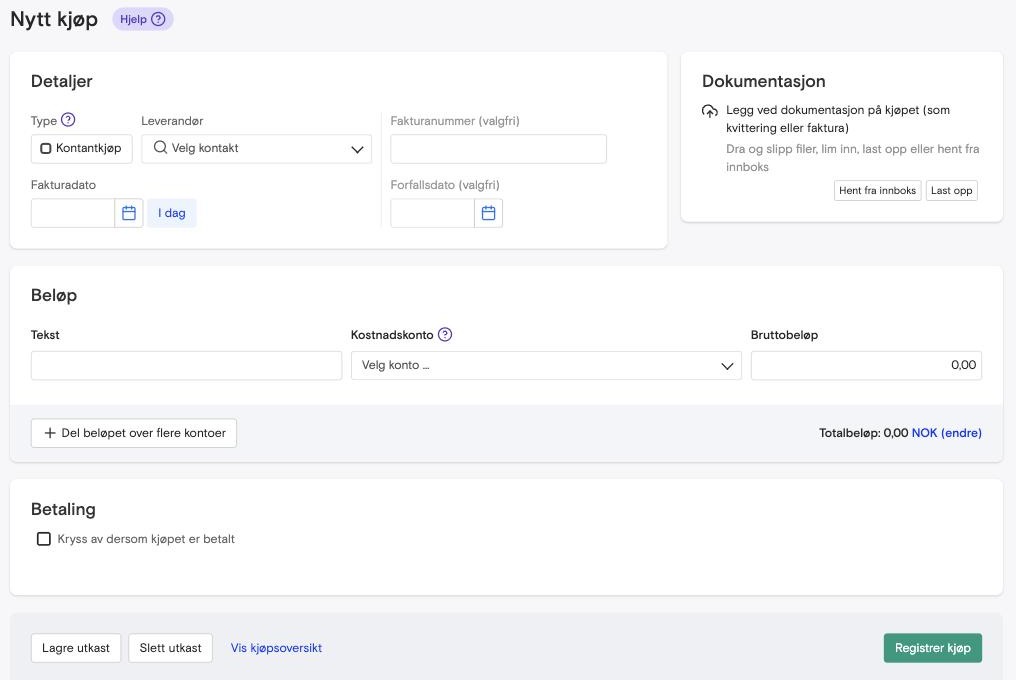
Dette er delen som gjør at det faktisk sparer tid. For å se hvorfor, er det verdt å se på skjemaet den erstatter:
Åtte felter per bilag. Seks er avskrift fra PDF-en jeg allerede har åpen: dato, fakturanummer, beløp. To er tomme fordi de krever en avgjørelse: hvilken leverandør, og hvilken kostnadskonto.
Det er de to tomme feltene alt handler om. Resten er transkribering, og en maskin transkriberer bedre enn meg klokka elleve på kvelden.
Først slår den opp leverandøren:
```bash
curl -s -H "$AUTH" "$BASE/contacts?name=$(printf %s "$SUPPLIER_NAME" | jq -sRr @uri)" \
| jq '.[] | select(.supplier == true) | {contactId, name, organizationNumber}'
```
Så henter den de fem siste kjøpene fra samme leverandør:
```bash
curl -s -H "$AUTH" "$BASE/purchases?supplierId=$SUPPLIER_ID&pageSize=5&sortBy=date%20desc" \
| jq '.[] | {date, identifier, lines: [.lines[] | {account, vatType, description}]}'
```
Er det treff, gjenbruker den konto og `vatType` fra sist. Anthropic havner der Anthropic pleier å havne. Fly.io likeså.
Det er ikke maskinlæring. Det er å slå opp hva du gjorde forrige gang.
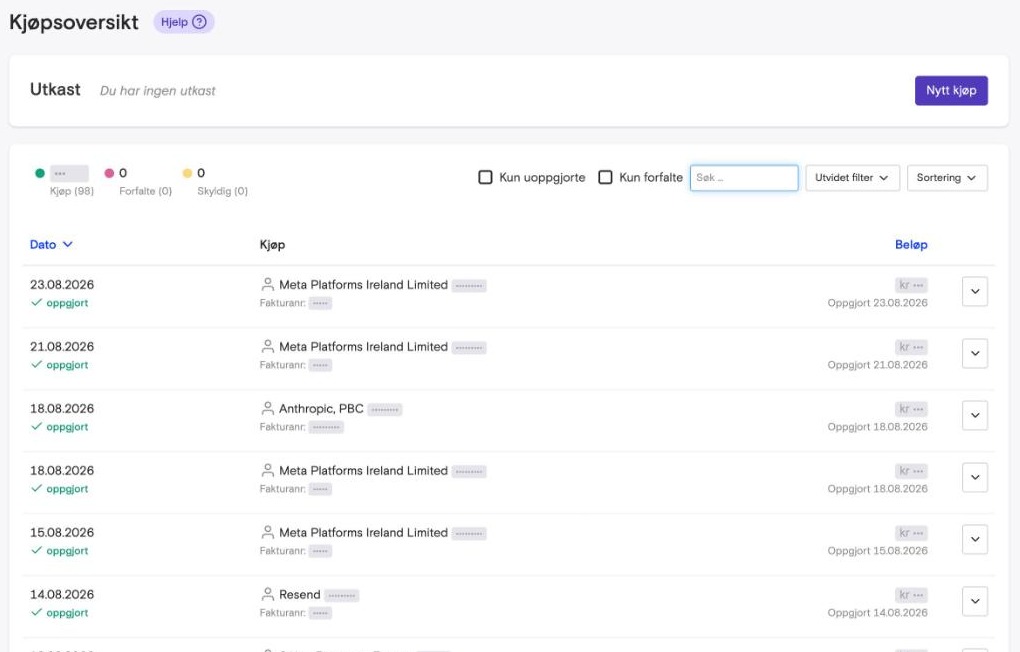
Og det dekker mer enn du skulle tro. Jeg talte opp mine egne: 98 bilag over åtte måneder, fordelt på 19 leverandører. **95 % av dem kom fra en leverandør jeg allerede hadde bokført før**. Meta, Google Cloud, Shopify, Anthropic, OpenAI, Hetzner, Fly.io. De samme navnene, hver eneste måned.
Sju rader fra kjøpsoversikten. Fire av dem er Meta. Det er ikke et uheldig utvalg. Det er hvordan regnskapet i et lite selskap ser ut, og grunnen til at et oppslag i historikken er nok. Beløpene er maskert; det er navnene og gjentakelsen som er poenget.
Nye leverandører må jeg ta stilling til én gang. Neste gang klarer den det selv.
## Steg 7 og 8: Bokfør og legg ved
Selve kjøpet er én POST. Fiken svarer med `Location`-headeren, som inneholder ID-en du trenger for vedlegget:
```bash
RESPONSE=$(curl -s -D - -H "$AUTH" -H "Content-Type: application/json" \
-X POST "$BASE/purchases" -d @payload.json)
PURCHASE_ID=$(basename "$(echo "$RESPONSE" | grep -i '^location:' | awk '{print $2}' | tr -d '\r')")
```
Så PDF-en som vedlegg, som multipart:
```bash
curl -s -H "$AUTH" -X POST "$BASE/purchases/$PURCHASE_ID/attachments" \
-F "filename=$(basename $PDF_PATH)" \
-F "attachToSale=true" \
-F "file=@$PDF_PATH"
```
Da ligger bilaget der revisor forventer det, koblet til kjøpet.
## Det som ikke lar seg kopiere rett av
Skillet min er bygget for **et enkeltpersonforetak som ikke er MVA-registrert**, der jeg betaler med private kort. Det er en helt vanlig situasjon i Norge, men det er én situasjon av flere, og det preger hele beslutningslogikken.
To ting endrer seg for de fleste andre:
**MVA-kodene.** Er du MVA-registrert, er `vatType` en annen for nesten hver linje, og inngående MVA skal behandles. Min variant setter det ikke fordi det ikke skal settes.
**Betalingskontoen.** Betaler du fra firmakonto, peker `paymentAccount` et annet sted enn hos meg. Kortmappingen må bygges for dine kort og dine kontoer.
Selve flyten er den samme uansett: inbox, les, slå opp historikk, foreslå, bokfør, legg ved. Det er beslutningstabellen som er personlig.
## Hva det koster
API-tilgang er ikke gratis i Fiken. Det er en tilleggstjeneste til **99 kroner måneden**, oppå grunnprisen på 219. Skal du bygge dette, betaler du altså i underkant av 1 200 kroner i året for retten til å snakke med ditt eget regnskap.
Det er verdt å si høyt, for det avgjør om det lønner seg. To timer i måneden mot 99 kroner er en enkel regning for meg. Fører du fem bilag i måneden, er den ikke like enkel.
Claude Code kjører på Max-abonnementet mitt, så bilagsføring koster ikke noe ekstra. Kjører du det mot API-et i stedet, er hvert bilag et par PDF-sider inn og litt JSON ut: små penger, men ikke null.
Det som faktisk kostet noe var å skrive det.
Manuelt lå jeg på drøyt to timer i måneden: tretten bilag, rundt ti minutter hvert når jeg først satt med dem. Det er i overkant av et døgn i året, brukt på å velge de samme kontoene om igjen. Etter dette er en måneds bilag noen minutter med bekreftelser.
## Vil du ha det satt opp?
Koden over er hele metoden, og du står fritt til å bygge den selv. Det er derfor jeg skrev artikkelen.
Men skal det virke for din bedrift, med MVA, dine kontoer, dine kort og dine leverandører, er det den delen som må gjøres om. Og den er ikke triviell.
Det gjør jeg gjerne for deg. [Furås Digital](https://furasdigital.com) setter opp automatisering og integrasjoner for norske småbedrifter. Ta kontakt, så ser vi på om det passer for ditt oppsett.
---
# How I Give Claude Code Agents Real Autonomy (And Stop 3am Disasters)
URL: https://kjetilfuras.com/claude-code-agent-autonomy | Date: Fri May 01 2026 00:00:00 GMT+0000 (Coordinated Universal Time) | Category: AI
Running Claude Code agents unsupervised is only scary if you haven’t drawn the lines.
I’ve had agents push to the wrong branch, draft content I didn’t want published, and retry failed jobs in loops that burned rate limits at 2am. I solved all of it by sorting actions into classes, based on what an agent is allowed to do without asking.
Here’s the four-tier autonomy model I run today. I wrote it as a policy document (`autonomy-policy-v1.md`) in my workspace. My agents read it and my cron jobs operate inside it. It’s been running in production since April 2026.
## The Core Principle
Maximize autonomous execution. Do not grant unlimited autonomous authority.
I want my agents doing as much as they can on their own: diagnosing issues, fixing broken cron jobs, updating documentation, retrying failed tasks. I don’t want them publishing content under my name, deploying to production, or spending money without asking.
Get that line wrong and you either approve every single action, which defeats the point, or you wake up to a mess.
## The Four Action Classes
### Class 1: Fully Autonomous
These are actions the agent should do without asking:
- Read, inspect, search, verify, diagnose
- Edit local docs, prompts, skills, memory files
- Fix cron prompts, file paths, routing mistakes
- Retry failed jobs after applying a safe fix
- Improve instructions after recurring mistakes
- Run local validation steps
- Draft content for approval
Everything in Class 1 is local and reversible, and it stays inside the workspace. If an agent fixes a broken file path in a cron job at 3am, that’s a win, and I don’t need to hear about it.
### Class 2: Autonomous With Notification
The agent does these on its own, then tells me if it matters:
- Repair a broken cron job or skill
- Change internal routing or role documents
- Disable a broken recurring job to stop repeated damage
- Clean up stale config or dead files
- Create PRs through the coding agent
- Recover from model or rate-limit fallback issues
Class 2 is where most of the real autonomous value lives. The agent handles the problem, then sends a short message: “Fixed the blog cron: file path was wrong after yesterday’s refactor.” I read it when I get to it.
### Class 3: Approval Required
The agent prepares the best recommendation, then asks:
- Public posting under my brand
- Sending outbound messages, emails, or DMs
- Publishing content
- Production deploys
- Purchases, subscriptions, or ad spend
- Credential rotation or account-security changes
- Major architecture changes
My agent drafts [blog posts](/claude-code-subagents) and X threads, but it doesn’t post them. It sends me an approval packet with the content, the reasoning, and two options: Approve or Deny.
I want that binary. An open-ended “what should I do?” costs me more time than doing the thing myself, so the agent has to turn up with an opinion.
### Class 4: Forbidden
The agent must not do these without explicit direct instruction:
- Bypass safety or permission systems
- Exfiltrate private data
- Loosen security boundaries for convenience
- Impersonate me in sensitive contexts
- Make irreversible external changes when uncertainty is high
- Modify its own gateway policy
Class 4 means never, unless I specifically tell the agent to. A Class 3 action is one the agent may raise with me on its own. A Class 4 action it should not be considering in the first place.
## The Self-Repair Loop
The autonomy model only works if agents can fix their own problems. Here’s the loop I built into the policy:
1. Detect the failure
2. Classify it: known fix, new local issue, auth problem, approval needed, or external provider issue
3. Apply the safest local fix available
4. Verify the outcome with a real check
5. Record the incident in daily memory
6. Update the durable rule so the same class of failure is less likely
7. Retry if safe
8. Escalate only if still blocked or approval is required
Step 6 is the one that matters most. A repeated mistake is a system failure, so I change the prompt, the skill, the cron definition or the documentation until that whole class of failure disappears. Telling an agent to remember better does nothing.
I call this structural learning. If my agent makes the same mistake twice, that is on me for leaving the structure alone after the first time.
## Agent Boundaries In Practice
I run two agents. The main operator handles triage, diagnosis, routing, documentation, drafting, and workflow repair. A separate coding agent handles implementation: code changes, tests, builds, branches, and PRs.
The operator can modify workspace docs, prompts, memory, cron definitions, and skills autonomously. It delegates coding work to the implementation agent. It must ask before external publishing, destructive changes, or anything touching money.
The coding agent can implement code changes, run tests, use branches and worktrees, and open PRs autonomously. It escalates to the operator for business logic ambiguity, architecture changes, security-sensitive changes, and anything requiring user-facing communication.
The separation means the operator never touches code directly, and the coding agent never publishes anything.
## Making Approval Requests Useful
Bad approval request: “Should I post this to X?”
Good approval request:
- **What:** Draft thread about [Claude Code agent autonomy](/claude-code-agent-autonomy)
- **Why:** Follows the subagents post from last week, builds the operator arc
- **Risk:** Low. Opinion content, no claims to verify
- **Recommendation:** Post as-is
- **Options:** Approve / Deny
The agent does the thinking. I only make the call.
## Why This Works Better Than Rules Lists
I tried the rules-list approach first. “Don’t post without approval. Don’t deploy without testing. Don’t spend money.” It doesn’t scale. Every new situation needs a new rule, and agents interpret edge cases differently every time.
The four-class model works because it is a framework rather than a checklist. A new situation gets classified. Local and reversible is Class 1. Internal state changes are Class 2. Anything that reaches the outside world is Class 3, and the hard boundaries are Class 4.
The classification handles edge cases that no rules list could anticipate.
## FAQ
### Do agents actually follow autonomy policies?
Yes, if the policy is in a file they read at startup. I keep `autonomy-policy-v1.md` in my workspace root. Both agents load it as part of their bootstrap context and treat it as instructions.
### How do you handle the agent making a wrong classification?
It happens. When an agent treats a Class 3 action as Class 2 (does something externally without asking), I add it to the hard rules in HEARTBEAT.md, a file that compounds failure-driven rules over time. The structural learning loop catches it.
### Does this slow agents down?
The opposite. An agent that knows exactly what it is allowed to do moves faster than one that hedges on everything.
### What’s the hardest class to get right?
Class 2. The line between “do it and tell me” and “ask first” is where most of the judgment calls live. In doubt I err toward notification over silence, so the agent keeps moving and I still find out.
---
I’m documenting the full build process in my [Build & Automate](https://go.kjetilfuras.com/blog) community.
---
_Published using [Notipo](https://notipo.com), a markdown editor with one-click WordPress publishing._
## Related Reading
- [Run a Claude Code Agent in Production](/claude-code-agents-production): How to run Claude Code as a real production agent. Observability, retries, secrets, drift handling.
- [Use Claude Code Subagents to Run Parallel Tasks](/claude-code-subagents): Spawn parallel subagents for review, search, and batch work without blocking the main agent.
- [Write Claude Code Agent Skills That Actually Work](/claude-code-agent-skills): Custom skills that consistently fire and produce useful output.
---
# How to Use Claude Code Subagents to Run Parallel Tasks
URL: https://kjetilfuras.com/claude-code-subagents | Date: Thu Apr 23 2026 00:00:00 GMT+0000 (Coordinated Universal Time) | Category: AI
I’ve used Claude Code subagents daily for the past few months. They are what made Claude Code scale for me: several tasks running at once, without my main session losing the thread.
Here is how they work and when I reach for one.
## What Claude Code Subagents Are
A subagent is a separate Claude Code instance that your main session spawns to handle a scoped task. The parent keeps its context clean while the child does the digging in isolation.
The subagent starts with zero context from your conversation. It doesn’t know what you’ve been working on or what you already tried. You brief it like a colleague who just walked into the room. That is deliberate, and it is what keeps the two sessions from polluting each other.
## When to Use Subagents vs Doing It Yourself
Not everything needs a subagent. Roughly how I split it:
**Use a subagent when:**
- You need to explore a large codebase and don’t know where things live yet
- Two or more research tasks can run at the same time without touching each other
- The work needs isolation, a separate git worktree for instance
- The search results would be noisy enough to crowd out your main context
**Just do it yourself when:**
- You already know the target file and what to change
- It’s a three-line edit
- The task depends on something you learned five minutes ago in this conversation
- The call needs judgment, and judgment needs the full context
The threshold I use is whether I’d have to context-switch to do it myself. If I would, I spawn a subagent.
## Practical Example: Parallel Code Review
Say you have a PR with changes across the backend, frontend, and test suite. Instead of reviewing it in sequence, you spawn three subagents, each looking at a different dimension of the same diff.
I tell Claude Code something like:
> Review this PR for security issues, performance concerns, and test coverage gaps. Run all three reviews in parallel.
Claude Code spawns three subagents simultaneously:
1. **Security reviewer**: checks for injection vulnerabilities, auth bypasses, exposed secrets, unsafe input handling
2. **Performance reviewer**: looks for N+1 queries, missing indexes, unnecessary re-renders, large payload sizes
3. **Test coverage reviewer**: identifies untested code paths, missing edge cases, brittle test patterns
Each subagent gets a self-contained prompt with the PR diff and a specific focus area. They run concurrently, so a review that would take 15 minutes sequentially finishes in 5.
When all three return you get three focused reports with no context bleed between them, so the security reviewer never sees the performance opinions.
## Practical Example: Research Then Implement
Some subagent work is sequential. Research first, then act on the findings.
Say you need to migrate off a deprecated API across your codebase. You don’t know how many call sites exist or what patterns they use. The approach:
**Step 1:** Spawn a research subagent to find every usage of the deprecated API. Give it a clear brief:
> Find all usages of the `legacyAuth.verify()` method across the codebase. For each usage, note the file, the surrounding context, and whether it’s in a hot path or a background job. Report back with a summary.
The subagent reads its way through the codebase and comes back with a structured report: “Found 12 usages across 8 files. 3 are in request middleware (hot path), 5 are in background workers, 4 are in tests.”
**Step 2:** Now the full picture sits in your main context. You do the migration yourself, file by file, and let the research set the order: hot-path middleware first, then the workers, then the tests.
I delegate the exploration and keep the implementation. That is how I handle most refactoring work.
## Running Subagents in the Background
Claude Code gives you two modes for subagents: foreground and background.
**Foreground** (default): You wait for the result before doing anything else. Use this when the subagent’s output determines your next step, like the research-then-implement pattern above.
**Background**: The subagent runs independently and you get notified when it’s done. Use this for genuinely parallel work where you don’t need the result immediately.
Put everything in the background and you end up with results arriving out of order, which you then can’t act on. Put everything in the foreground and you sit there waiting for no reason.
My rule of thumb: if I’m going to read the result and then decide what to do, foreground. If I already know what I’m doing and the subagent is handling something separate, background.
## Tips From Running Subagents in Production
I run subagents as part of an autonomous agent system: scheduled cron jobs and Sentry error fixers. What I’ve learned so far:
**1. Write self-contained prompts.** The subagent has zero context from your conversation. Don’t say “fix the bug we discussed”. Say “fix the null reference error in `src/auth/middleware.ts` at line 47 where `user.email` is accessed before the null check.” Give it the file path and the line, and say what should be different afterwards.
**2. Don’t over-delegate.** Spawning a subagent costs something: context initialization and result synthesis. For a three-line fix, just do it. Subagents earn that cost on work that would otherwise pollute your context, or on work that runs in parallel.
**3. Use worktree isolation for code changes.** When a subagent needs to modify files, give it a git worktree so it works on an isolated copy. This prevents conflicts with your main working tree and makes it safe to run multiple coding subagents in parallel.
**4. Limit parallel spawns.** Three to five concurrent subagents is the sweet spot. Beyond that, you’re juggling too many results and the synthesis overhead cancels out the time savings.
**5. Trust the push-based completion model.** Don’t poll for subagent status. You get notified when they’re done. Polling wastes cycles and adds noise.
## How This Fits Into Larger Agent Architectures
The same pattern shows up outside Claude Code too. In my setup with OpenClaw, the main agent hands specialized work to coding agents and review agents. Each one runs in its own session with its own context, and results flow back automatically.
The Claude Code subagent is the smallest unit of that: one agent, one scoped task. If you’re building autonomous workflows, scheduled jobs or error-fixing pipelines, subagents are how you split the work without losing the thread.
I share operator notes and templates in [Build & Automate](https://go.kjetilfuras.com/blog), where I write up what is running in production for me.
## Related Reading
- [Run a Claude Code Agent in Production](/claude-code-agents-production): How to run Claude Code as a real production agent, with observability, retries, secrets, drift handling.
- [Give Claude Code Agents Real Autonomy](/claude-code-agent-autonomy): Letting Claude Code take action on its own without 3 a.m. surprises.
- [Write Claude Code Agent Skills That Actually Work](/claude-code-agent-skills): Custom skills that consistently fire and produce useful output.
---
# Build a Custom MCP Server in Python in 2026
URL: https://kjetilfuras.com/build-mcp-server-in-python | Date: Fri Apr 17 2026 00:00:00 GMT+0000 (Coordinated Universal Time) | Category: AI
I’ve built several MCP servers in Python: WordPress publishing, Skool community management, YouTube analytics. They all follow the same pattern. The point of each one was to stop copy-pasting data into prompts and let Claude Code read the system directly from the terminal.
Here’s how to build one from scratch with the official SDK.
## What Is an MCP Server?
MCP (Model Context Protocol) is an open standard from Anthropic that lets AI assistants call external tools. You define tools with typed inputs and outputs. Claude Code calls them mid-conversation like native functions.
The protocol runs over JSON-RPC through stdio. Your server starts as a subprocess that Claude Code spawns and talks to via stdin/stdout. There is no HTTP layer and no webhook to register, just a Python process reading and writing JSON.
If you’ve built a CLI tool before, an MCP server is simpler than that.
## Set Up the Project
Start with a clean directory and install the MCP Python SDK:
```bash
mkdir my-mcp-server && cd my-mcp-server
python3 -m venv .venv && source .venv/bin/activate
pip install mcp[cli]
```
The `mcp[cli]` package includes the server framework and a dev inspector for testing. That’s the only dependency you need.
## Build Your First Tool
Create `server.py`. Every MCP server follows the same structure: create a server instance, define tools with decorators, and run the stdio transport.
```python
from mcp.server.fastmcp import FastMCP
mcp = FastMCP("my-tools")
@mcp.tool()
def get_system_info() -> str:
"""Return basic system information."""
import platform
return (
f"OS: {platform.system()} {platform.release()}\n"
f"Python: {platform.python_version()}\n"
f"Machine: {platform.machine()}"
)
@mcp.tool()
def count_files(directory: str, extension: str = "") -> str:
"""Count files in a directory, optionally filtered by extension.
Args:
directory: Path to the directory to scan
extension: File extension to filter by (e.g. '.py', '.json')
"""
from pathlib import Path
path = Path(directory).expanduser()
if not path.is_dir():
return f"Error: {directory} is not a valid directory"
if extension:
files = list(path.rglob(f"*{extension}"))
else:
files = [f for f in path.rglob("*") if f.is_file()]
return f"Found {len(files)} files in {directory}" + (
f" matching {extension}" if extension else ""
)
if __name__ == "__main__":
mcp.run(transport="stdio")
```
Things worth noticing:
- The `@mcp.tool()` decorator registers a function as a callable tool, and the function name becomes the tool name.
- Type hints on parameters are required. MCP uses them to generate the JSON schema that Claude reads.
- The docstring becomes the tool description, which is what Claude uses to decide when to call it. Write it like you’re explaining the tool to a colleague.
## Add a Tool With External API Access
Most useful MCP servers talk to external services. Here’s a tool that checks the status of a website:
```python
import httpx
@mcp.tool()
async def check_website(url: str) -> str:
"""Check if a website is reachable and return its status code and response time.
Args:
url: Full URL to check (e.g. https://example.com)
"""
async with httpx.AsyncClient(timeout=10) as client:
try:
response = await client.get(url)
return (
f"Status: {response.status_code}\n"
f"Response time: {response.elapsed.total_seconds():.2f}s\n"
f"Content-Type: {response.headers.get('content-type', 'unknown')}"
)
except httpx.RequestError as e:
return f"Error reaching {url}: {str(e)}"
```
Async tools work out of the box, since the MCP SDK handles the event loop for you. I use `httpx` for the HTTP calls because it’s async-native and has timeout handling built in.
Install it alongside the SDK:
```bash
pip install httpx
```
## Test Before Connecting to Claude
The MCP CLI includes a dev inspector that lets you test tools without Claude:
```bash
mcp dev server.py
```
This opens a web UI where you can call each tool, inspect the JSON schema, and verify outputs. Fix issues here before connecting to Claude Code. Debugging inside a conversation is slower.
## Connect to Claude Code
Add your server to Claude Code’s MCP configuration. Open `.claude/settings.json` in your project root:
```json
{
"mcpServers": {
"my-tools": {
"command": "/path/to/my-mcp-server/.venv/bin/python",
"args": ["server.py"],
"cwd": "/path/to/my-mcp-server"
}
}
}
```
Use the full path to the Python binary inside your venv. Claude Code spawns this as a subprocess. If you use a relative path or the system Python, it won’t find your installed packages.
Restart Claude Code. Your tools appear as `mcp__my-tools__get_system_info`, `mcp__my-tools__count_files`, and `mcp__my-tools__check_website`.
## Add Resources for Context
Tools handle actions. Resources handle data that Claude reads as context. Use them for configuration, reference data, or live state:
```python
@mcp.resource("config://settings")
def get_settings() -> str:
"""Current server configuration."""
import json
settings = {
"version": "1.0.0",
"tools_registered": 3,
"max_timeout": 10,
}
return json.dumps(settings, indent=2)
```
Claude can read this resource to understand your server’s capabilities before calling tools.
## Error Handling in MCP Tools
MCP tools should never raise unhandled exceptions. A crash kills the server process and disconnects all tools mid-conversation. Wrap external calls and return error strings:
```python
@mcp.tool()
def read_config(path: str) -> str:
"""Read a configuration file and return its contents.
Args:
path: Path to the config file
"""
from pathlib import Path
try:
config_path = Path(path).expanduser()
if not config_path.exists():
return f"Error: {path} does not exist"
if config_path.stat().st_size > 100_000:
return f"Error: {path} is too large (>100KB)"
return config_path.read_text()
except PermissionError:
return f"Error: no permission to read {path}"
except Exception as e:
return f"Error reading {path}: {str(e)}"
```
Claude reads the error string and adjusts. It retries with a different path, asks the user for help, or moves on to something else.
## Stdio vs HTTP: Which Transport to Pick
MCP supports two transports: **stdio** (local child process: Claude spawns your script and pipes JSON-RPC over stdin/stdout) and **HTTP** (your server runs as a long-lived web service that Claude connects to via Streamable HTTP). The choice is worth more thought than it usually gets.
**Use stdio when**:
- The server is for your local machine only (Claude Desktop, Claude Code CLI on your laptop)
- Tools need access to your local filesystem, local network, or local processes
- You don’t want to manage a hosted service
- Auth is implicitly your OS-level access, because the script runs as you
**Use HTTP when**:
- Multiple clients (Claude Desktop, Cursor, custom agents, teammates) need the same tools
- Tools rely on a centralized resource (production database, CRM, internal API)
- You want auditability, so every call goes through one server that writes one log
- The server holds long-lived state, like cached embeddings or connection pools, that’s wasteful to recreate on every stdio invocation
Switching from stdio to HTTP looks like this. Same FastMCP server, different transport:
```python
from mcp.server.fastmcp import FastMCP
mcp = FastMCP("my-server")
@mcp.tool()
def search_docs(query: str) -> str:
"""Search internal documentation."""
# ... same tool implementation as stdio version ...
return results
if __name__ == "__main__":
# Stdio (default): Claude spawns this script as a child process
# mcp.run()
# HTTP / Streamable HTTP: serve on a port, multiple clients connect
mcp.run(transport="streamable-http", host="0.0.0.0", port=8000)
```
The tool definitions stay identical. That separation is intentional in the spec, so you write the tools once and pick the deployment shape later.
## Deploy MCP Server for Team / Multi-Client Use
Once you switch to HTTP transport, your MCP server is just a normal Python web service. The deployment patterns are the same ones you’d use for any FastAPI/Flask app. Three options ordered by setup effort:
### 1. Single Docker container behind a reverse proxy
Wrap the server in a Dockerfile, run it on a small VPS, put Caddy or nginx in front for HTTPS:
```
FROM python:3.12-slim
WORKDIR /app
COPY requirements.txt .
RUN pip install --no-cache-dir -r requirements.txt
COPY . .
EXPOSE 8000
CMD ["python", "server.py"]
```
Clients connect with `{"type": "streamable-http", "url": "https://mcp.example.com/", "headers": {"x-api-key": "..."}}`. A small Hetzner CX11 handles dozens of tools comfortably.
### 2. Serverless (Cloud Run, Fly.io, Lambda + API Gateway)
If tool calls are infrequent and you don’t want to manage a VPS, serverless works. The catch is that Streamable HTTP needs a platform that supports long-lived connections. Cloud Run and Fly.io handle that fine. Lambda has a 15-minute execution cap, so I’d keep streaming sessions off it.
### 3. Behind your existing API gateway
If you already run an internal API (FastAPI app, etc.), mount the MCP server as a sub-route. You then reuse whatever auth middleware, logging and rate limiting that app already has. The MCP Python SDK exposes an ASGI app you can mount with `app.mount("/mcp", mcp.streamable_http_app())`.
### Auth on an HTTP server
Stdio servers inherit your user’s privileges automatically. An HTTP server is reachable from the public internet, so it needs its own answer. At minimum, require an `x-api-key` header on every tool call and generate a separate key per client or teammate, which keeps revocation scoped to one key. Log which key called which tool. And keep secrets out of tool responses, since those end up in conversation history Claude may serialize.
For tools that read or modify shared state (production DB, CRM), add scope checks inside each tool function. The MCP layer only authenticates the request. Authorizing the specific action is the tool’s job.
## Project Structure for Production
Once your server grows past 3-4 tools, split into modules:
```
my-mcp-server/
server.py # Entry point — imports and registers tools
tools/
system.py # System info tools
web.py # HTTP/API tools
files.py # File operation tools
requirements.txt
```
Keep `server.py` minimal. Import tools from modules so each file stays focused:
```python
from mcp.server.fastmcp import FastMCP
mcp = FastMCP("my-tools")
# Import tool modules — decorators register on import
import tools.system # noqa: F401
import tools.web # noqa: F401
import tools.files # noqa: F401
if __name__ == "__main__":
mcp.run(transport="stdio")
```
Each tool module imports the shared `mcp` instance and uses `@mcp.tool()` as usual. This pattern scales to 20+ tools without the main file becoming unreadable.
## Common Mistakes
**Printing to stdout.** MCP uses stdout for JSON-RPC. Any `print()` statement corrupts the protocol and crashes the connection. Use `logging` to stderr instead:
```python
import logging
import sys
logging.basicConfig(stream=sys.stderr, level=logging.INFO)
logger = logging.getLogger(__name__)
```
**Missing type hints.** Every parameter needs a type annotation. Without one, the MCP SDK can’t generate the JSON schema, and Claude won’t know what arguments to pass.
**Blocking the event loop.** If you have a CPU-heavy tool, run it in an executor. The MCP server is single-threaded. A blocking call freezes all tools:
```python
import asyncio
@mcp.tool()
async def heavy_computation(data: str) -> str:
"""Run a CPU-intensive task without blocking other tools."""
loop = asyncio.get_event_loop()
result = await loop.run_in_executor(None, process_data, data)
return result
```
## FAQ
### Do I need to restart Claude Code after changing my MCP server?
Yes. Claude Code loads the MCP configuration at startup and spawns servers as subprocesses. After editing `server.py`, restart Claude Code to pick up changes. The `mcp dev` inspector is faster for iterating.
### Can one MCP server connect to multiple AI clients?
Yes. The protocol is client-agnostic, so the same server works with Claude Code, Claude Desktop and anything else that speaks MCP. Point each client at your server’s entry point and change nothing in the code.
### What’s the difference between tools and resources?
A tool takes inputs, does something and returns a result. A resource is read-only context that Claude pulls in for background: configuration, reference data, live state.
### Is there a limit on how many tools one server can expose?
No hard limit in the protocol. I run servers with 10-15 tools without issues. If you go past 20, consider splitting into multiple servers by domain (one for database ops, one for API calls, etc.) to keep tool descriptions focused.
---
I’m documenting the full build process (MCP servers, Claude Code agent patterns, and autonomous workflows) in my [Build & Automate](https://go.kjetilfuras.com/blog) community. The step-by-step modules with the real production code live there.
## Related Reading
- [Give Your AI Agent Persistent Memory](/ai-agent-persistent-memory): Memory architectures for agents (file-based, vector, hybrid) with real-world trade-offs.
- [Set Up OpenClaw as Your Personal AI Agent](/openclaw-setup-guide): End-to-end OpenClaw setup. Install, configure, connect tools, run your first automation.
- [Write Claude Code Agent Skills That Actually Work](/claude-code-agent-skills): Custom skills that consistently fire and produce useful output.
---
# Sync Notion to WordPress: Keep Your Content in Sync Automatically
URL: https://kjetilfuras.com/sync-notion-to-wordpress | Date: Thu Apr 16 2026 00:00:00 GMT+0000 (Coordinated Universal Time) | Category: AI
You write in Notion. Your blog runs on WordPress. The gap between them is where you lose 15-30 minutes per post: copy-pasting content, re-uploading images, setting SEO fields, fixing formatting that breaks in Gutenberg.
There are several ways to publish from Notion to WordPress automatically. Below are the main options and when each one makes sense.
## Why publish from Notion to WordPress?
Notion is a better writing environment than the WordPress editor. Markdown-style formatting, nested pages, databases with properties, inline images. It’s where most writers already work.
WordPress is a better publishing platform. Custom domains, SEO plugins, themes, full control over your site. Over 40% of the web runs on WordPress.
Getting content from one to the other is tedious. Manual copy-paste breaks formatting. Images need re-uploading. Categories, tags, featured images, and meta descriptions need setting manually. A 1,000-word post takes 5 minutes to write and 15 minutes to publish.
So you automate the sync, and write in Notion while publishing to WordPress with one action.
## Option 1: Notipo (API-first Notion to WordPress sync)
[Notipo](https://notipo.com) connects your Notion database to your WordPress site. When you change the status of a page in Notion to “Publish,” it syncs the content to WordPress automatically, including images, SEO metadata, categories, tags, and featured images.
### How it works
1. Sign up at [notipo.com](https://notipo.com) (free plan available)
2. Connect your Notion workspace (one-click OAuth)
3. Connect your WordPress site (enter URL, click approve in WP admin)
4. Write a post in Notion, set the status to “Publish”
5. Notipo converts the Notion content to WordPress blocks and publishes it
### What syncs automatically
- **Content**: headings, paragraphs, lists, code blocks, quotes, callouts, toggle blocks
- **Images**: uploaded to your WordPress media library automatically
- **SEO metadata**: focus keyword and meta description from Notion properties
- **Categories and tags**: mapped from your Notion database
- **Featured images**: AI-generated from Unsplash or Google Gemini on the Pro plan
- **Code highlighting**: syntax highlighting preserved with language detection
### API and CLI access
Notipo also has a REST API and CLI tool for automation. Publish posts from the command line or integrate with AI agents:
```bash
notipo posts create \
--title "My Post Title" \
--body "$(cat post.md)" \
--category "Tutorial" \
--seo-keyword "target keyword" \
--publish --wait
```
This is how AI coding agents like Claude Code publish blog posts, in a single command with the SEO fields already set.
### Pricing
- **Free**: 5 posts/month, one-click WordPress setup, SEO metadata, code highlighting
- **Pro ($19/month)**: Unlimited posts, AI featured images, instant sync, priority support, 7-day free trial
## Option 2: WP Sync for Notion (WordPress plugin)
[WP Sync for Notion](https://wordpress.org/plugins/wp-sync-for-notion/) is a WordPress plugin by WPConnect. You install it on your WordPress site, connect your Notion database, and it pulls content from Notion into WordPress posts.
### How it works
1. Install the plugin from the WordPress plugin directory
2. Create a Notion integration and share your database with it
3. Map Notion properties to WordPress fields (title, category, tags, etc.)
4. Choose sync frequency: manual, daily, or instant via webhooks
### Limitations
- Requires a WordPress plugin installation
- Free version only syncs individual pages, not databases
- Pro version needed for database sync, custom post types, and SEO plugin integration
- Image handling can be inconsistent depending on how Notion serves image URLs (they expire)
## Option 3: Zapier or Make (automation platforms)
You can connect Notion and WordPress through Zapier or Make (formerly Integromat). When a Notion database item changes status, a Zap or scenario creates a WordPress post via the REST API.
### Pros
- Flexible: you control exactly what fields map where
- Works with any Notion database structure
- Can trigger additional actions (send email, post to social media)
### Cons
- Requires paid Zapier/Make plan for multi-step workflows
- Content formatting is basic. You lose rich blocks like callouts, toggles, and code highlighting
- Images require extra steps to transfer (Notion image URLs expire after 1 hour)
- Ongoing maintenance when Notion or WordPress APIs change
## Option 4: Cloudpress
[Cloudpress](https://www.usecloudpress.com/) exports content from Notion (and Google Docs) to WordPress, Webflow, and other CMS platforms. It focuses on preserving formatting during the export.
### How it works
Connect your Notion workspace and WordPress site, select a page, and export. Cloudpress handles the block conversion and image transfer.
### Limitations
- Export-based, not sync-based: changes in Notion require a new export
- Priced per export ($0.50-$1 per article on lower plans)
- No automatic publishing on status change: you trigger each export manually
## Which option should you pick?
**Choose Notipo if** you want automatic one-way sync (Notion to WordPress) triggered by a Notion status change. Best for bloggers and content teams who publish regularly and want zero manual steps. API access makes it the only option that works with AI agents and CLI automation.
**Choose WP Sync for Notion if** you prefer a WordPress plugin approach and want everything managed from your WordPress dashboard. Good for teams already comfortable with WordPress plugin management.
**Choose Zapier/Make if** you need a custom multi-step workflow that goes beyond Notion-to-WordPress (e.g., also posting to social media or sending a newsletter). Best for teams with existing Zapier/Make subscriptions.
**Choose Cloudpress if** you export occasionally rather than publishing regularly. Good for one-off migrations or teams that publish infrequently.
## Setting up Notion as your blog CMS
Regardless of which tool you use, your Notion database needs these properties:
- **Title** (Title): Post title
- **Status** (Select): Draft / Ready / Published
- **Category** (Select): WordPress category
- **Tags** (Multi-select): WordPress tags
- **Slug** (Text): URL slug
- **SEO Keyword** (Text): Focus keyword for SEO
- **Meta Description** (Text): Search result description
- **Featured Image** (Files): Post thumbnail
Most sync tools can map these properties to WordPress fields automatically. Notipo includes a ready-made Notion template you can duplicate with all properties pre-configured.
## Common issues when syncing Notion to WordPress
**Images break after sync.** Notion serves images through temporary signed URLs that expire after 1 hour. Any sync tool must download and re-upload images to your WordPress media library. If your tool just links to the Notion URL, images will break within hours. Notipo and WP Sync for Notion both handle this correctly.
**Formatting doesn’t match.** Notion blocks don’t map 1:1 to WordPress Gutenberg blocks. Callouts, toggle lists, and synced blocks need special handling. Check that your tool supports the block types you use most.
**SEO metadata gets lost.** Unless your tool explicitly maps Notion properties to your SEO plugin (Yoast, RankMath, etc.), you’ll need to set meta descriptions and focus keywords manually in WordPress after publishing.
**Featured images need manual setting.** Not all tools auto-set the featured image. Some sync the content but leave the featured image empty, requiring a manual step in WordPress.
## FAQ
### Can I use Notion as a full CMS for WordPress?
Yes. With the right sync tool, Notion becomes your content editor and WordPress becomes your publishing platform. You never need to open the WordPress editor. Write the post, set the properties, then change the status and it goes live.
### Do I need a self-hosted WordPress site?
For most sync tools, yes. Self-hosted WordPress (wordpress.org) supports the REST API and application passwords needed for automated publishing. WordPress.com hosted sites have restrictions on API access depending on your plan.
### Will my existing WordPress theme work?
Yes. Notion-to-WordPress sync tools create standard WordPress posts with Gutenberg blocks. Your theme displays them like any other post. No theme changes needed.
### What happens if I edit the post in Notion after publishing?
With sync-based tools like Notipo, changes in Notion automatically update the WordPress post. With export-based tools like Cloudpress, you need to re-export manually.
---
I’m documenting the full publishing pipeline, from Notion setup to automated WordPress sync, in my [Build & Automate](https://go.kjetilfuras.com/blog) community. It’s split into step-by-step modules with the configs I actually run.
---
# Set Up OpenClaw as Your Personal AI Agent in 2026
URL: https://kjetilfuras.com/openclaw-setup-guide | Date: Sun Apr 12 2026 00:00:00 GMT+0000 (Coordinated Universal Time) | Category: AI
OpenClaw is the open-source AI agent that hit 356,000 GitHub stars in three months. It connects any LLM (Claude, GPT, Kimi K2.5, local models via Ollama) to your messaging apps and runs as a persistent daemon on your machine. You pay for API calls and nothing beyond that.
Installing it and wiring up a messaging platform takes under 15 minutes. Everything below is that path, config included.
## What OpenClaw actually is
OpenClaw is a self-hosted personal AI assistant. It runs on your computer (or a VPS), connects to 23+ messaging platforms (WhatsApp, Telegram, Discord, Slack, Signal, iMessage) and executes tasks using whichever AI model you choose.
The project started as a weekend WhatsApp relay by Peter Steinberger (founder of PSPDFKit) in late 2025. It launched as “Clawdbot” in November 2025, got renamed to “Moltbot” after a trademark complaint from Anthropic, and settled on “OpenClaw” in January 2026. Steinberger joined OpenAI in February 2026, and the project moved to a non-profit foundation to stay independent.
Key facts:
- MIT licensed.
- Model agnostic: Claude, GPT, Gemini, Kimi K2.5, DeepSeek, Ollama local models.
- It runs as a daemon, so it stays up between messages instead of ending with a session.
- It speaks MCP, so it can call Model Context Protocol servers.
- Memory sits in three tiers: long-term (MEMORY.md), daily notes, and the experimental “Dreaming” consolidation.
## Prerequisites
Before installing:
- **Node.js 22.14+** (Node 24 recommended). Check with `node --version`.
- An API key from at least one provider: [Anthropic](https://console.anthropic.com/), [OpenAI](https://platform.openai.com/), [Google](https://aistudio.google.com/), or [Moonshot](https://platform.kimi.ai/).
- A messaging app to connect. Telegram is the easiest to start with.
## Install OpenClaw
```bash
npm install -g openclaw@latest
openclaw onboard --install-daemon
```
The onboard command walks you through:
1. Choosing your AI provider and entering your API key
2. Selecting a messaging platform to connect
3. Installing the daemon so OpenClaw runs in the background
After setup, verify it is running:
```bash
openclaw gateway status
```
Open the dashboard to see your agent:
```bash
openclaw dashboard
```
The daemon starts on its own from here and reconnects after reboots.
### Common install issues (and fixes)
**“Node version too old”**: OpenClaw requires Node 22.14+. If `node --version` returns anything below that, install Node 24 via [nvm](https://github.com/nvm-sh/nvm) (`nvm install 24 && nvm use 24`) rather than your system’s Node. System Node tends to lag months behind on most Linux distros.
**“EACCES permission denied” on `npm install -g`**: npm’s global directory needs your user to own it. Either run `npm config set prefix ~/.npm-global` and add that to your PATH, or use a Node version manager (nvm/fnm) which avoids the problem entirely. Don’t use `sudo`. That creates root-owned files in your home that break later updates.
**“Daemon failed to start: port 7779 already in use”**: something else is bound to OpenClaw’s gateway port. Find the process with `lsof -i :7779`, kill it if it’s stale, or change OpenClaw’s gateway port in `~/.openclaw/config.yaml`. A previous OpenClaw process not fully shut down is the most common cause.
**Dashboard won’t open in browser**: the dashboard binds to `127.0.0.1` by default for security. If you’re SSH’d into a remote machine, port-forward with `ssh -L 7779:localhost:7779 user@host` and open `http://localhost:7779` in your local browser.
## Connect a messaging platform
Telegram is the fastest to set up. Signal and WhatsApp take more steps, and Signal needs a phone number of its own.
### Telegram (recommended starting point)
You need a bot token from [@BotFather](https://t.me/BotFather):
1. Message @BotFather on Telegram
2. Send `/newbot` and follow the prompts
3. Copy the bot token (format: `123456789:ABCdef...`)
4. Add it to your OpenClaw config under `messaging.telegram.token`
Restart the daemon (`openclaw daemon restart`) and message your bot. The first message should get a response within a few seconds.
### WhatsApp (via Baileys, no business API needed)
WhatsApp doesn’t require a paid Business API account. OpenClaw uses the [Baileys](https://github.com/WhiskeySockets/Baileys) library to connect to WhatsApp Web. Setup:
1. Run `openclaw connect whatsapp`
2. A QR code appears in your terminal
3. Open WhatsApp on your phone → Settings → Linked Devices → Link a Device
4. Scan the terminal QR code
5. OpenClaw connects, your phone shows the new linked device
This is a personal-account connection. Messages route through your existing WhatsApp account. Keep your phone occasionally online so the linked session stays valid (WhatsApp may force re-pair if your phone is offline for weeks).
### Signal (privacy-focused, uses a dedicated number)
Signal requires a phone number that isn’t already on Signal (you can’t share with an existing account). Common pattern: get a cheap second SIM or VoIP number (Twilio, JustCall, MySudo) and register that number with Signal during OpenClaw setup. After registration, messaging that Signal number talks to your agent.
Signal end-to-end encrypts everything including the messages your agent sees and sends. That is useful if you want a fully private chat channel between you and your assistant. Trade-off: Signal’s CLI dependency (`signal-cli`) can be finicky to install on some Linux distros.
Discord, Slack, iMessage, and the other 20+ platforms each have a connector in the OpenClaw docs at [docs.openclaw.ai](https://docs.openclaw.ai/start/getting-started).
Once connected, message your bot. OpenClaw picks the message up, routes it to your chosen model and sends the reply back. Conversation history, file attachments and tool calls are handled for you.
## Add MCP servers
OpenClaw supports Model Context Protocol servers natively. MCP servers give your agent access to external tools: GitHub, Notion, databases, APIs.
MCP server definitions live in your OpenClaw config under `mcp.servers`. When you install an MCP skill, OpenClaw registers those tools and your agent can call them during conversations.
If you are already using [MCP servers with Claude Code](/build-mcp-server-in-python), the same servers work with OpenClaw. The protocol is standardized. The server does not care which client connects to it.
A typical `mcp.servers` block in `~/.openclaw/config.yaml` looks like this:
```yaml
mcp:
servers:
github:
command: npx
args: ["-y", "@modelcontextprotocol/server-github"]
env:
GITHUB_PERSONAL_ACCESS_TOKEN: ghp_xxxxxxxxxxxxx
filesystem:
command: npx
args: ["-y", "@modelcontextprotocol/server-filesystem", "/Users/me/Documents"]
postgres:
command: npx
args: ["-y", "@modelcontextprotocol/server-postgres", "postgresql://..."]
```
Popular MCP servers worth wiring up early:
- **filesystem**: read/write files in scoped directories
- **github**: issues, PRs, file operations across repos
- **brave-search / tavily**: web search
- **postgres / sqlite**: query your databases directly from chat
- **gmail / google-calendar**: read/send email, manage events
- **slack**: post to channels, read history
Browse the full registry at [github.com/modelcontextprotocol/servers](https://github.com/modelcontextprotocol/servers). Adding a new server is a config edit and a daemon restart.
## Memory: how OpenClaw remembers
OpenClaw has a three-tier memory system, all stored locally on your machine:
- **MEMORY.md**: long-term facts and preferences, loaded at the start of every conversation. The agent’s permanent knowledge base.
- **memory/YYYY-MM-DD.md**: daily notes. Today’s and yesterday’s files are auto-loaded. Good for tracking tasks, decisions, and context that matters this week but not forever.
- **DREAMS.md**: experimental, introduced in v2026.4.9. It performs “REM backfill”: replays historical daily notes and consolidates important patterns into long-term memory automatically.
All memory stays in `~/.openclaw/workspace`, and nothing is cloud-synced by default.
This is close to how I built [persistent memory for my Claude Code agent](/ai-agent-persistent-memory): file-based memory that loads on session start.
## Run OpenClaw on a VPS
If you want your agent running 24/7 without keeping your laptop open, deploy to a VPS. Minimum requirements:
- **2 GB RAM** (4 GB recommended)
- **10 GB storage**
- **sudo/root access**
The recommended deployment method on Linux is Docker. OpenClaw has official VPS docs at [docs.openclaw.ai/vps](https://docs.openclaw.ai/vps).
A minimal `docker-compose.yml` looks like this:
```yaml
services:
openclaw:
image: openclaw/openclaw:latest
restart: unless-stopped
environment:
- ANTHROPIC_API_KEY=${ANTHROPIC_API_KEY}
- TELEGRAM_BOT_TOKEN=${TELEGRAM_BOT_TOKEN}
volumes:
- ./openclaw-data:/root/.openclaw
ports:
- "127.0.0.1:7779:7779" # bind to localhost only
```
Put secrets in a `.env` file next to the compose file (never commit it), then `docker compose up -d`. The `openclaw-data` volume persists memory, conversation history, and configuration across container restarts.
Cloud providers with one-click or documented guides:
- **DigitalOcean**: Marketplace droplet with hardened firewall, non-root execution, Docker isolation
- **Hostinger**: One-click Docker Manager VPS template
- **Oracle Cloud**: Free tier (4 ARM CPUs, 24 GB RAM, 200 GB storage) usable for $0/month
A basic VPS from Hetzner or DigitalOcean costs under $10/month. OpenClaw itself is free, so the running cost is whatever your model provider charges for API calls.
## OpenClaw vs Claude Code
Both are AI agents. They solve different problems.
**Claude Code** is a purpose-built coding agent. It runs in your terminal, operates on your codebase, and excels at multi-file edits, test writing, and debugging. It only works with Claude models and requires a Claude Pro or Max subscription. Sessions are terminal-bound: close the terminal, the session ends.
**OpenClaw** is a general-purpose personal assistant. It connects to messaging apps, runs as a persistent daemon, and works with any model. It handles calendar management, email, web browsing, file organization, and conversation across platforms. It is shallower on coding tasks than Claude Code.
The overlap is growing. Claude Code now has [Channels](https://code.claude.com/docs/en/channels-reference) for Telegram/Discord messaging, and OpenClaw’s coding capabilities are improving. Today the split still holds. Claude Code is the one you open for code. OpenClaw is the one that sits in a chat window all day. Running both works, and they do not conflict.
## Security: one thing to know
In January 2026, a remote code execution vulnerability (CVE-2026-25253) was disclosed. Over 135,000 OpenClaw instances were found exposed on the public internet without proper firewall configuration.
If you deploy OpenClaw on a VPS:
- **Use a firewall.** Block all ports except the ones your messaging connector needs.
- Never expose the gateway to the public internet without authentication.
- **Keep OpenClaw updated.** The release cadence is near-daily (current version: v2026.4.11), and security patches ship fast.
The DigitalOcean Marketplace droplet is the most security-hardened one-click option. It includes rate-limiting and an authenticated gateway token out of the box.
If you’re rolling your own VPS instead, here’s a minimal Ubuntu firewall (UFW) baseline that closes everything except SSH and the messaging connectors you actually use:
```bash
sudo ufw default deny incoming
sudo ufw default allow outgoing
sudo ufw allow 22/tcp # SSH
sudo ufw allow 443/tcp # HTTPS out (already covered by default, explicit for clarity)
sudo ufw enable
sudo ufw status verbose
```
Notice port 7779 (the OpenClaw gateway) is **not** exposed publicly. Messaging connectors (Telegram, WhatsApp) use outbound connections only. They pull updates rather than receiving inbound webhooks, so no inbound port is needed. The dashboard binds to `127.0.0.1` and is reached via SSH port-forwarding.
If you opted for an external webhook-based connector (Slack with public webhooks, custom integrations), allow only that specific port and put it behind a reverse proxy with auth (Caddy or nginx with basic-auth at minimum).
## FAQ
**Is OpenClaw free?**
The software is free and open source (MIT license). You pay only for API calls to your model provider. Running Kimi K2.5 or local Ollama models keeps costs near zero. Claude and GPT API costs vary by usage.
**Can I run OpenClaw with local models?**
Yes. Connect Ollama as your model provider and run models like Llama, Mistral, or Qwen locally. That removes the API bill, but you need a machine with enough GPU/CPU to run inference.
**Does OpenClaw support MCP servers like Claude Code?**
Yes. MCP is natively supported. Server definitions go in your config file, and the agent can call MCP tools during conversations. The same MCP servers that work with Claude Code work with OpenClaw.
**How is memory different from Claude Code?**
Both use file-based memory. Claude Code uses CLAUDE.md and project-level instructions. OpenClaw has MEMORY.md (long-term), daily notes, and the experimental Dreaming feature for automatic memory consolidation. OpenClaw’s memory is more structured for personal assistant use cases.
I’m documenting the full agent stack (OpenClaw, Claude Code, MCP servers, automation pipelines) in my [Build & Automate](https://go.kjetilfuras.com/blog) community. What goes in there is the setup as it actually runs.
## Related Reading
- [Give Your AI Agent Persistent Memory](/ai-agent-persistent-memory): Memory architectures for agents (file-based, vector, hybrid) with real-world trade-offs.
- [Run a Claude Code Agent in Production](/claude-code-agents-production): How to run Claude Code as a real production agent, with observability, retries, secrets, drift handling.
---
# Claude Code Hooks (2026): Setup Guide with Working Examples
URL: https://kjetilfuras.com/claude-code-hooks | Date: Sun Apr 12 2026 00:00:00 GMT+0000 (Coordinated Universal Time) | Category: AI
Claude Code hooks are shell commands that fire automatically when specific events happen during your coding session. Format code after every edit. Block a dangerous command before it runs. The LLM never has to remember any of it, and that is the whole point: hooks give you deterministic control over Claude Code’s behavior while the model gets on with the creative work.
## How hooks work
A hook is a shell command tied to a lifecycle event. When the event fires, your command runs. The command receives context as JSON on stdin, and answers with an exit code and whatever it prints.
There are 27 hook events as of April 2026, from session start to context compaction. The ones that matter most:
- **PreToolUse**: fires before Claude runs a tool (write file, execute command, etc.). Can block the action.
- **PostToolUse**: runs after a tool succeeds. It cannot undo anything, but it can kick off follow-up work.
- **Notification**: fires when Claude sends a notification. Desktop alerts, Slack pings.
- **Stop**: Claude has finished responding. Good for cleanup or verification.
- **UserPromptSubmit**: fires when you submit a prompt, before Claude processes it.
## Where to configure hooks
Hooks live in your `settings.json` file. There are four scope levels:
```
~/.claude/settings.json → global (all projects)
.claude/settings.json → project (committable)
.claude/settings.local.json → project (gitignored)
Managed policy settings → organization-wide
```
The JSON structure:
```json
{
"hooks": {
"PostToolUse": [
{
"matcher": "Edit|Write",
"hooks": [
{
"type": "command",
"command": "jq -r '.tool_input.file_path' | xargs npx prettier --write"
}
]
}
]
}
}
```
The `matcher` field filters which tools trigger the hook. `Edit|Write` means the hook only runs when Claude edits or writes a file. Leave the matcher empty to match all tools.
## Four hook types
Each hook has a `type` that determines how it runs:
**1. `command`**: Runs a shell command. Input via stdin (JSON), output via stdout/stderr and exit codes. Default timeout: 600 seconds.
```json
{
"type": "command",
"command": "bash .claude/hooks/format-on-save.sh"
}
```
**2. `http`**: POSTs event data as JSON to a URL. Default timeout: 30 seconds. Good for webhooks and external integrations.
```json
{
"type": "http",
"url": "https://your-webhook.example.com/hook"
}
```
**3. `prompt`**: Sends the hook input to a Claude model (Haiku by default) for single-turn evaluation. Returns allow or deny with a reason. Default timeout: 30 seconds.
**4. `agent`**: Spawns a subagent that can use tools (read files, run commands) to verify conditions before returning a decision. Up to 50 tool-use turns. Default timeout: 60 seconds.
`command` covers nearly everything you will want.
## Blocking dangerous commands
This is the pattern worth setting up first: stop Claude from doing something it should not do. A `PreToolUse` hook can block any tool call by exiting with code 2.
```bash
#!/bin/bash
# .claude/hooks/block-dangerous.sh
# Block destructive git commands and .env edits
TOOL_NAME=$(jq -r '.tool_name' < /dev/stdin)
TOOL_INPUT=$(jq -r '.tool_input | tojson' <<< "$INPUT")
# Block .env file edits
if echo "$TOOL_INPUT" | jq -r '.file_path // empty' | grep -q '\.env'; then
echo "Blocked: cannot edit .env files" >&2
exit 2
fi
# Block force push
if echo "$TOOL_INPUT" | jq -r '.command // empty' | grep -q 'push.*--force'; then
echo "Blocked: force push not allowed" >&2
exit 2
fi
exit 0
```
```json
{
"hooks": {
"PreToolUse": [
{
"matcher": "Bash|Edit|Write",
"hooks": [
{
"type": "command",
"command": "bash .claude/hooks/block-dangerous.sh"
}
]
}
]
}
}
```
Exit code 2 blocks the tool and shows Claude the error message from stderr, so it sees the reason and adjusts. Any other non-zero exit code logs an error but does not block execution.
When multiple hooks return conflicting decisions, the most restrictive wins: deny beats defer beats ask beats allow.
## Auto-format code after every edit
The most common hook. Every time Claude writes or edits a file, Prettier formats it:
```json
{
"hooks": {
"PostToolUse": [
{
"matcher": "Edit|Write",
"hooks": [
{
"type": "command",
"command": "jq -r '.tool_input.file_path' | xargs npx prettier --write"
}
]
}
]
}
}
```
Claude never has to remember to run the formatter.
## Desktop notifications
Get a macOS notification when Claude needs your attention:
```json
{
"hooks": {
"Notification": [
{
"matcher": "",
"hooks": [
{
"type": "command",
"command": "osascript -e 'display notification \"Claude Code needs attention\" with title \"Claude Code\"'"
}
]
}
]
}
}
```
On Linux, replace `osascript` with `notify-send`. On Windows, use PowerShell’s `MessageBox`.
## Reload environment variables on directory change
If you use direnv or switch between projects with different environment variables:
```json
{
"hooks": {
"CwdChanged": [
{
"matcher": "",
"hooks": [
{
"type": "command",
"command": "direnv export bash >> \"$CLAUDE_ENV_FILE\""
}
]
}
]
}
}
```
The `CLAUDE_ENV_FILE` environment variable points to a file where you can write `export VAR=val` lines. These persist across Bash commands in the session.
## Modifying tool input
`PreToolUse` hooks can rewrite what Claude is about to do. Return `updatedInput` in the JSON output to replace the tool’s input:
```json
{
"hookSpecificOutput": {
"hookEventName": "PreToolUse",
"permissionDecision": "allow",
"updatedInput": {
"command": "npm run lint",
"timeout": 120000
}
}
}
```
This replaces the entire input object. You must provide all fields, not just the ones you want to change. If multiple hooks modify the same tool’s input, the last one to finish wins (they run in parallel), so avoid overlapping input modifications.
## Gotchas that will bite you
**Shell profile echo statements break hooks.** Hooks run in non-interactive shells that source your `~/.zshrc` or `~/.bashrc`. If your profile has unconditional `echo` statements, they prepend text to hook stdout and break JSON parsing. Fix:
```bash
if [[ $- == *i* ]]; then
echo "Welcome back"
fi
```
**PostToolUse cannot undo actions.** The tool already ran. Use `PreToolUse` if you need to block something.
**Output is capped at 10,000 characters.** If your hook generates more, it gets truncated before being injected into Claude’s context.
**Stop hooks can loop.** The `Stop` event fires whenever Claude finishes responding. If your Stop hook causes Claude to respond again, it fires again. Always check `stop_hook_active` from stdin. If true, exit immediately:
```bash
ACTIVE=$(jq -r '.stop_hook_active // false')
if [ "$ACTIVE" = "true" ]; then
exit 0
fi
```
**PreToolUse hooks override permission mode.** A hook returning `deny` blocks the tool even in `bypassPermissions` mode.
## FAQ
**How many hooks can I have?**
No hard limit. When multiple hooks match the same event, they run in parallel, and identical commands are deduplicated automatically. Keep them fast, because every millisecond adds to Claude’s response time.
**Do hooks work with Claude Code on the web?**
Yes. The `CLAUDE_CODE_REMOTE` environment variable is set to `"true"` in web sessions and unset in CLI. You can branch your hook logic based on this if needed.
**Can hooks call Claude Code tools directly?**
No. A hook only talks back through its output and its exit code, so it cannot trigger `/` commands or tool calls.
**What is the difference between hooks and skills?**
[Skills](/claude-code-agent-skills) are markdown files that tell Claude what to do and in what order, so they guide the LLM’s decision-making. Hooks are shell commands that enforce rules deterministically, whatever the LLM decides. That makes skills the place for workflows and hooks the place for guardrails.
---
I’m documenting the full Claude Code setup in my [Build & Automate](https://go.kjetilfuras.com/blog) community: hooks, skills, MCP servers, the automation layer. Production configs, not tutorials.
## Related Reading
- [Run a Claude Code Agent in Production](/claude-code-agents-production): How to run Claude Code as a real production agent, with observability, retries, secrets, drift handling.
- [Write Claude Code Agent Skills That Actually Work](/claude-code-agent-skills): Custom skills that consistently fire and produce useful output.
- [Give Claude Code Agents Real Autonomy](/claude-code-agent-autonomy): Letting Claude Code take action on its own without 3 a.m. surprises.
---
# Write Claude Code Agent Skills That Actually Work
URL: https://kjetilfuras.com/claude-code-agent-skills | Date: Sun Apr 12 2026 00:00:00 GMT+0000 (Coordinated Universal Time) | Category: AI
My agent Koda has 18 Claude Code agent skills. Each one is a markdown file in `~/.koda/skills/`, with no framework or plugin system behind it. A skill is a numbered list of steps the agent reads and follows using its normal tools.
This is the part of [running a Claude Code agent in production](/claude-code-agents-production) that most tutorials skip. They cover tools, MCP servers and API calls. What they leave out is how you write Claude Code agent skills that encode decision-making into files the agent can actually follow.
## What a skill looks like
Here is a real skill file from my production agent. This one handles self-healing. When a scheduled task crashes, the agent reads this file and follows it step by step:
```markdown
---
name: self-heal
description: Diagnose and recover from errors, crashes, or degraded state
when: Something is broken, tasks are failing repeatedly, or you detect an error pattern
---
## Steps
### Phase 1: Diagnose
1. Run health check — returns pm2 status, restart count, uptime, recent errors.
2. Tail the last 50 lines of the error log.
3. Identify the failure type:
- MODULE_NOT_FOUND or SyntaxError → config issue, don't restart yet
- ECONNREFUSED or API timeout → transient, restart may help
- High restart count (>5) → crash loop
- Missing env var → check .env
### Phase 2: Fix
- Config issue: read config.json and .env, fix it, then restart.
- Crash loop: read error log, fix underlying issue first, then restart.
- Transient error: restart with reason.
- Code bug: propose the fix — don't modify source without user approval.
### Phase 3: Verify
1. Wait 30 seconds, run health check again.
2. Report to Discord: what broke, what you did, current status.
```
That is the entire file. The agent reads it, classifies the error, applies the matching fix, and reports back. When the recovery logic needs changing I edit the markdown, and there is nothing to redeploy.
## Why skills beat code for agent behaviour
Scripts handle deterministic work: API calls, file I/O, authentication flows. A Python script that posts a tweet will always post a tweet the same way.
Skills handle decision-making. “Should I retry or escalate?” “Is this error transient or structural?” Those are judgement calls, and the right answer shifts as you learn what works.
The split is simple: if the task has no branching logic, write a script. If the task requires reading context and making choices, write a skill.
The reasons this works better than hardcoded logic are fairly mundane:
1. **The agent already knows how to execute.** Claude Code can run bash commands, read files, call APIs, and edit code. A skill just tells it _what_ to do and _in what order_. You never have to build the execution layer yourself.
2. **Markdown is the agent’s native language.** Claude processes markdown better than any other format. Headers give it structure, numbered lists give it sequence. The model was trained on millions of markdown files, and this is the format where it makes the fewest mistakes.
3. **You can iterate in seconds.** When a skill produces a bad result, you open the file, edit one line, and the next execution uses the updated version. There is no build step in between. The filesystem is the runtime.
## The anatomy of a good skill
Every skill in my agent follows this structure:
```markdown
---
name: skill-name-in-kebab-case
description: One sentence — what this skill does
when: Trigger condition — when should the agent use this skill?
---
## Steps
1. First step with specific tool call or command
2. Second step...
3. Decision point with if/then branches
## Notes
- Gotchas, credential locations, constraints
```
The frontmatter matters. The `when` field is how the agent decides which skill to load for a given task. “When: Playwright script fails with auth error” tells the agent exactly when to reach for the `refresh-cookies` skill instead of trying to debug the auth problem from scratch.
### What makes a skill reliable
After writing 18 skills and watching them execute hundreds of times, these are the patterns that work:
**Use exact file paths, not descriptions.** Bad: “Check the config file.” Good: “Read `~/.koda/config.json`.” The agent will find creative wrong paths if you leave it ambiguous.
**Include the actual commands.** The agent has dozens of tools available, so “Post to Bluesky” leaves it guessing. Write `mcp__bluesky-mcp__create-post(text="...")` in the step and it picks the right one.
**Put decision trees in the steps, not the notes.** The agent reads linearly. If a branching decision is buried in a “Notes” section at the bottom, it will miss it during execution.
**Cap skills at 60 lines.** If a skill is longer, it is two skills. Long skills cause the agent to lose track of where it is in the sequence, especially when context gets tight.
**Write negation rules.** “Never restart without diagnosing first” is more effective than “Always diagnose before restarting.” The agent finds creative ways to violate positive instructions. Negation rules are harder to work around.
## Real examples from production
### Skill that chains other skills
My `post-to-x` skill includes a decision gate:
```markdown
## When to use this skill vs write-x-article
Use this skill (normal X post) when:
- The content is prose-only: insights, takes, short stories
- No code blocks, no rich formatting
- Under ~500 words
Use write-x-article instead when:
- The content has code blocks — X posts render them as ugly plain text
- The content is 600+ words and benefits from structure
- It's a tutorial or technical walkthrough
```
This routing logic lives in the skill file, not in code. The agent reads it, evaluates the draft, and picks the right publishing path. When I discovered that code blocks render badly in regular X posts, I added two lines to this skill. The agent immediately started routing technical content to the Article format.
### Skill that learns from failure
My `read-x-tweet` skill exists because I made a mistake. On April 6th, I was asked to read a tweet by URL. I wrote a throwaway Node script instead of checking `~/.koda/scripts/` for the existing `scan_viral_tweets.py` which already had all the Playwright and cookie auth plumbing.
The skill file now includes this section:
```markdown
## Why this skill exists
On 2026-04-06 I was asked to read a tweet by URL. I wrote a throwaway
script instead of checking ~/.koda/scripts/ for the existing
scan_viral_tweets.py — which already had the Playwright + cookie auth.
This skill exists so I don't repeat that mistake.
```
The agent reads that note every time it handles a tweet URL. It has not repeated the mistake.
### Skill with approval gates
My `publish-youtube-video` skill enforces a hard approval requirement:
```markdown
3. Publish via publish.py — ALWAYS use this script, never upload directly:
python3 ~/.koda/scripts/publish.py /path/to/video.mp4 \
--title "Video Title" --platforms youtube
4. Wait for reaction — publish.py sends a preview to Discord
and waits for approval. Do NOT call YouTube upload tools directly.
```
The agent treats “ALWAYS” and “NEVER” in a skill file as hard rules. Every video upload goes through Discord approval because the skill says it must.
## How to start writing skills for your agent
You don’t need 18 skills on day one. Start with one:
1. **Pick a task you’ve done manually more than twice.** Posting to social media, running a deployment check, pulling analytics. Anything with 3+ steps.
2. **Write the steps as a numbered list.** Include the exact commands and file paths. Be specific enough that a colleague who has never seen your codebase could follow the instructions.
3. **Save it to your agent’s skill directory.** For Koda that is `~/.koda/skills/skill-name.md`. For a Claude Code agent using the standard CLAUDE.md approach, put it in your project’s `.claude/skills/` directory or reference it from your system prompt.
4. **Run the task and watch.** The first execution will reveal what you forgot: a missing credential path, an ambiguous step, a decision branch you didn’t account for.
5. **Fix the skill file, not the agent.** When something goes wrong, edit the markdown. After 3-4 iterations the skill will be solid.
Each skill you write makes the agent more capable without adding code. After two weeks of writing skills, my agent handles 21 scheduled tasks across 6 platforms, [self-heals from failures](/self-healing-ai-content-agent-claude-code), and operates for hours without my input. It all runs on [persistent memory](/ai-agent-persistent-memory): the agent reloads its skills, learnings and state from disk every session.
## FAQ
**Are these the same as CLAUDE.md instructions?**
Related but different. CLAUDE.md is a global system prompt. It sets tone, constraints, and general behaviour. Skills are task-specific recipes the agent loads when it needs to do a particular job. Think of CLAUDE.md as the employee handbook and skills as the standard operating procedures.
**Can I use this with the Claude Agent SDK or just Claude Code CLI?**
Both. The Agent SDK loads skills the same way. You reference them in the system prompt or put them in a directory the agent reads on boot. Koda uses the Agent SDK with skills loaded from `~/.koda/skills/`. A Claude Code CLI project would use `.claude/skills/` or reference them from `.claude/CLAUDE.md`.
**How do I know when to write a skill vs a script?**
If the task is deterministic (same input → same output every time), write a script. If the task requires reading context, making judgement calls, or handling variable conditions, write a skill. Most real workflows need both: the skill orchestrates, the scripts execute.
**What happens when two skills conflict?**
The `when` field in the frontmatter prevents this. Each skill has a specific trigger condition. If two skills could apply, make the `when` conditions mutually exclusive. In practice, I have never had a conflict across 18 skills because each one owns a distinct task.
---
I’m building the full skill library inside my [Build & Automate](https://go.kjetilfuras.com/blog) community: every skill file, the runtime that loads them, the self-healing loop. All of it is code that runs in production.
## Related Reading
- [Run a Claude Code Agent in Production](/claude-code-agents-production). How to run Claude Code as a real production agent: observability, retries, secrets, drift handling.
- [Claude Code Hooks: Setup Guide with Working Examples](/claude-code-hooks). Auto-run shell commands on coding events: format on save, block dangerous files, enforce lint.
- [Give Your AI Agent Persistent Memory](/ai-agent-persistent-memory). Memory architectures for agents (file-based, vector, hybrid) with real-world trade-offs.
---
# Run a Claude Code Agent in Production Without Losing Your Mind
URL: https://kjetilfuras.com/claude-code-agents-production | Date: Sat Apr 11 2026 00:00:00 GMT+0000 (Coordinated Universal Time) | Category: AI
I’ve been running a Claude Code agent named Koda as a 24/7 daemon on my MacBook Pro for about two weeks. It posts to X and Bluesky, drafts blog posts, syncs Skool members to Airtable, analyses YouTube performance, and publishes videos through a Discord approval gate. It runs under pm2, wakes up on cron, and self-heals when something breaks.
This post is the honest version of what a Claude Code agent in production looks like, including the failures, the operational gotchas and the boring parts nobody writes tutorials about.
## What “production” actually means for an agent
Most Claude Code tutorials stop at “I ran `claude` in my terminal and it wrote a script.” Production means five more things:
- It runs without you at the keyboard.
- Memory survives between sessions.
- It recovers from failures on its own, without me stepping in.
- It talks to real APIs with real credentials.
- It does measurable work on a schedule.
Koda hits all five. Right now it has 21 scheduled tasks, 11 MCP servers, 43 helper scripts, and 18 skills. Everything lives in a single flat directory: `~/.koda/`.
## The architecture: thin runtime, fat filesystem
The runtime is small. A pm2 process wraps the Claude Agent SDK, loads the soul file on boot, and listens for cron triggers and Discord messages. Everything interesting happens in the filesystem.
```bash
~/.koda/
├── soul.md # identity + hard rules, loaded every session
├── user.md # who the agent works for
├── learnings.md # what has worked, what has failed (capped at 100 lines)
├── goals.md # measurable targets the agent checks each loop
├── tasks.json # 21 scheduled tasks with cron expressions
├── skills/ # 18 markdown recipes for multi-step tasks
├── scripts/ # 43 Python/Node helpers the agent calls
├── mcp-servers.json # 11 MCP servers registered
├── data/
│ ├── drafts/ # every generated artifact lands here first
│ ├── daily-logs/ # what it did each day
│ └── analytics/ # pulled metrics for context
└── .env # API keys, never read by LLM output
```
The file-first design matters. When Claude’s context window fills up and the session restarts, the agent reloads state from disk on the next trigger. There is no vector DB or orchestration layer behind it, only markdown files and cron.
## What actually breaks in production
Here’s what killed uptime in the first two weeks:
**1. Context exhaustion during long tasks.** Publishing a blog post pulled analytics, scanned past drafts, read learnings, then tried to write 1,500 words. It hit the token limit mid-draft. Fix: split the pipeline into discrete steps that save intermediate artifacts to `drafts/` so the next turn picks up where the previous one left off.
**2. Silent config inheritance.** Early on, Koda kept reading paths like `~/.claude/workspace/LEARNINGS.md` instead of its own files. The cause wasn’t hallucination. It was `settingSources: ['user', 'project']` in the Agent SDK config, which silently pulls `~/.claude/CLAUDE.md` (my personal Claude Code CLI instructions) into the agent’s system prompt. The agent was dutifully following _my_ rules instead of its own. Fix: set `settingSources: []` in the SDK options and add explicit counter-rules in `soul.md` that override any inherited paths.
**3. Sub-task turn-cap crashes.** Scheduled tasks run as sub-agents with a `maxTurns` cap. The default is 15. Any task that reads data, analyses it, drafts content, and saves a file will burn through 15 turns and crash at “16t”. Four tasks crashed with the same error on a single morning before I noticed. Fix: set `maxTurns` explicitly per task. 25 is a sensible default for anything that touches the filesystem.
**4. Expired cookies.** Playwright scripts for scraping Skool and X broke every 2-3 weeks when session cookies rotated. Fix: a `refresh-cookies` skill the agent runs itself when a script exits with an auth error. The agent detects the failure, runs the cookie refresh, and retries the original task.
## The self-healing loop
The most useful thing I built is a `self-heal` skill. When any task errors out, the agent runs a diagnostic:
```markdown
1. Check pm2 status and restart count.
2. Tail the last 50 lines of the error log.
3. Classify the failure: config, auth, transient, crash loop.
4. Apply the matching fix (refresh cookies, restart, propose a code change).
5. Verify health after 30 seconds.
6. Report to Discord.
```
That list is the whole implementation. The skill file is the “code”, and the agent reads it, follows it step by step, and uses its normal tools (Bash, Read, Edit) to execute each step. When I need to change the recovery logic I edit the markdown file. Nothing gets redeployed.
**Behaviour lives in markdown, not in code.** Scripts handle the deterministic work: API calls, file I/O, auth. Skills handle decision-making. The runtime is a dumb loop.
## Cost reality
Running Koda costs me zero variable dollars. It runs on the Claude Max subscription I already pay for as a human Claude Code user, the same subscription that lets me run `claude` in my terminal for my day job. The agent uses the same quota, so there is no per-token bill to watch.
The only real variable cost is the occasional Gemini API call for thumbnail image generation: pennies per week, because most of my image generation uses free tools.
The caveat: Claude Max has rate limits. Mine hits every day around 10am local time and resets a few hours later. When it hits, multiple scheduled tasks can fail simultaneously until the window clears. The agent auto-retries after five minutes, which usually clears it, but it’s worth knowing if you’re running anything time-sensitive during the limit window.
If you already pay for Claude Max, running a Claude Code agent costs you nothing extra. If you don’t, the subscription is cheaper than the per-token API budget the same workload would run up.
## Lessons from running one 24/7
- **Write skills before you write integrations.** If you can’t describe the task as a numbered list in markdown, the agent won’t do it reliably.
- **Save every draft immediately.** Never let an artifact live only in the chat buffer. Context will roll over and the work will vanish.
- **Approval gates for destructive or public actions.** Posting to X is fine autonomously. Publishing a YouTube video always goes through a Discord approval reaction.
- **Negation lists in the system prompt.** “Never do X” instructions are more effective than “always do Y”. The agent will find creative ways to violate positive rules.
- **Give it a persistent identity.** A `soul.md` file with voice, values, and hard constraints is cheaper and more reliable than fine-tuning.
- **Cap the learnings file.** I keep `learnings.md` at 100 lines. When it gets full, old rules get consolidated or dropped. A rulebook the agent actually reads beats a history log it skips.
## FAQ
**How is this different from just running Claude Code interactively?**
Interactive Claude Code starts fresh every session. An autonomous agent keeps its state, runs on schedule, recovers from failures, and acts without you watching. Same underlying model, but the operational shape is completely different.
**Do I need the Claude Agent SDK to build this?**
You don’t strictly need it. You could shell out to the `claude` CLI and pipe files. The SDK gives you proper session handling, tool permissions, and MCP server support out of the box. Worth it once you go past one scheduled task.
**What happens when Claude is down or rate-limited?**
pm2 catches the crash, restarts the process, and the next cron tick picks up where the last one left off. Scheduled tasks that hit the rate limit auto-retry after five minutes. The agent itself detects repeated failures and sends an alert to Discord instead of crash-looping.
**Is this safer than a traditional automation stack like n8n?**
No. It’s more capable and less predictable. Use it for work where creative judgement matters (drafting, analysis, recovery). Use n8n or a plain cron job for deterministic pipelines.
---
I’m documenting the full build in my [Build & Automate](https://go.kjetilfuras.com/blog) community: skills, scripts, the self-healing loop, the 21-task schedule. If you want the step-by-step modules with real production code, that’s where it lives.
## Related Reading
- [Give Claude Code Agents Real Autonomy](/claude-code-agent-autonomy): Letting Claude Code take action on its own without 3 a.m. surprises.
- [Write Claude Code Agent Skills That Actually Work](/claude-code-agent-skills): Custom skills that consistently fire and produce useful output.
- [Claude Code Hooks: Setup Guide with Working Examples](/claude-code-hooks): Auto-run shell commands on coding events. Format on save, block dangerous files, enforce lint.
- [Use Claude Code Subagents to Run Parallel Tasks](/claude-code-subagents): Spawn parallel subagents for review, search, and batch work without blocking the main agent.
- [Build a Self-Healing AI Content Agent with Claude](/self-healing-ai-content-agent-claude-code): An agent that detects its own failures and patches itself overnight.
- [Give Your AI Agent Persistent Memory](/ai-agent-persistent-memory): Memory architectures for agents. File-based, vector, and hybrid, with real-world trade-offs.
---
# Build a Self-Healing AI Content Agent with Claude Agent SDK
URL: https://kjetilfuras.com/self-healing-ai-content-agent-claude-code | Date: Fri Apr 10 2026 00:00:00 GMT+0000 (Coordinated Universal Time) | Category: Automation
I got tired of the content grind. Write a post, format it for X, reformat for Bluesky, render a video, upload to YouTube, cross-post to Instagram. Repeat daily. It was eating 2-3 hours every day.
So I built a self-healing AI content agent that does all of it. It runs 24/7 on a Mac mini, publishes to five platforms, and fixes itself when things break. Claude Code runs on my existing Max subscription. The only variable cost is Gemini for image generation, which is pennies per image.
It is a persistent agent, not a chatbot. It runs on a schedule, does the work, sends me the results on Discord, then goes back to monitoring. I approve everything from my phone.
Here is the architecture, with real code from the production system.
## What the Agent Actually Does
Every day, without me touching anything:
- **Scans X for viral tweets** in AI and automation, then drafts quote tweets with tactical breakdowns
- **Generates YouTube Shorts.** Writes the script, makes the voiceover with Edge TTS, renders with Remotion, generates a thumbnail, uploads.
- **Publishes to X, Bluesky, Instagram, and YouTube**, each formatted for the platform
- **Tracks analytics**: YouTube stats, Google Search Console data, X engagement metrics
- **Sends everything to Discord.** I tap ✅ or ❌ from my phone.
The approval step matters. Every piece of content gets human review before it goes live. The agent handles the execution, call it 95% of the work. The remaining 5% is judgment, and that stays with me.
## The Stack
Recurring cost is near zero if you exclude the Claude Code Max subscription I already pay for. Gemini image generation is the only variable API cost, a few cents per image. A content manager costs $3-5K/month, a virtual assistant $500-1K/month.
## Architecture: One Persistent Agent Session
The first version was a Python daemon that spawned separate claude -p processes for each task. It worked, but each task started with zero context. The agent couldn’t remember what it posted yesterday or what performed well last week.
The current version is one persistent TypeScript agent session that never dies. Discord messages, scheduled tasks and webhook events all feed into the same agent loop, so the context carries across everything it does.
```typescript
// index.ts — the entry point
async function main() {
const agent = await startAgent() // persistent Agent SDK session
const bot = await startDiscord(agent) // Discord.js — feeds messages into agent
startScheduler(agent) // node-cron — feeds tasks into agent
startWebhooks(agent) // GitHub webhook listener
await bot.sendMessage('general', 'Koda online. Ready for tasks.')
}
```
### The Agent Core
Built on Anthropic’s [Claude Agent SDK](https://docs.anthropic.com/en/api/agent-sdk/overview). Streaming input mode is what makes it work. The agent stays alive and takes new messages whenever they arrive, whether from Discord, the scheduler or a webhook.
```typescript
// agent.ts — persistent session with message queue
const agent = new Agent({
model: 'claude-sonnet-4-20250514',
tools: [...mcpTools, ...agentTools],
systemPrompt: loadFile('SOUL.md'),
})
// Message queue — Discord, scheduler, webhooks all push here
const messageQueue: Message[] = []
export async function sendMessage(content: string, source: string) {
messageQueue.push({ content, source, timestamp: Date.now() })
await processQueue()
}
```
Session persistence means the agent recovers from restarts. On crash, pm2 restarts the process. The agent loads its session ID from disk and resumes with full context history.
### The Scheduler
17 scheduled tasks running on node-cron. Each task is a prompt that gets fed into the same agent session, so the agent has full context when executing.
```typescript
// scheduler.ts
const tasks: ScheduledTask[] = [
{
name: 'youtube_analytics',
cron: '0 7 * * *', // 7 AM daily
prompt: 'Pull YouTube analytics for the last 7 days. Compare to previous period.',
type: 'silent' // runs without approval
},
{
name: 'viral_scan',
cron: '0 10 * * *', // 10 AM daily
prompt: 'Scan X for viral tweets in AI/automation. Draft quote tweets.',
type: 'approval' // sends to Discord for approval
},
{
name: 'social_post',
cron: '0 12 * * *', // Noon daily
prompt: 'Draft a post for X following brand-voice-skill.md.',
type: 'approval'
},
{
name: 'goal_check',
cron: '0 8 15 * * *', // 8:15 AM daily
prompt: 'Check GOALS.md. If any goal is behind, propose actions.',
type: 'silent'
}
]
```
Tasks are deduplicated. If youtube_analytics already ran today, it gets skipped on re-runs. Results are tracked in .task-results/YYYY-MM-DD.json.
### Self-Healing
When a task fails, the agent gets the full error output in context and tries to fix it. It is the same persistent session, so it already knows the codebase and the recent changes.
Up to 2 heal attempts per task. If it still fails, I get a Discord alert with the error details.
The old Python daemon spawned a fresh Claude instance to do the healing, and that instance knew nothing about what went wrong. Healing inside the same session means the agent still remembers what it was trying to do and which tools it called.
### Risk Classification
Not every action needs approval. Checking analytics is safe, posting a tweet is not, so the agent classifies every tool call by risk level:
```typescript
// YOLO risk classifier
const riskLevels = {
HIGH: ['post_tweet', 'publish_video', 'delete_tweet', 'gmail_send'],
MEDIUM: ['generate_image', 'skool_airtable_sync', 'create_record'],
LOW: ['youtube_analytics', 'gsc_search_analytics', 'gmail_search']
}
```
HIGH-risk actions get sent to Discord for approval before executing. LOW-risk actions run silently. MEDIUM adapts based on whether I’m active in Discord or idle.
### Process Management: pm2
The agent runs under pm2, a Node.js process manager that handles auto-restart, logging, and monitoring.
```bash
# Start the agent in daemon mode
npm run daemon # runs: pm2 start ecosystem.config.js
# Check status
pm2 status
# View logs
pm2 logs koda
# Restart
pm2 restart koda
```
pm2 restarts the agent automatically on crash (max 10 restarts). Logs go to data/logs/koda-*.log. The agent sends a startup message to Discord every time it boots, so I know when restarts happen.
## Discord as Control Plane
This was a better choice than building a web dashboard. Discord is already on my phone, it supports rich embeds, reactions and threads, and it costs nothing.
The Discord bot (discord.js) routes messages bidirectionally:
- **Me → Agent:** I type in the Discord channel, the bot feeds it to the agent session
- **Agent → Me:** The agent sends results, approvals, alerts back to Discord
- **Reactions:** ✅ to approve, ❌ to reject content before publishing
The agent sends structured messages for different events:
**Content approval:**
```markdown
🎬 New YouTube Short ready for review
Title: A Teaspoon of Neutron Star Weighs 6 Billion Tons
Duration: 58 seconds
Platforms: YouTube, Instagram
React ✅ to approve or ❌ to reject
```
**Analytics digest:**
```markdown
📊 YouTube Analytics — Last 7 Days
Views: 1,247
Watch time: 42.3 hours
Subscribers: +8
Top video: Neutron Star (959 views)
Shorts feed: 93% of traffic
```
**Self-healing alert:**
```markdown
🔧 Self-healed: viral_scan
Error: X API rate limit exceeded
Fix: Added exponential backoff (2s, 4s, 8s)
Status: Task completed on retry #1
```
I can also send commands directly in the Discord channel: “post this to X”, “check YouTube stats”, “draft a blog post about X.” The agent picks it up and responds in the same thread.
## The Video Pipeline
Going from a script to a published YouTube Short takes about 3 minutes of compute time, and nothing from me beyond the approval tap:
1. **Script** → Claude writes the narration based on a topic
2. **Images** → Gemini generates scene-specific images matching each narration segment
3. **Voiceover** → Edge TTS (en-US-AndrewNeural) generates natural-sounding audio
4. **Captions** → Whisper.cpp creates word-level timestamp sync on Apple Silicon Metal
5. **Render** → Remotion composites everything into a vertical 1080×1920 video
6. **Thumbnail** → Gemini generates a background, Python overlays title text with glow effects
7. **Preview** → Compressed version sent to Discord for approval
8. **Publish** → Uploads to YouTube and Instagram simultaneously
```bash
# The full pipeline in one command
python orchestrate_video.py tutorials/neutron-star.json
# Or step by step
python generate_voiceover.py tutorials/neutron-star.json --update-durations
npx remotion render TechTutorial out/neutron-star.mp4 --props=/tmp/props.json --gl=angle
python publish.py out/neutron-star.mp4 --title "Title" --platforms youtube,instagram
```
Total cost per video: a few cents in Gemini API fees for images. Edge TTS, Whisper, and Remotion are all free.
## The Memory System
An agent that forgets everything between sessions is useless for content work. It needs to know which topics performed well and what voice to write in.
I built a 6-layer memory system:
**Layer 1: Bootstrap files.** Loaded every session. Identity (SOUL.md), skills (SKILL.md), user context (USER.md), operational rules (CLAUDE.md). These are the agent’s “personality.”
**Layer 2: Observations.** The agent records patterns as it works using the observe() tool. “Space Shorts get 10x more views than nature curiosities.” “Negation lists outperform feature lists on X.” Tagged by type: rule, preference, fact, habit, event.
**Layer 3: Dream cycle.** A nightly job that consolidates observations. Deduplicates similar entries, applies importance decay (rules last 365 days, events expire in 14 days), and promotes recurring patterns to the curated learnings file.
**Layer 4: Daily logs.** What happened today. Actions, outcomes, decisions, errors. Written continuously throughout the session, not batched at the end.
**Layer 5: Curated learnings.** The distilled “brain.” Under 100 lines of hard-won knowledge. “Shorts must be under 60 seconds.” “Images must exactly match narration.” These feed directly into content decisions.
**Layer 6: Search.** Before making any decision, the agent searches across all layers for relevant past context.
The dream cycle is what keeps the whole thing usable. Without it, observations pile up forever and the agent drowns in its own notes. Only patterns that show up 3+ times get promoted to long-term memory, and the rest decays.
## MCP Servers: Connecting Everything
Model Context Protocol (MCP) is how the agent talks to external services. Each API gets its own MCP server that exposes typed tools:
- **YouTube MCP**: upload videos, get analytics, manage playlists, read comments
- **X MCP**: post tweets, get engagement metrics, delete posts
- **Bluesky MCP**: post, repost, like, get timeline
- **Gmail MCP**: search emails, send, create drafts, manage calendar
- **Airtable MCP**: read/write tables for CRM and content tracking
- **Google Search Console MCP**: search analytics, indexing status, submit sitemaps
- **n8n MCP**: workflow management and data tables
- **Context7 MCP**: documentation lookup for any library
The agent calls these tools naturally in conversation:
```typescript
Agent: "Let me check yesterday's YouTube performance."
→ Calls youtube_analytics_overview(start_date="2026-04-04")
→ "Views were up 23% — the magnetar Short is picking up.
847 views in the first 24 hours."
```
I wrote no integration code or webhook plumbing for any of this. The MCP server handles auth, rate limiting and response formatting. The agent calls the tool and gets structured data back.
## vs. Hiring a Content Manager
The agent wins on execution speed and cost. A human wins on creative judgment and strategy. That split is why I kept the decisions and handed over the execution.
## vs. n8n / Make / Zapier
I used n8n for a year before building this. Here’s why I switched:
- **n8n** handles data flow between APIs, and it is good at “when X happens, do Y.” Content creation runs on judgment, context and iteration, which never fits a straight line of nodes.
- **An AI agent** can look at analytics, decide what content to create, write it, generate assets, format it for each platform, and adapt based on what worked last time.
- **The tradeoff:** n8n is more reliable for simple automations. The agent is more capable but needs monitoring, hence pm2 and the self-healing system.
Use n8n when the workflow is “trigger → transform → send.” Use an agent when it involves creative decisions. I cover how to [automate blog publishing](/blog-automation) as one example of agent-driven workflows that go beyond what node-based tools handle well.
## Getting Started
If you want to build something similar:
1. **Start with the Agent SDK.** Don’t wrap Claude Code CLI in a shell script like I did in v1. The [Claude Agent SDK](https://docs.anthropic.com/en/api/agent-sdk/overview) gives you typed tools, streaming input, and session persistence out of the box.
2. **Add Discord early.** It becomes the control plane. Every action sends a message, and nothing publishes without approval. Discord.js makes that straightforward.
3. **Use pm2 for process management.** Auto-restart on crash, log rotation and monitoring are already in there. Do not write your own watchdog.
4. **Build a risk classifier.** Reads are safe, posts and deletes are not. Classify your tools and gate only the dangerous ones.
5. **Use the memory system.** Even a simple LEARNINGS.md file that the agent reads at startup improves content quality over time.
## FAQ
**What does “self-healing” mean for an AI agent?**
The agent detects its own failures (API timeouts, rate limits, broken scripts) and attempts to fix them automatically. A circuit breaker pauses failing tasks after 3 consecutive errors, and a heal loop retries with context about what went wrong. Up to 2 heal attempts per task before alerting a human.
**How much does it cost to run this system?**
Near zero beyond a Claude Max subscription. Edge TTS, Whisper.cpp, Remotion, and pm2 are all free. The only variable cost is Gemini image generation: a few cents per image. Total variable spend is under $1/day running 15+ tasks.
**Can this replace a content manager entirely?**
For execution, yes. The agent schedules, formats, renders and publishes faster than a person does. Strategy and judgment calls are another matter, which is why every publish still waits for my approval in Discord.
**What happens when the agent crashes?**
pm2 auto-restarts the process within 5 seconds. On startup, the scheduler detects any tasks that were missed during downtime and runs them. The agent sends a startup message to Discord so you know a restart happened.
---
I’m documenting the full build process (agent setup, MCP server configuration, video pipeline, memory system) in my [Build & Automate](https://go.kjetilfuras.com/blog) community. The step-by-step modules with real production code live there.
## Related Reading
- [Run a Claude Code Agent in Production](/claude-code-agents-production): How to run Claude Code as a real production agent. Observability, retries, secrets, drift handling.
- [Write Claude Code Agent Skills That Actually Work](/claude-code-agent-skills): Custom skills that consistently fire and produce useful output.
---
# Automate Your Blog Publishing in 2026: From Draft to Live in One Command
URL: https://kjetilfuras.com/blog-automation | Date: Fri Apr 10 2026 00:00:00 GMT+0000 (Coordinated Universal Time) | Category: Automation
Blog automation saved me 15-20 minutes per post. The manual version went like this: write in your editor, open WordPress, paste and reformat, upload a featured image, configure SEO metadata, hit publish. At three or four posts a week that is hours of clicking.
I built a system that takes a markdown draft and publishes it to WordPress with SEO metadata, a generated featured image, proper Gutenberg blocks, and syntax-highlighted code, all in one command. The same AI agent that runs my scheduled tasks does the blog publishing too.
Here is the setup.
## The Manual Workflow (What I Replaced)
Every blog post used to require the same tedious steps:
1. Write content in my editor
2. Open WordPress, create a new post
3. Paste and reformat everything. WordPress mangles markdown
4. Upload a featured image manually
5. Configure Rank Math SEO: focus keyword, meta description, slug
6. Set category, tags, excerpt
7. Hit publish
That is 15 minutes of copy-paste and WordPress forms, 3-4 times per week.
## The One-Command Solution
```bash
notipo posts create \
--title "Your Post Title" \
--body "$(cat draft.md)" \
--category "Automation" \
--tags "ai,automation" \
--seo-keyword "your target keyword" \
--slug "custom-url-slug" \
--publish --wait
```
That single command puts the post live on WordPress with:
- **Gutenberg blocks**: markdown converted to native WordPress blocks, not pasted HTML
- **Featured image**: auto-generated with category background and title overlay (1200×628)
- **SEO metadata**: Rank Math focus keyword, meta description, and slug configured automatically
- **Syntax highlighting**: code blocks rendered with Prismatic, not raw `
` tags
- **Categories and tags**: assigned from the command line
The `--wait` flag blocks until the post is fully live and returns the WordPress URL.
## How It Works Under the Hood
The pipeline is: Markdown → Notion → WordPress.
[Notipo](https://notipo.com/) handles the middle layer. When you call `notipo posts create`, it:
1. Creates a Notion page from your markdown content
2. Converts each markdown element to the correct Notion block type (headings, code, lists, images)
3. Triggers a sync job that reads the Notion page and converts it to WordPress Gutenberg blocks
4. Downloads any images from Notion and uploads them to WordPress media library
5. Generates a featured image with the post title overlaid on a category-specific background
6. Sets all SEO fields in Rank Math (or Yoast/SEOPress/AIOSEO, whichever it detects)
7. Publishes the post and returns the live URL
The Notion step does more than pass the content along. You can edit the post directly in Notion after creation, and the changes sync to WordPress on the next poll cycle.
## Integrating with an AI Agent
Blog automation gets more useful once it sits inside a larger content pipeline. My [self-healing AI agent](/self-healing-ai-content-agent-claude-code) runs a scheduled `blog_post` task every 3 days:
1. Agent pulls Google Search Console data and finds keywords with high impressions but low clicks
2. Agent picks the best keyword opportunity and writes a draft
3. Draft gets sent to Discord for my approval
4. After I approve, the agent publishes via Notipo and cross-posts to dev.to with a canonical URL
```json
{
"blog_post": {
"prompt": "Draft an SEO blog post targeting the best keyword opportunity from GSC data. Save draft for approval. After approval, publish via Notipo CLI.",
"cron": "0 10 2,5,8,11,14,17,20,23,26,29 * *",
"type": "approval",
"limits": { "maxTurns": 20, "maxBudgetUsd": 5 }
}
}
```
Keyword research, writing, SEO optimization and publishing all sit with the agent. My part is a 30-second approval.
## Cross-Posting with Canonical URLs
After Notipo publishes to WordPress, the agent cross-posts to dev.to with a canonical URL pointing back to the original:
```bash
curl -X POST https://dev.to/api/articles \
-H "Content-Type: application/json" \
-H "api-key: $DEVTO_API_KEY" \
-d '{
"article": {
"title": "Your Post Title",
"body_markdown": "...",
"published": true,
"canonical_url": "https://kjetilfuras.com/your-slug/",
"tags": ["ai", "automation"]
}
}'
```
The `canonical_url` tells Google to credit the original site, not dev.to. You get the distribution of dev.to’s audience without diluting your own domain authority.
## The Before and After
**Before (manual):**
- 15-20 minutes per post
- Formatting errors from copy-pasting markdown into WordPress
- Forgot SEO metadata half the time
- No featured image on quick posts
- Cross-posting was a separate 10-minute task I often skipped
After automating it, a post takes 14 seconds. I timed it. The Gutenberg blocks come out right every time, the SEO metadata and the featured image get set without me, and the cross-post runs inside the same pipeline. The WordPress dashboard, the copy-paste, the image upload and the forgotten meta description are all out of the loop.
## Getting Started
1. **Install Notipo:** `npm install -g notipo`
2. **Set your API key:** `export NOTIPO_API_KEY="ntp_your-key"` (get it from [notipo.com](https://notipo.com/) → Settings → Account)
3. **Connect Notion + WordPress** through the Notipo dashboard
4. **Publish your first post:**
```bash
notipo posts create \
--title "My First Automated Post" \
--body "## Hello\n\nThis post was published in one command." \
--category "General" \
--publish --wait
```
The post goes live with a featured image, SEO metadata and proper formatting.
## FAQ
**Does this work with any WordPress site?**
Yes. Notipo works with any self-hosted WordPress site or WordPress.com Business plan. It uses the WordPress REST API with application passwords for authentication. Rank Math, Yoast, SEOPress, and AIOSEO are all supported for SEO metadata.
**Can I edit posts after publishing?**
Yes. Edit the Notion page directly and run `notipo sync` to push changes to WordPress. For major content updates on already-published posts, use the re-publish endpoint to force a full sync.
**What if I don’t use Notion?**
Pass markdown directly via the `--body` flag and Notipo creates the Notion page for you, so Notion never has to be your writing tool. If you do want Notion’s editor for writing and collaboration, the two-way sync is built in.
**How does the featured image generation work?**
Notipo generates a 1200×628 image using your category’s background color/image with the post title overlaid in a readable font. Nothing gets opened in Photoshop or Canva, and nothing gets uploaded by hand.
---
# Give Your AI Agent Persistent Memory in 2026
URL: https://kjetilfuras.com/ai-agent-persistent-memory | Date: Fri Apr 10 2026 00:00:00 GMT+0000 (Coordinated Universal Time) | Category: AI
Most AI agents forget everything between sessions. They start fresh every time, with nothing carried over from the last run. Fine for one-shot tasks, useless for anything that compounds over time.
I run an autonomous AI agent that handles my content pipeline, social media, and analytics. It operates 24/7 as a background daemon. The memory system is what makes it useful, more than the model behind it. Every session it reads what it learned before. Every task it writes down what happened. Over weeks that builds up into knowledge that makes it better at the job.
Here’s the exact system I use, with real code you can adapt for your own agent.
## Why Agents Need Persistent Memory
An agent without memory repeats the same mistakes. It asks questions it has already asked, proposes content you already published, and reaches for approaches that failed last time.
Persistent memory fixes this. The agent gets:
1. **Curated knowledge**: lessons pulled out of experience, loaded every session
2. **Raw observations**: timestamped facts and patterns, written down as they happen
3. **Task history**: what it did, when, and how it went
The LLM’s context window is temporary. Files on disk are permanent.
## Vector Databases vs File-Based Memory (and Why I Picked Files)
Search “AI agent memory” and most results push vector databases: Pinecone, Weaviate, Chroma, embed-everything-and-retrieve-by-similarity. That works for one class of problem: _semantic retrieval over thousands or millions of documents_. It is overengineered for the memory most personal or operational agents actually need.
I went file-based instead of vector for this agent.
- **The agent needs to _know_ things, not _recall_ them.** “Never post 3+ tweets within 5 minutes” is a rule that should fire on every relevant task, not a document the agent hopes to retrieve via similarity search. File-based memory loaded at session start means the rule is always in context. Vector retrieval means the agent has to _think to look it up_ first, which it often doesn’t.
- **Inspectable, editable, version-controlled.** When my agent learns something wrong, I open `learnings.md` and fix it in 10 seconds. Vector embeddings are opaque, and correcting a learned association means re-embedding, which is slow and indirect. The file is also a git artifact: I can `git log` the agent’s accumulated knowledge over time.
- **Token-budget predictable.** A capped 100-line learnings file is ~1.5K tokens, always known. Vector retrieval returns variable-length chunks; you either truncate (lose relevant context) or pay (token bloat). At small scale files are cheaper and degrade more gracefully.
Where vector wins: agents searching across large corpora (code, knowledge bases, transcripts) where the relevant chunk is one paragraph in 50K. Use vector for that. For an agent’s own _operating knowledge_, files are the right primitive.
Some agents need both. A hybrid setup looks like this:
- **Files** for operating rules, identity and recent context, loaded at session start
- **Vector** for searchable knowledge: past conversations, code archive, documentation
- **Daily logs** as the bridge between them. They are append-only, and they periodically get embedded so older material stays searchable semantically
Start with files. Add vector when you have an actual corpus problem and can describe what you’re searching for.
## The File-Based Memory Architecture
There is no vector database behind this, and nothing gets embedded or retrieved by similarity. It is markdown files in a directory:
```bash
~/.agent/
├── learnings.md # Curated knowledge (loaded every session)
├── observations.md # Raw pattern observations
├── goals.md # Active objectives with progress
├── data/
│ ├── daily-logs/ # YYYY-MM-DD.md task logs
│ ├── analytics/ # Structured data snapshots
│ └── drafts/ # Work in progress
└── skills/ # Reusable task recipes
```
Files instead of a database, for practical reasons:
- **The agent can read and write them directly.** There is no API layer in the way and no schema to migrate.
- **They’re human-readable.** You can open `learnings.md` in any editor and see exactly what your agent knows.
- **They survive a crash or a restart.** They also survive a move to a different machine. Copy the directory and the agent’s knowledge comes with it.
## Curated Learnings: The Agent’s Long-Term Memory
The most important file is `learnings.md`. It holds distilled knowledge, curated down from everything that happened, and the agent loads it at the start of every session.
```markdown
# Learnings — Curated Knowledge
> Keep under 100 lines. Update when new patterns emerge.
> Delete what's outdated.
## Content Performance
- Space/science Shorts outperform nature/curiosity 5-15x
- Hook formula: "[noun] that [unexpected verb]" drives 3x baseline views
- Longer Shorts (1m20-1m25s) get higher avg view duration (80s)
- Views drop 95%+ within a week when no new Shorts posted
## Publishing
- Blog title pattern: "[Action] Your [Thing] in [Year]"
- Code blocks must always specify the language
- Never delete+recreate a post to update it — loses backlinks
## X Growth
- Never post 3+ tweets within 5 min — algo picks one, buries rest
- Quote tweet format consistently outperforms plain tweets
- Aspirational hooks beat self-deprecating hooks on this audience
```
The key constraint: **keep it under 100 lines.** Past that, the agent spends too many tokens reading context that may not be relevant. Delete outdated entries and merge similar observations into one rule.
Your agent’s session startup looks like this:
```python
def start_session(agent):
# Load persistent memory
learnings = read_file("~/.agent/learnings.md")
goals = read_file("~/.agent/goals.md")
# Inject into system prompt
agent.system_prompt += f"""
## What you've learned (read before every task):
{learnings}
## Current goals:
{goals}
"""
```
## Real-Time Observations: Capturing Patterns as They Happen
Learnings are curated after the fact. Observations are captured in the moment, when the agent notices something worth remembering.
```python
def observe(observation: str, category: str = "pattern"):
"""Record an observation with timestamp."""
timestamp = datetime.now().isoformat()
entry = f"- [{timestamp}] ({category}) {observation}\n"
with open("~/.agent/observations.md", "a") as f:
f.write(entry)
```
Real observations from my agent:
```markdown
- [2026-04-05T14:22:00] (content) "Ocean That Glows" Short hit 1,672 views
— 3x baseline. Hook: "[noun] that [unexpected verb]" works.
- [2026-04-05T18:45:00] (x-growth) Posted 3 tweets at 13:05-13:06.
Only 1 got reach. Algo buries rapid-fire posts.
- [2026-04-06T09:12:00] (seo) AI agent pages have 4.1% CTR —
best on site. Double down on this cluster.
```
The agent writes these during task execution. At the end of each week (or when `observations.md` gets long), a curation step promotes the best observations into `learnings.md` and archives the rest.
```python
def curate_observations(agent):
observations = read_file("~/.agent/observations.md")
learnings = read_file("~/.agent/learnings.md")
prompt = f"""Review these observations and update learnings.md:
- Promote repeated patterns into concise rules
- Delete observations that are one-off or no longer relevant
- Keep learnings.md under 100 lines
Current learnings:
{learnings}
New observations:
{observations}
"""
updated = agent.run(prompt)
write_file("~/.agent/learnings.md", updated)
write_file("~/.agent/observations.md", "") # Clear after curation
```
Observations flow in, patterns emerge, and the ones that repeat get promoted into rules.
## Daily Logs: The Task Ledger
Every day gets a log file at `data/daily-logs/YYYY-MM-DD.md`. This captures what the agent did, not what it learned:
```markdown
# 2026-04-10
## Tasks Completed
- [09:00] GSC analytics pulled — 97 impressions on autonomous agent post
- [09:15] Blog draft written — "AI Agent Persistent Memory" (1,200 words)
- [10:30] X post published — quote tweet on Claude Code features
- [14:00] YouTube analytics — Shorts feed 92% of traffic
## Outcomes Tracked
- Tweet posted at 10:30 — check engagement at 2026-04-12T10:30
- Blog draft pending approval
## Errors
- Bluesky rate-limited at 09:45 — skipped, will retry next session
```
The logs do two jobs:
1. **Accountability**: you can audit exactly what your agent did and when
2. **Context recovery**: if the agent crashes mid-task, it reads today’s log on restart to work out what is already done
## Skills: Reusable Task Recipes
Memory tells the agent what it knows. Skills tell it how to do things. A skill is a markdown file that describes a multi-step workflow:
```markdown
---
name: post-to-x
description: Post a tweet following brand voice guidelines
when: User asks to post on X, or a scheduled social task runs
---
## Steps
1. Read brand voice rules from `data/brand-voice.md`
2. Write the tweet — lead with insight, under 280 chars
3. Find a reaction clip (optional): `search_reaction_clip(query="...")`
4. Preview to user for approval
5. Post via API: `post_tweet(text="...", image_path="...")`
6. Log outcome for tracking
```
The agent loads all skills at startup. When a task matches a skill’s `when` trigger, it follows the recipe instead of improvising. This is how you get consistent execution without hardcoding behavior in application code.
Skills compound with learnings. The agent’s learnings say “never post 3+ tweets within 5 min,” so the post-to-x skill checks the daily log for recent posts before it executes.
## Wiring It All Together
Here’s the complete startup sequence:
```python
def initialize_agent():
agent = Agent(model="claude-sonnet-4-20250514")
# 1. Load persistent memory
agent.memory = {
"learnings": read_file("~/.agent/learnings.md"),
"goals": read_file("~/.agent/goals.md"),
"today_log": read_file(f"~/.agent/data/daily-logs/{today()}.md"),
}
# 2. Load skills
agent.skills = load_skills("~/.agent/skills/")
# 3. Inject into context
agent.system_prompt = build_prompt(agent.memory, agent.skills)
# 4. Start task loop
while True:
task = get_next_task()
result = agent.execute(task)
log_task(result)
check_observations(result)
```
The agent reads memory, executes tasks, writes observations, curates learnings, and starts over.
## Failure Modes I’ve Hit (and How to Avoid Them)
Running this system for a few months surfaced a handful of recurring failures. Worth flagging up front so you can build guards into your version:
### Learnings file silently grows past the token budget
The “keep under 100 lines” rule only works if something enforces it. I had a stretch where the curation step kept adding observations without deleting old ones. The file ballooned to 350 lines, and every session was reading 5K tokens of stale knowledge before doing anything useful. Fix: add a hard line-count check in the curation prompt (“if output exceeds 100 lines, delete the lowest-priority items first”) and a daily monitor that emails me if the file goes over.
### Contradictory learnings the agent doesn’t notice
Over time, my agent accumulated rules like “post tweets between 9-11 AM” alongside “best engagement is 7-9 PM evening posts”, both written months apart from different data windows. The agent didn’t flag the contradiction; it picked one almost randomly per task. Fix: weekly review prompt that explicitly asks the agent to scan its own learnings for contradictions and consolidate or delete.
### Corrupted memory file from interrupted write
A power cut mid-write left `learnings.md` truncated to the first 40 lines, losing two weeks of curated knowledge. Fix: atomic writes via tmp-file + rename. Never `open(path, "w")` directly on memory files; write to `path + ".tmp"`, fsync, then rename. Single OS-level atomic operation.
```python
def atomic_write(path: str, content: str):
tmp = path + ".tmp"
with open(tmp, "w") as f:
f.write(content)
f.flush()
os.fsync(f.fileno())
os.replace(tmp, path) # POSIX-atomic on same filesystem
```
### Daily logs accumulating forever
After 6 months I had 180+ daily log files at ~10KB each. None loaded into agent context (only today/yesterday auto-load), but they were a backup-and-search liability. Fix: monthly archive job that gzips logs older than 90 days into a single `archive/YYYY-MM.tar.gz`. The agent never needs them in context but they’re retrievable for human audits.
### Agent writes observations during failures
When a task fails mid-execution, the agent sometimes records the failure as an observation (“learned: tweet posting fails at this hour”): an incorrect lesson from a transient error. Fix: gate the observe() call on successful task completion. Errors go to the daily log under `## Errors`, observations only get written when a task finishes cleanly with a result the agent can interpret as a pattern.
## What This Looks Like After 30 Days
After a month of running, my agent’s `learnings.md` contains 90 lines of hard-won knowledge. It knows which content formats work, when to post, the API quirks to work around, and what to avoid.
It no longer re-proposes content topics that already flopped. The posting patterns the algorithm suppressed and the title formats that underperformed are gone from its repertoire too.
None of this required a vector database, a RAG pipeline or a fine-tuned model. It is markdown files and a curation loop, plus the discipline to keep learnings under 100 lines.
## FAQ
**Do I need a vector database for agent memory?**
No. For most autonomous agents, file-based memory outperforms vector retrieval. The agent reads the full learnings file every session, and it is small enough to fit in context. Vector databases add complexity without benefit until you have thousands of documents to search through.
**How do I prevent the learnings file from growing too large?**
Set a hard limit (100 lines works well) and run a weekly curation step. The agent reviews its observations, promotes patterns into learnings, and archives the rest. Old entries that no longer apply get deleted.
**Can this work with agents other than Claude?**
Yes. The memory system is model-agnostic. Any LLM that can read files and follow instructions can use this pattern. The key is injecting the learnings into the system prompt at session start and giving the agent tools to write observations during execution.
**How do I handle memory across multiple agents?**
Give each agent its own memory directory. If agents need to share knowledge, use a shared `learnings.md` that all agents read but only a designated curator writes to. This prevents conflicts and keeps the file coherent.
---
I’m documenting the full build process in my [Build & Automate](https://go.kjetilfuras.com/blog) community: agent memory systems, self-healing patterns, and production deployment. If you want step-by-step modules with real production code, that’s where it’s happening.
## Related Reading
- [Build a Custom MCP Server in Python](/build-mcp-server-in-python). Build a Model Context Protocol server from scratch: tools, resources, prompts, transport.
- [Set Up OpenClaw as Your Personal AI Agent](/openclaw-setup-guide). End-to-end OpenClaw setup: install, configure, connect tools, run your first automation.
- [Build a Voice-Enabled AI Agent in n8n](/build-a-voice-enabled-ai-agent-in-n8n). Voice in, agent reasoning, voice out, all wired together in an n8n workflow.
- [Run a Claude Code Agent in Production](/claude-code-agents-production). How to run Claude Code as a real production agent: observability, retries, secrets, drift handling.
---
# Docker Containers with Unraid NFS: Fix Stale File Handle Errors
URL: https://kjetilfuras.com/docker-containers-with-unraid-nfs | Date: Sat Feb 14 2026 00:00:00 GMT+0000 (Coordinated Universal Time) | Category: Automation
If you’re running Docker containers with Unraid NFS shares, or any server serving NFS shares, you’ve probably encountered the “stale file handle” problem. I’m running Proxmox as my hypervisor with multiple VMs: one running Unraid as my NAS, and another running [my media stack](https://github.com/kfuras/homelab) (Plex, Radarr, Sonarr, etc.) in Docker containers. The Docker VM pulls media from Unraid via NFS. Everything worked fine until Unraid rebooted or the network hiccuped.
The containers would keep running, but they’d lose access to the media files. Plex would say “media unavailable,” and I’d have to manually restart every container.
After trying way too many solutions (including building a whole systemd monitoring stack I later deleted), I finally figured out the simple fix.
## The Real Problem
When Docker containers mount an NFS share and the NFS server goes away, they get stuck with “stale file handles.” Even when the mount comes back, the running containers can’t recover. They need to be restarted.
The default NFS mount behavior makes things worse: operations hang indefinitely, freezing everything that touches the mount.
> This approach is aimed at read‑mostly media workloads (Plex, Radarr, Sonarr, etc.) where brief downtime and container restarts are acceptable. If you store databases, application state, or other write‑critical data on NFS, you should not blindly copy these mount options. See the warnings below.
## The Solution
Two simple components:
### 1. Make NFS Fail Fast
Update `/etc/fstab` to use soft mount options:
```bash
10.xx.xx.xx:/mnt/user/data /mnt/data nfs soft,intr,timeo=10,retrans=2,_netdev,x-systemd.automount,noatime 0 0
```
> ⚠️ Important: soft NFS mounts are convenient for media workloads but risky for write‑heavy or critical data. On timeouts, they can cause failed or partial writes that applications may not handle safely. For anything that writes important data (databases, appdata, downloads), prefer hard mounts with appropriate timeouts and consider different strategies (local storage, SMB, or separate mounts) instead.
What this does:
- `soft` – Operations fail quickly instead of hanging forever
- `intr` – Allows interrupting stuck operations
- `timeo=10,retrans=2` – Timeout after 1 second, retry twice
- `x-systemd.automount` – Auto-mount when accessed
This fixes the freezing. Now when Unraid is down, operations just fail instead of locking up your terminal.
> Note: On many modern Linux distributions, intr is largely ignored; the main behaviour change here comes from soft and the timeout/retry options.
Remount it:
```bash
sudo systemctl daemon-reload
sudo umount /mnt/data
sudo systemctl restart mnt-data.mount
```
### 2. Auto-Restart Containers When NFS Recovers
Create `/home/youruser/docker/nfs-monitor.sh` (adjust the path to match your setup):
```bash
#!/bin/bash
# Monitor NFS health and restart containers when it recovers
CHECK_INTERVAL=30
STATE_FILE="/tmp/nfs-state"
while true; do
# Test if NFS is actually working (not just mounted)
if timeout 2 ls /mnt/data/media >/dev/null 2>&1; then
new_state="ok"
else
new_state="bad"
fi
old_state=$(cat "$STATE_FILE" 2>/dev/null || echo "unknown")
echo "$new_state" > "$STATE_FILE"
# If it just recovered, restart containers
if [ "$old_state" = "bad" ] && [ "$new_state" = "ok" ]; then
echo "[$(date)] NFS recovered - restarting media-stack"
cd /home/youruser/docker/media-stack && docker compose restart
fi
sleep $CHECK_INTERVAL
done
```
Create `/home/youruser/docker/nfs-monitor.service`:
```bash
[Unit]
Description=NFS Mount Health Monitor
After=docker.service
[Service]
Type=simple
User=youruser
Group=youruser
ExecStart=/home/youruser/docker/nfs-monitor.sh
Restart=always
RestartSec=10
[Install]
WantedBy=multi-user.target
```
Install it:
```bash
chmod +x /home/youruser/docker/nfs-monitor.sh
sudo cp /home/youruser/docker/nfs-monitor.service /etc/systemd/system/
sudo systemctl daemon-reload
sudo systemctl enable --now nfs-monitor.service
```
## How It Works
1. When Unraid reboots, the NFS share becomes inaccessible
2. The monitor detects it’s down (state = “bad”)
3. When Unraid comes back, the mount auto-reconnects
4. The monitor detects it’s working again (state = “ok”)
5. It automatically restarts the media-stack containers
6. Containers get fresh file handles and everything works
## Watch It In Action
```bash
sudo journalctl -u nfs-monitor.service -f
```
When Unraid reboots, you’ll see:
```bash
[Feb 09 13:24:15] NFS recovered - restarting media-stack
```
## What I Learned
I initially built a complex solution with multiple systemd units, path watchers, and startup scripts. It was overkill and didn’t even solve the stale file handle problem.
> Also, this is not a one‑size‑fits‑all NFS best practice. For Unraid shares that host critical write‑heavy workloads, you may want different NFS options, or even SMB/local storage instead, and handle recovery without soft mounts.
The real fix was simple:
- Make NFS fail gracefully (soft mount)
- Detect when it recovers (simple health check)
- Restart containers (one docker compose command)
Works with any Docker containers that depend on NFS mounts. Adjust the paths to match your setup.
---
If you’re working on similar infrastructure or automation challenges, you can find more of this at [Build & Automate](https://go.kjetilfuras.com/build-automate).
## Related Posts
- [Why Docker Compose and .env Can Break NFS Bind Mounts](/docker-compose-env-nfs-bind-mount)
- [Provision Ubuntu VMs with NoCloud on Proxmox](/provision-ubuntu-vms-with-nocloud-on-proxmox)
- [Automate Proxmox VMs with Cloud-Init](/automate-proxmox-vms-with-cloud-init)
---
# How I Deploy n8n to Hetzner Cloud with OpenTofu
URL: https://kjetilfuras.com/deploy-n8n-to-hetzner-cloud-with-opentofu | Date: Thu Feb 05 2026 00:00:00 GMT+0000 (Coordinated Universal Time) | Category: Automation
I wanted to **deploy n8n to Hetzner Cloud with OpenTofu** with proper security, SSL certificates, and infrastructure-as-code. The manual process was eating hours of my time. Spinning up a new self-hosted n8n instance used to take me about an hour of clicking through interfaces and running commands.
Now I do it in under 5 minutes with 3 OpenTofu commands.
Here’s how I built this system.
## Manual Server Setup Took Me an Hour
Docker Compose handles the application stack. But before you can run `docker compose up`, you need a server.
Before automation, that meant:
1. Log into Hetzner Cloud console, create server, configure SSH key
2. SSH in and update packages
3. Install Docker and Docker Compose
4. Configure firewall rules
5. Install and configure fail2ban
6. Harden SSH (disable root, password auth, set max attempts)
7. Clone your Docker Compose repository
8. Create environment files and generate secure passwords
That’s about an hour of setup before Docker Compose even runs. Miss one security setting and you’re vulnerable. Forget to generate a strong password and you’ve got a weak point. I found myself putting off new deployments because the overhead just wasn’t worth it.
## A Three-Command Deployment
Now my workflow is:
```bash
tofu init # Initialize OpenTofu
tofu plan # Preview what will be created
tofu apply # Deploy everything
```
Everything else happens automatically: server provisioning, Docker installation, security hardening, SSL certificates, secret generation, container deployment. I still configure my domain’s DNS records manually, but even that takes 30 seconds.
The system handles multiple services too. To add BaseRow, NocoDB or MinIO alongside n8n, you flip a toggle in your config file and redeploy.
The complete OpenTofu configuration and Docker stack, templates and scripts, live in my [Build-Automate community](https://go.kjetilfuras.com/build-automate). More on that at the end.
## System Architecture
Here’s how the pieces fit together:
**Infrastructure Layer: Hetzner Cloud**
The foundation is Hetzner’s affordable cloud platform:
- **Server** runs Ubuntu 24.04 with Docker pre-installed
- **Firewall** restricts SSH to your IP, opens HTTP/HTTPS to the world
- **SSH Key** uploaded automatically for secure access
- **Backups** optional automatic snapshots
**Configuration Layer: OpenTofu**
OpenTofu (the open-source Terraform fork) manages everything:
- **main.tf** defines server, firewall, and provisioning logic
- **variables.tf** holds all configurable options
- **cloud-init.yaml** initializes the server on first boot
- **terraform.tfvars** stores your specific configuration
**Service Layer: Docker Compose**
The actual applications run in containers:
- **n8n** with PostgreSQL database
- **Traefik** reverse proxy with automatic SSL
- **Optional services** like BaseRow, NocoDB, MinIO
- All configured via environment files with auto-generated secrets
## Breaking Down the Components
### 1. OpenTofu as My Infrastructure Manager
I use OpenTofu because it’s the open-source fork of Terraform with no licensing concerns. The configuration is declarative. I describe what I want, and OpenTofu figures out how to make it happen.
My project has 6 key files that work together:
The architecture follows a **cloud-init + provisioner model**. When you run `tofu apply`:
1. **OpenTofu creates** the server, firewall, and uploads your SSH key
2. **Cloud-init runs** on first boot: installs Docker, security tools, clones your service repository
3. **Provisioners execute** after the server is ready: wait for DNS, generate secrets, start containers
The tricky part was getting the timing right. Cloud-init runs asynchronously, so the provisioners need to wait for it to complete before doing anything. The script polls until Docker is running and the repo is cloned.
**The service toggle system** is what makes this flexible. In your config file, you define which services you want:
```hcl
services = {
baserow = {
enabled = true
secrets = ["SECRET_KEY", "DATABASE_PASSWORD"]
}
nocodb = {
enabled = false
secrets = ["NC_AUTH_JWT_SECRET"]
}
}
```
Run `tofu apply` and only the enabled services deploy. Change a toggle and re-run. The system adds or removes services without touching the others.
_The actual implementation involves some clever sed manipulation and Docker Compose includes that I’ll share in the full walkthrough below._
### 2. Security Hardening (Automatic)
Most tutorials skip security or add it as an afterthought. This system includes it by default.
**SSH Hardening:**
- Root login disabled
- Password authentication disabled (key-only)
- Maximum 2 authentication attempts
- Only your configured user can SSH in
**Network Security:**
- SSH restricted to your home IP address
- HTTP/HTTPS open for web traffic
- fail2ban monitors for brute-force attempts
- Hetzner Cloud firewall as first line of defense
**Secret Management:**
- Passwords auto-generated on the server (never stored in Terraform state)
- Special characters stripped for database compatibility
- Each service gets unique credentials
- Existing secrets preserved on re-deploys
The secret management approach took some iteration to get right. The naive approach, generating secrets in Terraform, means they end up in your state file. Not ideal. I use a provisioner-based approach that generates secrets on the server itself, so they never touch your local machine. More on this in the Service Configuration section below.
_The exact sshd_config settings and fail2ban configuration are in the complete implementation._
### 3. SSL Certificates (Zero Configuration)
Traefik handles SSL automatically:
```yaml
# From docker-compose.yml
traefik:
image: traefik:v3.6.2
command:
- "--providers.docker=true"
- "--providers.docker.exposedbydefault=false"
- "--entrypoints.web.address=:80"
- "--entrypoints.websecure.address=:443"
- "--certificatesresolvers.le.acme.tlschallenge=true"
- "--certificatesresolvers.le.acme.email=${ACME_EMAIL}"
- "--certificatesresolvers.le.acme.storage=/letsencrypt/acme.json"
ports:
- "80:80"
- "443:443"
volumes:
- traefik_data:/letsencrypt
- /var/run/docker.sock:/var/run/docker.sock:ro
```
When a new service starts, Traefik:
1. Detects the container’s domain label
2. Requests a certificate from Let’s Encrypt via TLS challenge
3. Routes HTTPS traffic to the correct container
4. Renews certificates before they expire
So there is no certbot cron job to set up.
### 4. Service Configuration
Services are controlled through Docker Compose with a modular include system:
```yaml
# docker-compose.yml
include:
- docker-compose.baserow.yml
# - docker-compose.nocodb.yml # Disabled
- docker-compose.minio.yml
```
The configure script reads your service settings (passed as JSON) and toggles each service:
```bash
# From configure-services.sh - service toggling
echo "$SERVICES_JSON" | jq -r 'to_entries[] | "\\(.key) \\(.value.enabled)"' | while read name enabled; do
if [ "$enabled" = "true" ]; then
sed -i "s|^# - docker-compose.${name}.yml| - docker-compose.${name}.yml|" docker-compose.yml
else
sed -i "s|^ - docker-compose.${name}.yml|# - docker-compose.${name}.yml|" docker-compose.yml
fi
done
```
The sed patterns handle commenting/uncommenting the include lines. The tricky part was matching both states (commented and uncommented) without breaking YAML syntax.
For secrets, each service defines which environment variables it needs. The script generates them all upfront:
```bash
# From configure-services.sh - secret generation
sed -i "s|N8N_ENCRYPTION_KEY=.*|N8N_ENCRYPTION_KEY=$(openssl rand -base64 24 | tr -d '/+=')|g" .env
sed -i "s|POSTGRES_PASSWORD=.*|POSTGRES_PASSWORD=$(openssl rand -base64 24 | tr -d '/+=')|g" .env
# Generate all service-specific secrets
echo "$SERVICES_JSON" | jq -r '.[] | .secrets[] | @text' | sort -u | while read secret; do
sed -i "s|${secret}=.*|${secret}=$(openssl rand -base64 24 | tr -d '/+=')|g" .env
done
```
The `tr -d '/+='` strips special characters that break some databases. Secrets are generated on the server, never stored in Terraform state.
_The full script also handles .env file creation, preserving existing secrets on re-runs, and copying service-specific environment files._
### 5. DNS Verification
Here’s a problem that bit me early on: Traefik tries to get SSL certificates immediately when containers start. If DNS hasn’t propagated yet, Let’s Encrypt validation fails. Worse, you get rate-limited and have to wait an hour before trying again.
The solution is a DNS verification script that runs before starting any containers:
```bash
# From check-dns.sh
MAX_ATTEMPTS=60
ATTEMPT=0
while [ $ATTEMPT -lt $MAX_ATTEMPTS ]; do
ALL_RESOLVED=true
for service in "${SERVICES[@]}"; do
FQDN="$service.$DOMAIN"
RESOLVED_IP=$(dig +short "$FQDN" @1.1.1.1 2>/dev/null | head -n1)
if [ "$RESOLVED_IP" != "$SERVER_IP" ]; then
ALL_RESOLVED=false
fi
done
if [ "$ALL_RESOLVED" = true ]; then
echo "DNS verified - all records point to $SERVER_IP"
exit 0
fi
ATTEMPT=$((ATTEMPT + 1))
sleep 30
done
```
The script loops through all enabled services and checks each subdomain against Cloudflare’s DNS (1.1.1.1). It waits up to 30 minutes for DNS to propagate before starting containers. This prevents the frustrating “why isn’t my SSL working” debugging session that wastes hours.
_The full script includes status logging so you can see which domains are still pending._
---
## The Deployment Experience
Now when I want to spin up a new n8n instance:
1. **Configure** (2 minutes)
2. **Deploy** (3-5 minutes)
3. **DNS** (30 seconds)
4. **Access** (after DNS propagates)
Adding a service later is less work than that:
- Edit `terraform.tfvars`, change `baserow.enabled` from `false` to `true`
- Run `tofu apply`
- Add DNS record for `baserow.yourdomain.com`
- Access your new BaseRow instance with SSL ready
To tear it all down again:
```bash
tofu destroy
```
That removes the server, firewall, and SSH key from Hetzner.
## Why This Works Better Than Other Solutions
**vs. Manual Setup:**
- 5 minutes vs. 1 hour
- Repeatable, so there are no forgotten steps or misconfigurations
- Security hardening included by default
**vs. Managed n8n Cloud:**
- Self-hosted, you own your data
- ~€8/month vs. €20+/month for similar specs
- No workflow execution limits
- Full customization control
**vs. Docker on a Random VPS:**
- Security hardening automatic
- SSL certificates automatic
- Firewall rules enforced
- The whole thing is infrastructure-as-code
**vs. Kubernetes/k3s:**
- No cluster complexity for single-server deployments
- Faster to deploy and understand, on less resource overhead
- Fits small-to-medium workloads
## Prerequisites
Before you start, you’ll need:
- **Hetzner Cloud account** with API token (Read & Write permissions)
- **OpenTofu installed** (`brew install opentofu` on macOS)
- **SSH key pair** for server access
- **Domain name** where you can add A records
- **Your public IP address** for firewall rules
## Getting Started (The DIY Path)
If you want to build this yourself using the concepts above:
1. **Set up your OpenTofu project** with provider configuration for Hetzner Cloud
2. **Create the cloud-init template** for first-boot initialization
3. **Build the provisioner chain** that waits for cloud-init, then configures services
4. **Write the service toggle system** with proper sed patterns
5. **Add DNS verification** before container startup
6. **Test, debug, iterate** (this is where the two weeks went)
The concepts in this article give you the roadmap. The implementation details, especially the timing and sequencing, are where most people get stuck.
## Day-to-Day Operations
Once deployed, managing your stack is straightforward Docker Compose:
```bash
# SSH into your server
ssh -i ~/.ssh/id_ed25519_n8n deploy@your-server-ip
# Check what's running
docker compose -f ~/stack/docker-compose.yml ps
# View logs
docker compose -f ~/stack/docker-compose.yml logs -f n8n
# Update to latest versions
docker compose -f ~/stack/docker-compose.yml pull && docker compose -f ~/stack/docker-compose.yml up -d
```
The infrastructure-as-code approach means you can always `tofu destroy` and `tofu apply` to get a fresh start. Your workflows are stored in n8n’s PostgreSQL database, which you can back up separately.
## Final Thoughts
I test every deployment step before publishing. Writing about infrastructure automation means the configurations have to actually work.
Building this from scratch took me about two weeks of iterations: figuring out the right cloud-init sequence, debugging provisioner timing, getting the DNS wait logic right, handling edge cases in the service toggle system. If you use my templates, you skip that part.
If you deploy n8n regularly, this approach might work for you too.
---
## Get the Complete Implementation
This article covers the architecture and key concepts. But there’s a gap between understanding the approach and having working infrastructure.
**What you need to actually deploy:**
- Complete OpenTofu configuration with all edge cases handled
- The exact provisioner timing that avoids race conditions
- Full **configure-services.sh** with secret generation logic
- Production-ready **Docker Compose stack**
- Tested, working templates you can deploy in 5 minutes
I’m sharing the complete implementation in my [**Build-Automate community**](https://go.kjetilfuras.com/build-automate) ($24/month):
- Complete OpenTofu project (all 6 files, tested and documented)
- Extended Docker Compose stack with 10+ services pre-configured
- Private GitHub org access (same infrastructure I run in production)
- Troubleshooting guides for common issues
- Direct support when you get stuck
## Related Posts
- [Self-Host n8n with Cloudflare Zero Trust and Docker](/self-host-n8n-with-cloudflare-zero-trust)
- [Build a Voice-Enabled AI Agent in n8n](/build-a-voice-enabled-ai-agent-in-n8n)
- [Automate Proxmox VMs with Cloud-Init](/automate-proxmox-vms-with-cloud-init)
- [Why Docker Compose and .env Can Break NFS Bind Mounts](/docker-compose-env-nfs-bind-mount)
---
# Adding Bluesky Rich Link Preview cards to Postiz
URL: https://kjetilfuras.com/bluesky-rich-link-preview-cards | Date: Thu Feb 05 2026 00:00:00 GMT+0000 (Coordinated Universal Time) | Category: Automation
**Rich link preview cards** make a real difference on Bluesky: the clickable previews that show a title, description, and image when you share a URL. Same thing Twitter does with Open Graph cards. They get more engagement than plain text links.
The problem? **Postiz doesn’t support this yet for Bluesky.**
Hillary Torn has a [pull request](https://github.com/gitroomhq/postiz-app/pull/1078) that adds exactly this feature, but it hasn’t been merged. Rather than wait, I built a custom Docker image with her changes.
Here’s how I did it, and how you can use the same image.
## What This Enables
When you post a blog link to Bluesky through Postiz, viewers see a styled card with:
- Post title from your blog’s OG tags
- Description pulled from meta tags
- Featured image
- Clickable link to your post
Without this, you just get a plain text URL. The difference in engagement is significant. Visual cards get more clicks.
## The Build Process
### Step 1: Fork and Clone
I forked the Postiz repo so I could apply Hillary’s changes:
```bash
git clone https://github.com/kfuras/postiz-app.git
cd postiz-app
git checkout -b feature/bluesky-link-previews
```
### Step 2: Merge the PR
I pulled her changes directly:
```bash
git fetch upstream pull/1078/head
git merge FETCH_HEAD
```
One merge conflict in the Bluesky provider file. I resolved it by keeping her version:
```bash
git checkout --theirs libraries/nestjs-libraries/src/integrations/social/bluesky.provider.ts
git add libraries/nestjs-libraries/src/integrations/social/bluesky.provider.ts
git commit -m "Merge bluesky embed changes for link previews"
```
### Step 3: Build for Linux
I develop on Mac but deploy to a Linux VPS, so the platform flag is important:
```bash
docker build --platform linux/amd64 \
-t ghcr.io/kfuras/postiz-app:bluesky-link-previews \
-f Dockerfile.dev .
```
The `--platform linux/amd64` ensures the image works on Linux servers even though I’m building on Apple Silicon.
### Step 4: Push to GHCR
```bash
echo $GHCR_PAT | docker login ghcr.io -u kfuras --password-stdin
docker push ghcr.io/kfuras/postiz-app:bluesky-link-previews
```
I store my GitHub PAT as `GHCR_PAT` in my `.zshrc`. Using `--password-stdin` keeps the token out of shell history.
I made the package public and linked it to my forked repo, so you can pull it without authentication.
## Using the Image
Update your `docker-compose.yml`:
```yaml
postiz:
image: ghcr.io/kfuras/postiz-app:bluesky-link-previews
# ... rest of your config
```
Then pull and restart:
```bash
docker compose pull
docker compose down
docker compose up -d
```
## Testing the Image
After deploying the custom image, I tested it both through the Postiz web app and via n8n’s Postiz node. The link preview cards generate correctly in both cases. Hillary’s code handles the OG tag extraction automatically when you include a URL in your post.
## When the Official Version Ships
This is a temporary workaround. Once Hillary’s PR gets merged into the official Postiz release:
1. Switch back to the official image: `ghcr.io/gitroomhq/postiz-app:latest`
2. Remove the custom build
3. The feature works the same way
You can track the PR status here: [github.com/gitroomhq/postiz-app/pull/1078](https://github.com/gitroomhq/postiz-app/pull/1078)
## Why This Works
**vs. Waiting for the merge:**
- You get the feature now instead of waiting weeks or months
- Zero code changes needed: just swap the Docker image
**vs. Building from scratch:**
- Hillary already did the implementation work
- Fork + merge + build takes about 10 minutes
**vs. Manual link cards:**
- Automatic OG tag extraction via n8n
- No manual copy-paste for every post
## Resources
- [Hillary Torn’s PR](https://github.com/gitroomhq/postiz-app/pull/1078): The original feature implementation
- [Postiz Repository](https://github.com/gitroomhq/postiz-app): The main project
- [My Fork](https://github.com/kfuras/postiz-app): The branch with the changes applied
---
**Credit:** The Bluesky link preview implementation is entirely Hillary Torn’s work. This post documents building a Docker image with her unmerged changes. If you find this useful, consider leaving a comment on her PR.
## Related Posts
- [Automate Blog to Social Media Using AI and Make](/automate-blog-to-social-media-using-ai-and-make)
- [Automate WordPress Blog Publishing with Airtable and n8n](/automate-wordpress-blog-publishing)
---
# Automate WordPress Blog Publishing with Airtable and n8n
URL: https://kjetilfuras.com/automate-wordpress-blog-publishing | Date: Mon Feb 02 2026 00:00:00 GMT+0000 (Coordinated Universal Time) | Category: Automation
I wanted to **automate WordPress blog publishing** because the manual process was killing my productivity. Between writing content, making featured images, uploading to WordPress, configuring SEO settings, and double-checking everything looks right, publishing a single post used to take me 15-20 minutes of clicking through different interfaces.
Now I do it in 30 seconds with 5 manual actions.
I built it with Airtable as my CMS, n8n as the automation engine, and WordPress at the end of the chain.
> **Quick Update**
> After running this automation system for a while, I realized the workflow was solving a much bigger problem: [publishing from Notion to WordPress automatically](https://notipo.com/).
> I eventually turned the automation into a small tool called **Notipo**. It removes the need to maintain the full Airtable + n8n automation stack and lets you publish your Notion content directly to WordPress.
> [https://notipo.com](https://notipo.com/)
## The Problem with Traditional Publishing
Before automation, my workflow looked like this:
1. Write content in my editor of choice (usually Markdown)
2. Open Canva or similar tool to design a featured image
3. Download and manually optimize the image
4. Log into WordPress
5. Create new post, paste content, manually change all WordPress built-in code blocks over to Prismatic and select the correct code language
6. Upload featured image, set it as featured
7. Configure Rank Math SEO settings (title, description, focus keyword)
8. Preview, adjust formatting
9. Hit publish
That’s **9 separate steps** across multiple tools. Context switching kills productivity, and I found myself procrastinating on publishing because the overhead just wasn’t worth it.
## The Solution: A Three-Step Publishing System
Now my workflow is:
**Step 1: Write in Notion (4 actions)**
1. Add blog title
2. Select category, Featured Image Title, SEO Keyword
3. Write content in markdown
4. Change status to “Ready to Publish” → Automation syncs to Airtable → Airtable automation generates featured image
**Step 2: Create Draft (1 action)**
1. In Airtable, change Status to “Post to WordPress” → Automation creates WordPress draft with featured image and SEO configured (~15-20 seconds)
**Step 3: Review & Publish (1 action)**
1. Review draft in WordPress admin, then change Airtable Status to “Publish” → Automation publishes the post live
**Total: 6 manual actions, ~30 seconds of automation time.**
Everything else happens automatically: image generation, WordPress draft creation, featured image upload, SEO configuration. I still review the draft in WordPress before publishing, then change the status in Airtable to trigger the final publish.
It handles multiple inline images too. Drop images in your Notion and they all get uploaded to WordPress and embedded in the right places.
## System Architecture
**Data Layer: Airtable Base**
The foundation is an Airtable base with 5 interconnected tables:
- **Variables Table** holds all configuration (webhook URLs, API endpoints, production toggle)
- **Featured Image Table** triggers image generation via n8n webhook
- **Posts Table** triggers WordPress publishing via n8n webhook
- **Category Table** stores WordPress IDs, tags, and background images
- **Image Mappings Table** caches Notion→WordPress image URLs, which is what makes re-syncs fast
**Automation Layer: n8n Workflows**
Two separate workflows handle different tasks:
- **Notion to Airtable Sync** (51 nodes): Triggers on Notion changes → converts to Markdown → routes to F1 (no images) or F2 (with images) → caches image mappings → syncs to Airtable
- **Publish to WordPress** (23 nodes): Featured image generation + WordPress publishing with 3-path routing (publish, edit, create)
**Publishing Layer: WordPress**
The final destination receives:
- Published posts with Gutenberg blocks
- Featured images properly attached
- All inline images uploaded and embedded
- Rank Math SEO metadata configured
## Breaking Down the Components
### 1. Airtable as My CMS
I use Airtable as my content management system because it is visual and its automations can call out to n8n. My base has 5 tables:
**Featured Image Table**
- Title (Single line text)
- Category (Link to Category table)
- Processed Image (Attachment field – populated by automation)
**Category Table**
- Name, WordPress ID, Tags
- Background Image URLs (for featured image generation)
**Posts Table**
- Title (Single line text)
- Content (Long text – Markdown format from Notion)
- Featured Image (Link to Featured Image table)
- Category (Link to Category table)
- Status (Single select – “Draft”, “Synced to Airtable”, “Post to WordPress”, “Update Pending”, “Posted to WordPress”)
- WordPress ID (auto-populated)
**Variables Table**
- Name, Value pairs for all configuration
- Examples: “Generate Featured Image”, “Post to WordPress”, “NCA Endpoint”, “WordPress Media Url”, “WordPress Posts Url”
- Production mode toggle (strips “-test” from all URLs)
**Image Mappings Table**
- Notion Image URL → WordPress Image URL mapping
- WordPress Media ID (for tracking)
- Linked to Posts table
- Subsequent syncs reuse the cached WordPress URLs instead of re-uploading images
The Variables table lets me switch between test and production by changing a single checkbox. All webhook URLs adjust automatically.
### 2. Airtable Automations (5 Total)
Airtable automations connect the UI to n8n. I have 5 automations split into two categories:
**n8n Automations (3)** – Scripts that trigger n8n webhooks:
- **Process Image**: Record enters “Ready for Processing” view → calls n8n to generate featured image
- **Send to WordPress**: Record enters “Send to WordPress” view → calls n8n to create new post
- **Publish Post**: Record enters view → calls n8n to publish existing draft
**Airtable Automations (2)** – Native Airtable actions:
- **Import Processed Image**: Receives n8n webhook callback → updates Featured Image with generated URL
- **Create New Post**: Record enters “Create New Post” view → creates linked Post record
A simplified version of the automation script:
```javascript
// 1. Fetch configuration from Variables table
let table = base.getTable('Variables');
let query = await table.selectRecordsAsync();
let variables = {};
for (let rec of query.records) {
let name = rec.getCellValue('Name');
let value = rec.getCellValue('Value');
if (name && value) {
variables[name] = value;
}
}
// 2. Get webhook URL based on trigger type
let params = input.config();
let webhookName = params.webhook || 'Generate Featured Image';
let webhookUrl = variables[webhookName];
// 3. Send data to n8n
await fetch(webhookUrl, {
method: "POST",
headers: { "Content-Type": "application/json" },
body: JSON.stringify({
recordId: params.recordId,
...variables
})
});
```
It reads the config out of the Variables table, picks the webhook that matches whatever triggered the automation, and posts the lot to n8n.
The version I actually run does more. It normalizes variable names to camelCase, switches between test and production on a single toggle, groups related config by prefix and builds the payload dynamically. The code above is the core of it with the bookkeeping stripped out.
The production-ready automation scripts, the complete n8n workflow JSON, the Airtable base template and the setup guides are in my [Build-Aut](https://go.kjetilfuras.com/blog)[omate community](https://go.kjetilfuras.com/build-automate). The community is $24/month, and you can access this project and others like it.
### 3. n8n Workflows:
I have two separate n8n workflows that handle different parts of the system.
### Workflow 1: Notion to Airtable Sync (51 nodes)

The larger of the two. It fires when you change a Notion page status to “Ready to Publish”.
**F1/F2 Flow Routing**
The workflow detects whether your post has inline images and routes accordingly:
- **F1 (No Images):** Streamlined sync that just converts markdown and creates/updates the Airtable record
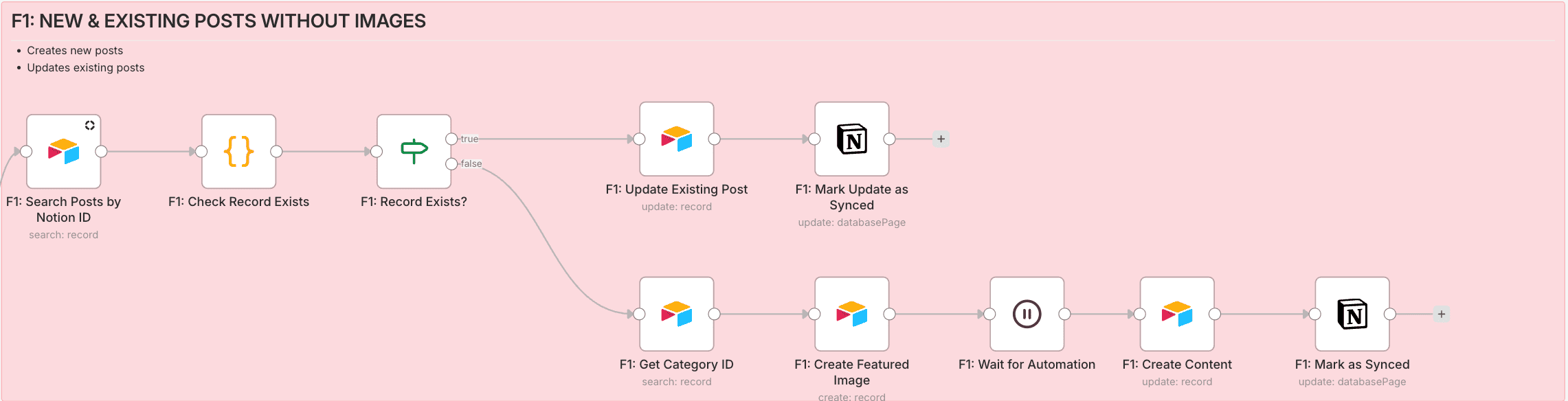
- **F2 (With Images):** Full image processing pipeline with caching
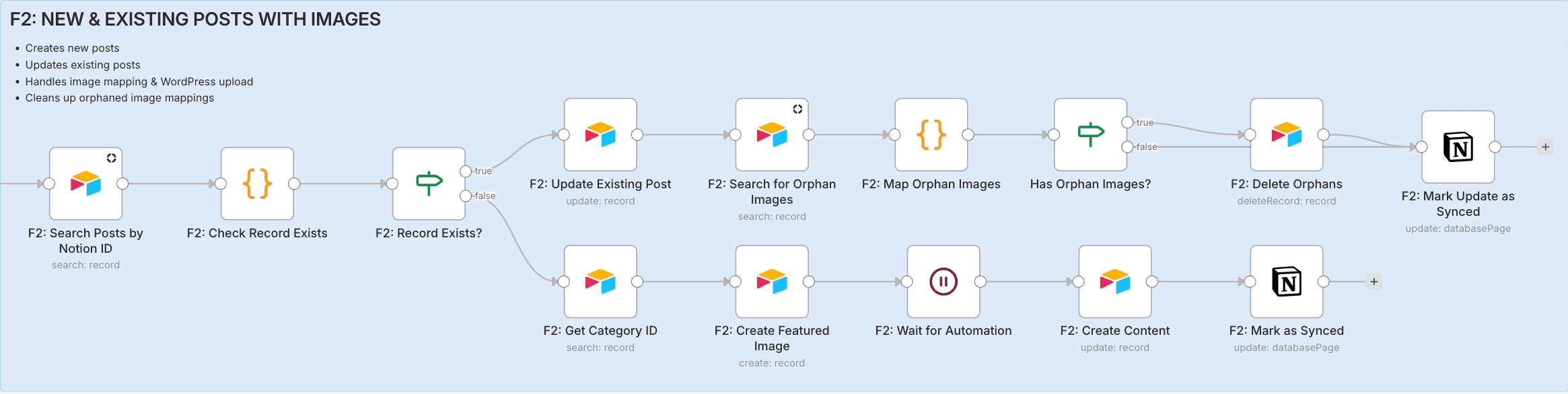
Text-only posts sync in seconds. Posts with 10 images don’t slow down posts with zero images.
**Image Mapping Cache**
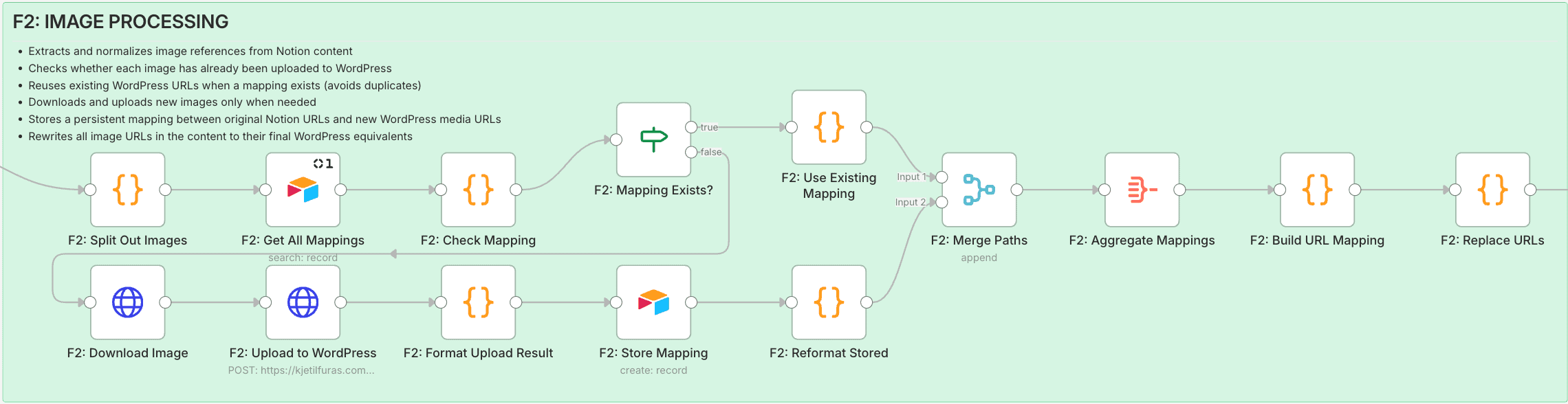
The cache is what made updates bearable:
1. First sync: Upload image to WordPress, store Notion URL → WordPress URL mapping in Airtable
2. Second sync: Check cache first. Image already uploaded? Reuse the WordPress URL. Skip the upload entirely.
3. Remove an image from your post? Orphan cleanup automatically deletes the unused mapping.
Before I built the cache, updating a post with 5 images meant re-uploading all 5 images every time. Now it takes seconds because it just swaps in the cached URLs.
### Workflow 2: Publish to WordPress (23 nodes)
This workflow handles two pipelines:
**Pipeline 1: Featured Image Generation**
1. **Airtable automation triggers** n8n webhook with record ID
2. **n8n fetches** category background image from Airtable
3. **NCA API (Python/PIL)** generates 1200×628 image with title overlay
4. **Image uploads** to S3
5. **Callback updates** Airtable with the image URL
Total time: ~10 seconds
**Pipeline 2: WordPress Publishing (3-Path Routing)**
The workflow uses a Switch node to route to three different paths:
1. **n8n fetches** the complete record (content, featured image, category, tags)
2. **Markdown converter** transforms content into Gutenberg blocks & Prismatic blocks for code (Prism.js)
3. **Switch routes** based on what action is needed:
**The Create path does the heavy lifting:**
- Creates WordPress draft
- Downloads and uploads featured image
- Sets alt text, title, caption on media
- Attaches featured image to post
- Auto-configures Rank Math SEO (focus keyword, description, title)
- All via WordPress REST API. No manual SEO screen clicking
Before the 3-path routing I had one path trying to handle everything. Splitting it gave each action its own flow: publish an existing draft, update existing content, or create a new post.
Every post also comes out with a 66/100 Rank Math score without me opening the SEO panel. That is not a good score. It beats forgetting to set it at all.
Total time: ~15-20 seconds
### 4. WordPress Configuration
For this to work, WordPress needs a few things configured:
**Required Plugins:**
- Rank Math SEO (for SEO meta fields)
- Prismatic (for syntax highlighting in code blocks)
**Application Password:**
WordPress → Users → Your Profile → Application Passwords
Create a new password for n8n API access.
**Rank Math REST API Registration** (functions.php):
```php
/**
* Register Rank Math SEO meta fields for WordPress REST API
*/
add_action('init', function () {
$keys = [
'rank_math_title',
'rank_math_description',
'rank_math_focus_keyword',
];
foreach ($keys as $key) {
register_post_meta('post', $key, [
'type' => 'string',
'single' => true,
'show_in_rest' => true,
'auth_callback' => function () {
return current_user_can('edit_posts');
},
]);
}
});
```
This makes Rank Math fields accessible via REST API, allowing n8n to set SEO metadata programmatically.
## The Publishing Experience
Now when I want to publish a blog post:
1. **Write in Notion**
2. **Create Draft**
3. **Review & Publish**
**Updating a post** follows the same route:
- Edit in Notion, change status to “Ready to Publish” again
- Sync detects existing post, updates Airtable (status becomes “Update Pending”)
- Change to “Post to WordPress”. It updates the existing WordPress post instead of creating a duplicate
The whole thing stays in Notion and Airtable. I never open the media library or the SEO panel.
## Why This Works Better Than Other Solutions
**vs. WordPress Native:**
- Markdown is faster than Gutenberg editor
- Built-in markdown preview links (copy content → paste in [markdownlivepreview.com](http://markdownlivepreview.com/))
- Posts created as drafts – review in WordPress admin before publishing
**vs. Static Site Generators:**
- No git commits or deployment pipelines
- Non-technical users can publish (if needed)
- WordPress ecosystem and plugins still available
**vs. Zapier/Make:**
- n8n is self-hosted (no monthly limits)
- More control over data and logic
- Free for unlimited workflows
**vs. Manual Image Creation:**
- Consistent branding across all images
- 10 seconds vs. 5-10 minutes per image
- No design skills required
**vs. Re-uploading Images Every Time:**
- Image mapping cache means updates are fast
- Edit a post with 10 images? Cache hits, no re-uploads
- Remove an image? Orphan cleanup keeps things tidy
## Environment Management with Variables Table
The Variables table solves the problem of testing workflow changes without touching production.
The same workflow handles both test and production through different webhook URLs:
- Test: `https://n8n.example.com/webhook-test/9ffcd535-379e-4860-941f-5e4f4980a538`
- Production: `https://n8n.example.com/webhook/9ffcd535-379e-4860-941f-5e4f4980a538` (strips `test`)
In my Variables table, I store the test URLs by default:
- `Generate Featured Image`: `https://n8n.example.com/webhook-test/d9c38552-a348-4e64-9853-fc25627e5881`
- `Post To WordPress`: `https://n8n.example.com/webhook-test/9ffcd535-379e-4860-941f-5e4f4980a538`
- `WordPress Media Url`: `https://example.com/wp-json/wp/v2/media`
- `WordPress Posts Url`: `https://example.com/wp-json/wp/v2/posts`
- `Production`: `true`
When `Production` is `true`, the Airtable automation script automatically strips `-test` from all webhook URLs. Every automation instantly switches to production endpoints.
One automation script covers both environments, and I cannot publish to production by accident while testing.
## Performance & Reliability
The system handles posts reliably with consistent timing:
- Featured image generation: 8-12 seconds (depends on Python API)
- WordPress publishing: 15-20 seconds (network + API calls)
- Airtable updates: <1 second
Total automation time: ~30 seconds from changing the status to WordPress draft ready.
## Getting Started with This System
If you want to build something similar:
1. **Start with Airtable**
2. **Set up n8n**
3. **Configure WordPress**
4. **Connect the pieces**
## From Workflow to Product
The automation does the job on my own blog, but keeping Notion, Airtable, n8n and the integrations between them alive is still a fair amount of setup.
After running this system for a while, I started turning the workflow into a dedicated tool called **Notipo**.
Notipo handles the entire publishing flow, from Notion content to WordPress posts with featured images, inline image uploads, and SEO metadata, without needing to maintain the automation stack.
You can look at it here:
[https://notipo.com](https://notipo.com/)
## Related Posts
- [Automate Blog Image Creation Using Python](/automate-blog-image-creation-using-python): auto-generate featured images for your posts
- [Automate Blog to Social Media Using AI and Make](/automate-blog-to-social-media-using-ai-and-make): distribute posts automatically after publishing
- [Automate Blog Images with Python and n8n](/automate-blog-image-using-python-and-n8n): combine image generation with your n8n workflow
## Final Thoughts
I test every code snippet and workflow step before publishing. Writing about automation means the tutorials have to actually work.
---
# How I Automatically Sync My Skool Members to Airtable Every Day
URL: https://kjetilfuras.com/skool-members-to-airtable | Date: Thu Jan 29 2026 00:00:00 GMT+0000 (Coordinated Universal Time) | Category: Automation
I keep a daily list of my Skool members in Airtable. Most of my other automations read from it: subscription tracking, onboarding, anything that needs to know who is actually a member right now.
Skool doesn’t currently offer a public API for member exports, and manual CSV downloads don’t scale.
So I built a daily automated sync that:
- Exports my Skool members reliably
- Parses the export
- Updates Airtable every day with up-to-date member data
## **Why Sync Skool Members to Airtable?**
Exporting a member list sounds trivial. It stops being trivial the moment you want to:
- Track membership changes over time
- Segment members by tier
- Trigger further automations (emails, dashboards, churn alerts)
- Use member data in workflows outside Skool
Manual exports run out of road fast on all of those. Airtable gives me:
- A structured database of members
- Reliable filters (paid vs free, onboarding status)
- Triggers for automations
- Backend that integrates with tools like n8n, Make, and Zapier
## **The Challenge: No Reliable Member API**
Skool doesn’t provide an official member API that I can poll daily. It does offer a CSV export, but clicking through that export every morning doesn’t scale.
This leaves two options:
1. Scraping the UI programmatically (breaks when Skool changes layout)
2. Using the official CSV export and handling it reliably in automation.
I went with the second option.
The CSV export is stable and far less likely to break when Skool changes UI details. It costs me a real browser session, which I can live with.
## Exporting Members Using a Headless Browser
To automate the export, I use **Playwright running in Python**, executed from an n8n Code node via a Python API I host myself.
The workflow does the following:
- Logs into Skool using a real browser session
- Navigates to the members page for the community
- Clicks the **Export** button
- Captures the downloaded CSV file
- Parses and normalizes the member data before sending it downstream
Because this uses the same export button you’d click manually, it avoids undocumented APIs and brittle scraping logic.
### Credentials Handling
Credentials come in through environment variables. For local testing or demos they can be passed explicitly instead.
The top of the export script, where credentials are resolved:
```javascript
// Get credentials - priority: input → env vars → hardcoded fallback
const skoolEmail =
$input.first().json?.email ||
$env.SKOOL_EMAIL ||
'admin@example.com';
const skoolPassword =
$input.first().json?.password ||
$env.SKOOL_PASSWORD ||
'your_password_here';
const skoolGroupId =
$input.first().json?.groupId ||
$env.SKOOL_GROUP_ID ||
'my-community';
// Fail fast if credentials are not configured
if (
!skoolEmail || skoolEmail === 'admin@example.com' ||
!skoolPassword || skoolPassword === 'your_password_here' ||
!skoolGroupId || skoolGroupId === 'my-community'
) {
throw new Error(
'Skool credentials are not configured. ' +
'Set SKOOL_EMAIL, SKOOL_PASSWORD, and SKOOL_GROUP_ID.'
);
}
```
Production reads from environment variables, and a misconfigured run fails loudly instead of half-working. The same script then moves between environments without edits.
Once credentials are resolved, they’re passed into a Python script that launches Playwright, performs the export, and returns structured member data back to n8n.
I deliberately avoided scraping internal APIs or reverse-engineering network requests. This approach is slower than raw HTTP calls, but it’s far more reliable over time, which matters for a workflow that runs every single day.
## The daily sync, step by step
1. Trigger the automation once per day (cron schedule).
2. Programmatically fetch the Skool members export.
3. Normalize the CSV contents.
4. Upsert (insert/update) members in Airtable.
5. Handle new members and member status changes.
Because Airtable is the single source of truth for member data in this workflow, I don’t lose information or create duplicates.
## **Overview of the Automation Workflow**
### **Daily Trigger**
The process starts with a **scheduled trigger**. It runs once per day so I always have fresh member data.
### **Get Skool Members Export**
Instead of scraping Skool, I use the official CSV export mechanism. This keeps the workflow robust, and means it rarely breaks even when Skool updates visually.
### **Parse & Normalize**
Once I have the CSV, I parse it into structured fields. For each member, I normalize key attributes like:
- Full name
- Email
- Membership tier
- Join date
- Paid/free status
This data format makes it easy to upsert into Airtable.
### **Airtable Upsert**
The automation checks if a member already exists in Airtable (by email). If the member exists, it updates fields; otherwise it creates a new record.
That way, changes such as subscription upgrades, downgrades, and churn get reflected automatically.
## **Example Results**
Once synced, each Skool member is stored as a normalized Airtable record with fields that are easy to reason about and automate against.
Each record includes:
- **FirstName** and **LastName** (from Skool)
- **FullName** (derived for convenience)
- **Email** (used as the unique identifier)
- **Tier** (membership plan)
- **Price** and **RecurringInterval** (when available)
- **Status** (Free or Paid)
- **IsPaid** (boolean flag for automation logic)
Because the data is normalized up front, Airtable becomes a reliable source of truth rather than a raw export dump.
That makes it easy to:
- Build views like Active Paid Members
- Calculate churn and growth over time
- Trigger onboarding or upgrade automations
- Drive downstream workflows (GitHub access, notifications, reporting)
## **What I Use to Build This**
The toolchain:
- **n8n** for orchestrating the daily automation (self-hosted)
- **Headless export logic** to fetch the CSV
- **CSV parsing and normalization** in the workflow
- **Airtable** to upsert member records
It runs once a day without me looking at it, and has saved me hours every month.
## How This Feeds Into My Premium GitHub Automation

The same daily sync is the source of truth for automating access to my premium GitHub organization.
When a member joins, upgrades, or loses access, that state already exists in Airtable. From there, a separate n8n workflow handles things like:
- Verifying the member exists and is paid
- Requesting manual approval where needed
- Inviting the member to a private GitHub organization
- Handling failures and retries
- Keeping access in sync over time
Because membership data is centralized, I don’t need to manually manage GitHub access or reconcile lists across platforms. The automation runs off the same data that powers my dashboards and onboarding flows.
That is why I spent the time making the Skool export reliable. Everything downstream inherits its mistakes.
## **Final Thoughts**
Getting your member list out of Skool on a schedule is a niche problem. Once the data sits in Airtable it feeds everything else:
- Dashboards and monitoring
- Automated onboarding and follow-ups
- Integration with CRMs or email systems
- Advanced segmentation for insights
If you want access to the full workflows and infrastructure behind systems like this, I share them inside my [**Skool community**](https://go.kjetilfuras.com/build-automate).
## Related Posts
- [Automate WordPress Blog Publishing with Airtable and n8n](/automate-wordpress-blog-publishing)
- [Automate Blog to Social Media Using AI and Make](/automate-blog-to-social-media-using-ai-and-make)
- [Automate Blog Images with Python and n8n](/automate-blog-image-using-python-and-n8n)
---
# Automate Blog Image using Python and n8n
URL: https://kjetilfuras.com/automate-blog-image-using-python-and-n8n | Date: Wed Nov 26 2025 00:00:00 GMT+0000 (Coordinated Universal Time) | Category: Automation
A while back I wrote about how I automate blog image creation using Python. It worked, but I had to open a CSV file, type in the title, and then open the terminal to run the script.
Now using Airtable or nocoDB, I’ve automated the process completely.
Here’s how to automate blog image using Python and n8n: Open a form URL on your computer or phone, type your blog post name, select your category, and hit submit. A webhook triggers n8n, which fetches your background image and calls a Python script running in a self-hosted Docker container. It processes the image and sends it back to Airtable via webhook callback.
This post uses Airtable, but I also have a nocoDB workflow available, which is a free self-hosted alternative.
## The Airtable Form

The form is simple – just two fields:
- **Title** – Your blog post name
- **Category** – Select from your blog categories (Automation, Homelab, Cybersecurity, etc.)
Submit the form, and behind the scenes, the entire automation kicks off.
When submitted it creates a new entry in Airtable, but the processed image is empty.
A few seconds later when n8n has processed the image it will appear in Airtable again with the given blog post title and blog category.
## How It Works
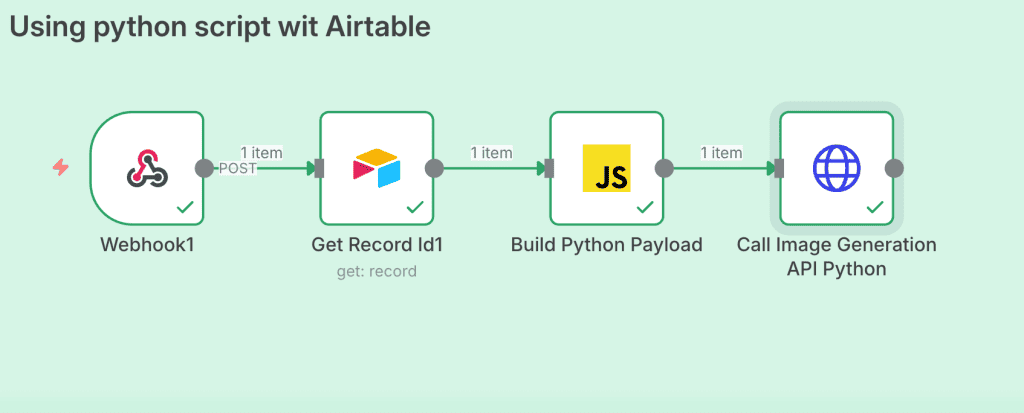
The workflow is straightforward:
1. **Airtable form submission** triggers a webhook to n8n
2. **Get Record ID** fetches the full record details from Airtable (including background image URL)
3. **Build Python Payload** prepares the Python script with your actual values (title, category, image URL)
4. **Call Image Generation API** sends everything to my self-hosted Python API
5. **Python processes the image** and uploads it to MinIO (also self-hosted)
6. **Airtable updates** with the final image via webhook callback
## Airtable Automation Script
When a record is created and enters the “Ready for Processing” view, this script runs:
```javascript
// 1. Fetch and normalize Airtable variables
let table = base.getTable('Variables');
let query = await table.selectRecordsAsync();
let variables = {};
for (let rec of query.records) {
let name = rec.getCellValue('Name');
let value = rec.getCellValue('Value');
if (name && value) {
let key = name.trim().toUpperCase().replace(/[^A-Z0-9]+/g, "_").replace(/^_|_$/g, "");
variables[key] = value;
}
}
// 2. Strip "-test" if in PRODUCTION mode
let production = String(variables["PRODUCTION"]).toLowerCase() === "true";
if (production) {
for (let key in variables) {
if (typeof variables[key] === "string" && variables[key].includes("-test")) {
variables[key] = variables[key].replace("-test", "");
}
}
}
// 3. Separate into webhook outputs and NCA endpoints
let ncaEndpoints = {};
let webhookUrl = null;
for (const [key, value] of Object.entries(variables)) {
const isWebhook = value.includes("webhook");
// camelCase conversion
const camelKey = key
.toLowerCase()
.split("_")
.map((w, i) => i === 0 ? w : w[0].toUpperCase() + w.slice(1))
.join("");
// Webhook outputs
if (isWebhook) {
output.set(`${camelKey}`, value);
if (!webhookUrl) webhookUrl = value;
}
// Grouped APIs
else if (key.startsWith("NCA_")) {
const ncaKey = key.replace("NCA_", "").toLowerCase();
ncaEndpoints[ncaKey] = value;
}
}
// 4. Get input params
let params = input.config();
// 5. Build the payload
let requestBody = {
recordId: params.recordId,
nca: ncaEndpoints,
};
// 6. Send the POST request to n8n
await fetch(webhookUrl, {
method: "POST",
headers: {
"Content-Type": "application/json"
},
body: JSON.stringify(requestBody)
});
output.set("ncaEndpoints", JSON.stringify(ncaEndpoints));
```
This script reads my **Variables table** (where I store all API endpoints and webhook URLs), normalizes the variable names, and sends the record ID + endpoints to n8n.
The screenshot above shows the Airtable script that handles orchestration.
## Build Python Payload (The Tricky Part)
This is where template variables get interpolated.
Here’s the key function:
```javascript
// Get data from the previous node (Get Record Id1 from Airtable)
const title = $json.Title || 'Untitled';
const backgroundImageUrl = $json['Background Image (from Category)']?.[0]?.url || '';
const category = $json['Category (from Category)']?.[0] || 'General';
// Create the Python code WITH ACTUAL VALUES (not n8n template variables)
const pythonCode = `from PIL import Image, ImageDraw, ImageFont
import requests
from io import BytesIO
import sys
import os
import subprocess
import warnings
warnings.filterwarnings("ignore", category=DeprecationWarning)
try:
import boto3
from botocore.client import Config
except ImportError:
print('Installing boto3...', file=sys.stderr)
subprocess.check_call([sys.executable, '-m', 'pip', 'install', 'boto3', '--break-system-packages', '--quiet'])
import boto3
from botocore.client import Config
print('boto3 installed', file=sys.stderr)
WIDTH, HEIGHT = 1200, 628
FONT_PATH = '/usr/share/fonts/truetype/dejavu/DejaVuSans-Bold.ttf'
FONT_SIZE = 50
SMALL_FONT_SIZE = 24
TEXT_COLOR = 'white'
SHADOW_COLOR = 'black'
CATEGORY_COLOR = '#94a3b8'
S3_ENDPOINT = os.getenv('S3_ENDPOINT_URL')
S3_ACCESS_KEY = os.getenv('S3_ACCESS_KEY')
S3_SECRET_KEY = os.getenv('S3_SECRET_KEY')
S3_BUCKET = os.getenv('S3_BUCKET_NAME', 'nca-toolkit')
background_url = '${backgroundImageUrl}'
title = '''${title}'''
category = '${category}'
try:
response = requests.get(background_url, timeout=30)
response.raise_for_status()
bg = Image.open(BytesIO(response.content)).resize((WIDTH, HEIGHT)).convert('RGBA')
overlay = Image.new('RGBA', bg.size, (0, 0, 0, 100))
img = Image.alpha_composite(bg, overlay)
draw = ImageDraw.Draw(img)
try:
font = ImageFont.truetype(FONT_PATH, FONT_SIZE)
small_font = ImageFont.truetype(FONT_PATH, SMALL_FONT_SIZE)
except Exception as e:
print(f'Font loading failed: {e}', file=sys.stderr)
font = ImageFont.load_default()
small_font = ImageFont.load_default()
draw.text((40, 30), category, font=small_font, fill=CATEGORY_COLOR)
words = title.split()
lines, line = [], ''
for word in words:
test = f'{line} {word}'.strip()
if draw.textlength(test, font=font) < WIDTH - 100:
line = test
else:
lines.append(line)
line = word
lines.append(line)
y_start = (HEIGHT - len(lines) * FONT_SIZE) // 2
for i, l in enumerate(lines):
text_width = draw.textlength(l, font=font)
x = (WIDTH - text_width) // 2
y = y_start + i * FONT_SIZE
draw.text((x + 2, y + 2), l, font=font, fill=SHADOW_COLOR)
draw.text((x, y), l, font=font, fill=TEXT_COLOR)
output_path = '/tmp/blog-image.png'
img.convert('RGB').save(output_path, 'PNG', quality=95)
if S3_ACCESS_KEY and S3_ENDPOINT:
safe_name = title.lower().replace(' ', '-').replace('/', '-')
safe_name = ''.join(c for c in safe_name if c.isalnum() or c == '-')
object_name = f'blog-images/{safe_name}.png'
s3_client = boto3.client('s3', endpoint_url=S3_ENDPOINT, aws_access_key_id=S3_ACCESS_KEY, aws_secret_access_key=S3_SECRET_KEY, config=Config(signature_version='s3v4'))
s3_client.upload_file(output_path, S3_BUCKET, object_name, ExtraArgs={'ContentType': 'image/png'})
public_url = f'{S3_ENDPOINT}/{S3_BUCKET}/{object_name}'
print(public_url)
else:
print(output_path)
print('WARNING: S3 credentials not found', file=sys.stderr)
except Exception as e:
print(f'ERROR: {str(e)}', file=sys.stderr)
sys.exit(1)`;
// Build the API payload with the interpolated Python code
return [{
json: {
code: pythonCode,
timeout: 120,
webhook_url: "https://hooks.airtable.com/workflows/v1/genericWebhook/app4Jxxx",
id: $json.id || $execution.id
}
}];
```
The key here: extract actual values first (`const title = $json.Title`), then embed them into the Python code string using template literals (`${title}`).
This way, Python receives real values, not n8n syntax.
## What the Python Script Does
1. **Downloads the background image** from the URL you selected
2. **Adds a dark overlay** so text is readable
3. **Renders the category** in the top-left corner (gray text)
4. **Wraps and centers the title** with a shadow effect for contrast
5. **Uploads to MinIO/S3** with a safe filename (lowercase, hyphens)
6. **Returns the public URL** so Airtable can store it
The image is 1200×628 pixels (standard for LinkedIn, Twitter, and blog featured images).
## HTTP Request to Python API
The HTTP node sends a POST request with the Python code and configuration:
```json
{
"code": "...",
"timeout": 120,
"webhook_url": "...",
"id": "..."
}
```
The Python API runs the code and returns the image URL.
## Ready to Automate?
Ready to build more automations like this? Get the complete n8n workflow, Airtable base, and community support: [https://go.kjetilfuras.com/blog](https://go.kjetilfuras.com/blog)
## Related Posts
- [Automate Blog Image Creation Using Python](/automate-blog-image-creation-using-python)
- [Automate WordPress Blog Publishing with Airtable and n8n](/automate-wordpress-blog-publishing)
- [Automate Blog to Social Media Using AI and Make](/automate-blog-to-social-media-using-ai-and-make)
---
# Automate Proxmox VMs with Cloud-Init
URL: https://kjetilfuras.com/automate-proxmox-vms-with-cloud-init | Date: Mon Nov 24 2025 00:00:00 GMT+0000 (Coordinated Universal Time) | Category: Automation
In my previous post, I showed how to [provision VMs with NoCloud](/provision-ubuntu-vms-with-nocloud-on-proxmox). That works great, but there’s an even faster approach: storing your cloud-init config directly in Proxmox’s snippets folder and referencing it with `--cicustom`.
Automate Proxmox VMs with Cloud-Init method is cleaner, more manageable, and scales better when you’re provisioning multiple VMs with similar configurations.
## The Advantage of -cicustom
Instead of generating ISOs for each cloud-init config, you:
- Store YAML templates in Proxmox
- Reference them by path when cloning VMs
- Reuse the same config across multiple clones
- Easily update configurations in one place
Let’s walk through it.
## Download the Cloud Image
SSH into your Proxmox server and download the latest Ubuntu 24.04 cloud image:
```bash
cd /var/lib/vz/template/iso
wget https://cloud-images.ubuntu.com/releases/noble/release/ubuntu-24.04-server-cloudimg-amd64.img
```
Verify the download:
```bash
ls -lah /var/lib/vz/template/iso/ | grep ubuntu
```
You should see the `ubuntu-24.04-server-cloudimg-amd64.img` file listed.
## Create the VM Template
Create the base VM template that you’ll clone from:
```bash
qm create 501 \
--name ubuntu-template \
--memory 2048 \
--cores 4 \
--net0 virtio,bridge=vmbr0 \
--scsihw virtio-scsi-pci \
--ostype l26 \
--agent enabled=1 \
--vga serial0 \
--serial0 socket
```
>
> `--ostype l26` – Tells Proxmox this is a Linux VM
> `--agent enabled=1` – Enables QEMU guest agent
> **Optional (Nice to have):**
> `--vga serial0` and `--serial0 socket` – Enable serial console access.
> This lets you watch cloud-init progress in real-time in the Proxmox console. Can be omitted if you don’t need to monitor boot output.
Import the cloud image disk:
```bash
qm set 501 --scsi0 local-zfs:0,import-from=/var/lib/vz/template/iso/ubuntu-24.04-server-cloudimg-amd64.img
```
> This imports the cloud image (~3.5GB). You need to resize the disk to provide adequate space for cloud-init
Resize the disk after import:
```bash
qm resize 501 scsi0 +60G
```
Attach the cloud-init disk:
```bash
qm set 501 --ide2 local-zfs:cloudinit
```
Set boot order:
```bash
qm set 501 --boot order=scsi0
```
Convert to a template:
```bash
qm template 501
```
Now you have a reusable Ubuntu template in Proxmox. All future clones will inherit this configuration.
## Create Your Cloud-Init YAML
SSH into your Proxmox server and create the snippets folder:
```bash
cd /var/lib/vz/snippets
nano cloud-init-config.yaml
```
Paste your cloud-init configuration. Here’s a production-ready example that includes SSH hardening, QEMU Guest Agent, Fail2Ban, UFW firewall, and Docker:
```yaml
#cloud-config
users:
- name: kaf <-- Swap this with your own username
groups: users, admin, docker
sudo: ALL=(ALL) NOPASSWD:ALL
shell: /bin/bash
ssh_authorized_keys:
- ssh-ed25519 AAAAC3NzaC1lZDI1NTE5AAAAI... <-- Your public ssh key here
packages:
- fail2ban
- ufw
- ca-certificates
- curl
- gnupg
- lsb-release
- qemu-guest-agent
package_update: true
package_upgrade: true
write_files:
- path: /etc/ssh/sshd_config.d/ssh-hardening.conf
content: |
PermitRootLogin no
PasswordAuthentication no
Port 22
KbdInteractiveAuthentication no
ChallengeResponseAuthentication no
MaxAuthTries 2
AllowTcpForwarding no
X11Forwarding no
AllowAgentForwarding no
AuthorizedKeysFile .ssh/authorized_keys
AllowUsers kaf <-- Swap this with your own username
- path: /etc/docker/daemon.json
content: |
{
"log-driver": "json-file",
"log-opts": {
"max-size": "10m",
"max-file": "3"
}
}
runcmd:
# Fail2Ban setup
- printf "[sshd]\nenabled = true\nport = ssh, 22\nbanaction = iptables-multiport" > /etc/fail2ban/jail.local
- systemctl enable fail2ban
- systemctl start fail2ban
# UFW Firewall
- ufw allow 22/tcp
- ufw allow 80/tcp
- ufw allow 443/tcp
- ufw enable
# Docker Installation (Docker v29 - DEB822 format)
- mkdir -p /etc/apt/keyrings
- curl -fsSL https://download.docker.com/linux/ubuntu/gpg -o /etc/apt/keyrings/docker.asc
- chmod a+r /etc/apt/keyrings/docker.asc
- |
tee /etc/apt/sources.list.d/docker.sources > /dev/null < Tip: You can skip the passphrase for convenience or add one for security.
### 2. Copy Your Public Keys to the Remote Hosts
```
ssh-copy-id -i ~/.ssh/id_ed25519_docker_01.pub myuser@10.xx.xx.xx
ssh-copy-id -i ~/.ssh/id_ed25519_pve_1.pub root@10.xx.xx.xx
ssh-copy-id -i ~/.ssh/id_ed25519_hetzner.pub root@your-vps-ip
```
### 3. Configure Your `~/.ssh/config`
```
vim ~/.ssh/config
```
Example:
```
# Docker server
Host docker-01
HostName 10.xx.xx.xx
User myuser
IdentityFile ~/.ssh/id_ed25519_docker_01
# Proxmox node
Host pve-1
HostName 10.xx.xx.xx
User root
IdentityFile ~/.ssh/id_ed25519_pve_1
# Hetzner VPS
Host hetzner
HostName 65.21.xx.xx
User root
IdentityFile ~/.ssh/id_ed25519_hetzner
# GitHub
Host github.com
HostName github.com
User git
IdentityFile ~/.ssh/id_ed25519_github
IdentitiesOnly yes
```
> `IdentitiesOnly yes` prevents SSH from trying other keys. That helps avoid confusion when multiple keys are loaded.
### 4. Add SSH Key to GitHub
#### 4.1. Copy the Public Key
- **macOS:**
```
pbcopy < ~/.ssh/id_ed25519_github.pub
```
- **Linux:**
```
xclip -sel clip < ~/.ssh/id_ed25519_github.pub
# or
wl-copy < ~/.ssh/id_ed25519_github.pub
```
#### 4.2. Add to GitHub
1. Visit [GitHub SSH settings](https://github.com/settings/keys)
2. Click **“New SSH key”**
3. Give it a meaningful name
4. Paste the key
5. Click **“Add SSH key”**
## Test Your Setup
### Linux VMs
```
ssh docker-01
ssh pve-1
ssh hetzner
```
### GitHub
```
ssh -T git@github.com
```
If everything’s set up correctly, GitHub will reply:
```
Hi kjetil! You've successfully authenticated, but GitHub does not provide shell access.
```
## Optional: Disable Password Prompt for sudo
If you’re tired of typing your password every time you use `sudo`, you can edit the `sudoers` file:
```
sudo visudo
```
Look for this line:
```
# Allow members of group sudo to execute any command
%sudo ALL=(ALL:ALL) ALL
```
Change it to:
```bash
# Allow members of group sudo to execute any command
%sudo ALL=(ALL:ALL) NOPASSWD: ALL
```
Just be careful. Removing password prompts reduces security, especially on multi-user or production systems.
## Final Thoughts
This setup has completely decluttered my SSH workflow. No more guessing which key is being used, or why I can’t connect. Whether you’re running a homelab, cloud servers, or just want GitHub SSH access done right, this pattern is clean, scalable, and easy to maintain.
_Found this helpful?_ I share more real-world fixes and homelab tips [here on the blog](/blog) and on [GitHub](https://github.com/kfuras).
---
# Build a Voice-Enabled AI Agent in n8n
URL: https://kjetilfuras.com/build-a-voice-enabled-ai-agent-in-n8n | Date: Fri Jun 06 2025 00:00:00 GMT+0000 (Coordinated Universal Time) | Category: Automation
When I started playing with AI Agents inside n8n, I wanted more than a question box. I wanted something I could talk to, literally, that could act on what I said and handle everyday jobs like sending an email or booking a meeting.
The result was a self-hosted AI Agent that works entirely through Telegram. It understands both text and voice messages, and responds in kind. It’s also integrated with Gmail, Google Calendar, and Airtable.
You can read up on Airtable [here](https://www.airtable.com/).
## What It Does
- Accept text or voice input via Telegram.
- Transcribe voice using OpenAI Whisper.
- Use GPT-4o-mini via the AI Agent node to reason over the prompt.
- Automatically use tools like Gmail, Google Calendar, or Airtable.
- Reply either as a message or an audio file using [Kokoro TTS](https://github.com/remsky/Kokoro-FastAPI).
## Overview of the Stack
- n8n (self-hosted)
- AI Agent (n8n’s integration)
- GPT-4o-mini via OpenAI
- Airtable for contact lookup
- Gmail and Google Calendar
- Kokoro TTS (self-hosted)
- Telegram Bot as frontend
## 1. Telegram as the Frontend
The workflow starts with a `Telegram Trigger` node. It picks up both text messages and voice recordings.
## 2. Handling Voice Input
If the message is a voice file, I use Telegram’s file API to download it and pass it to OpenAI Whisper (via the `Transcribe Audio` node). Whisper hands back plain text of whatever was said.
## 3. Configuring the AI Agent
The AI Agent node connects GPT-4o-mini with a memory buffer and system instructions. It uses the user’s Telegram chat ID as a custom session key to keep conversations contextual.
My system prompt includes tool usage guidance and a fallback if no user or email is provided:
_You are a helpful assistant.
Always use the “Get Contacts” tool for finding an email address for the “Send Email” and “Book Event” tool. If I fail to provide a User or Email you default to (myself) “My Name” at Email “MyEmailAddress”_
## 4. Tools the Agent Can Use
Tools are defined using AI Agent’s-compatible nodes. In my case, the agent can:
- **Look up contacts in Airtable**
- **Send email via Gmail**
- **Book events via Google Calendar**
- **Call another n8n workflow to fetch API endpoints**
Each tool connects to the AI Agent through the `Tool` input port, like this:
## 5. Responding Back to the User
After generating the output, the workflow branches based on whether the input was text or voice:
- **If text** → reply using Telegram text node.
- **If voice** → send the output to Kokoro TTS to generate an `.mp3` voice message, and send that back.
The Kokoro HTTP node uses a POST request with payload like:
```json
{
"model": "kokoro",
"input": "{{ $json.output }}",
"voice": "am_adam",
"response_format": "mp3",
"download_format": "mp3",
"return_timestamps": false,
"speed": 1
}
```
Kokoro returns the mp3, and Telegram plays it back in the chat.
## Real Examples
A few prompts I have tested:
- “_Send an email to Alex confirming our call tomorrow._” → Agent finds Alex’s email in Airtable and sends the message via Gmail.
- “_Book a meeting with Jane next Tuesday at 2pm._” → Adds an event to my Google Calendar.
- Voice: “_What’s my next meeting?_” → Transcribed and answered with a voice reply.
## Final Thoughts
The assistant lives inside Telegram. I talk to it, it calls a tool, and it answers in text or audio depending on how I asked. I use it daily.
You can extend it with more tools: document summarization, Notion notes, file handling, or webhook integrations.
For companies, this kind of setup can also solve real operational problems:
- Auto-schedule meetings with leads using natural language (e.g., “Book a demo with Sam next Thursday”)
- Look up internal contacts or CRM data and send contextual emails
- Summarize meeting transcripts and send key takeaways to Slack or Teams
- Trigger IT workflows or incident responses via chat
- Answer internal questions from private documentation in Notion, Confluence, or Google Drive
- Generate quick reports from Airtable, dashboards, or APIs
If you build your own, start with the voice and text input logic plus the AI Agent node. Layer the tools on after that part works.
DM me on [LinkedIn](https://www.linkedin.com/in/kjetil-furas/) or [X](https://twitter.com/kjetilfuras) if you want the full workflow JSON or a walkthrough.
More n8n automation workflows are going up [](/blog)[here on the blog](/blog).
## Related Reading
- [Give Your AI Agent Persistent Memory](/ai-agent-persistent-memory): Memory architectures for agents (file-based, vector, hybrid) with real-world trade-offs.
- [Run a Claude Code Agent in Production](/claude-code-agents-production): How to run Claude Code as a real production agent, covering observability, retries, secrets and drift handling.
---
# n8n + Cloudflare Tunnel: Self-Host Without Open Ports (2026)
URL: https://kjetilfuras.com/self-host-n8n-with-cloudflare-zero-trust | Date: Thu May 08 2025 00:00:00 GMT+0000 (Coordinated Universal Time) | Category: Homelab
When I decided to host [n8n](https://n8n.io/) at home, I knew I didn’t want to expose it directly to the internet.
I wanted something that scaled and stayed easy to maintain, without opening a single port on my home firewall.
After testing a few approaches, I ended up with this:
- **Docker Compose** (with Traefik reverse proxy)
- **PostgreSQL** for persistent storage
- **Cloudflare Tunnel** (Zero Trust) to securely expose my services
- **Cloudflare Access** to protect the n8n UI login page
This guide walks you through how I run n8n on my home server today, including the exact `docker-compose.yml` and `.env` files I use.
## Overview of the Setup
- Dockerized n8n with Traefik
- Cloudflare Tunnel: no open ports needed
- PostgreSQL backend for stability
- Two hostnames: one for the UI, one for webhook endpoints
- UI login protected with Cloudflare Access
## Prerequisites
- A Cloudflare account with your domain added
- A Linux server (I’m running Ubuntu 24.04)
- Docker and Docker Compose installed
- Basic SSH access to your server
## 1. Create the Project Directory
On your home server, create a clean directory to store your n8n setup:
```bash
mkdir -p ~/n8n-stack
cd ~/n8n-stack
```
## 2. Create Your .env File
Create a `.env` file with your environment variables:
> I’m using `vim` in this article, but feel free to use any editor you’re comfortable with.
```bash
vim .env
```
Paste in your settings (replace with your actual passwords and tokens):
```bash
# Database
POSTGRES_USER=root
POSTGRES_PASSWORD=yourpassword
POSTGRES_DB=n8n
# n8n secrets
N8N_ENCRYPTION_KEY=your-super-secret-key
N8N_USER_MANAGEMENT_JWT_SECRET=your-even-more-secret
# Authentication
N8N_BASIC_AUTH_ACTIVE=true
N8N_BASIC_AUTH_USER=admin
N8N_BASIC_AUTH_PASSWORD=yourpassword
# Hostnames
N8N_HOST=n8n.yourdomain.com
N8N_WEBHOOK=webhook.yourdomain.com
N8N_PROTOCOL=https
N8N_PORT=5678
# Timezone
GENERIC_TIMEZONE=Europe/Oslo
# Cloudflare Tunnel
CLOUDFLARE_TUNNEL_TOKEN=your_cloudflare_tunnel_token
```
Save and exit. (If you’re in insert mode, press `Esc`, then type `:wq` and hit Enter to save and exit.)
## 3. Create Your docker-compose.yml
Still inside the same folder, create your Docker Compose file:
```bash
vim docker-compose.yml
```
Paste this configuration: the setup I ran in production, with the routing fix from the security note above already applied:
```yaml
volumes:
n8n_storage:
postgres_storage:
traefik_data:
networks:
n8n-net:
x-n8n: &service-n8n
image: n8nio/n8n:latest
networks: ['n8n-net']
environment:
- DB_TYPE=postgresdb
- DB_POSTGRESDB_HOST=postgres
- DB_POSTGRESDB_USER=${POSTGRES_USER}
- DB_POSTGRESDB_PASSWORD=${POSTGRES_PASSWORD}
- N8N_DIAGNOSTICS_ENABLED=false
- N8N_PERSONALIZATION_ENABLED=false
- N8N_ENCRYPTION_KEY=${N8N_ENCRYPTION_KEY}
- N8N_USER_MANAGEMENT_JWT_SECRET=${N8N_USER_MANAGEMENT_JWT_SECRET}
- WEBHOOK_URL=https://${N8N_WEBHOOK}
- N8N_HOST=${N8N_HOST}
- N8N_PORT=5678
- N8N_PROTOCOL=https
- N8N_BASIC_AUTH_ACTIVE=${N8N_BASIC_AUTH_ACTIVE}
- N8N_BASIC_AUTH_USER=${N8N_BASIC_AUTH_USER}
- N8N_BASIC_AUTH_PASSWORD=${N8N_BASIC_AUTH_PASSWORD}
services:
traefik:
image: traefik:v2.10
container_name: traefik
restart: always
networks: ['n8n-net']
command:
- "--api=true"
- "--providers.docker=true"
- "--providers.docker.exposedbydefault=false"
- "--entrypoints.n8n_ui.address=:8082"
- "--entrypoints.n8n_webhooks.address=:8083"
ports:
- "8082:8082"
- "8083:8083"
volumes:
- traefik_data:/letsencrypt
- /var/run/docker.sock:/var/run/docker.sock:ro
postgres:
image: postgres:16-alpine
hostname: postgres
networks: ['n8n-net']
restart: unless-stopped
environment:
- POSTGRES_USER=${POSTGRES_USER}
- POSTGRES_PASSWORD=${POSTGRES_PASSWORD}
- POSTGRES_DB=${POSTGRES_DB}
volumes:
- postgres_storage:/var/lib/postgresql/data
healthcheck:
test: ['CMD-SHELL', 'pg_isready -h localhost -U ${POSTGRES_USER} -d ${POSTGRES_DB}']
interval: 5s
timeout: 5s
retries: 10
n8n:
<<: *service-n8n
hostname: n8n
container_name: n8n
restart: unless-stopped
volumes:
- n8n_storage:/home/node/.n8n
- ./n8n/backup:/backup
- ./shared:/data/shared
depends_on:
postgres:
condition: service_healthy
labels:
- "traefik.enable=true"
- "traefik.http.routers.n8n-ui.rule=Host(`${N8N_HOST}`)"
- "traefik.http.routers.n8n-ui.entrypoints=n8n_ui"
- "traefik.http.routers.n8n-webhooks.rule=Host(`${N8N_WEBHOOK}`) && PathPrefix(`/webhook`,`/webhook-test`,`/webhook-waiting`,`/form`,`/form-test`,`/form-waiting`)"
- "traefik.http.routers.n8n-webhooks.entrypoints=n8n_webhooks"
- "traefik.http.services.n8n.loadbalancer.server.port=5678"
cloudflared:
image: cloudflare/cloudflared:latest
container_name: cloudflared
restart: always
networks: ['n8n-net']
command: tunnel --no-autoupdate run --token ${CLOUDFLARE_TUNNEL_TOKEN}
environment:
- TUNNEL_TOKEN=${CLOUDFLARE_TUNNEL_TOKEN}
```
Save and exit.
### Why the webhook router needs a PathPrefix
That `PathPrefix` on the webhook router is doing security work, not tidiness.
Both routers forward to the same n8n container on port 5678, and n8n serves the
UI, the REST API and the webhooks from that one port, separated only by path.
Cloudflare Access sits on the UI hostname. So if the webhook router matches on
`Host()` alone, it happily serves every path on the webhook hostname, including
`/` and `/rest`. The login page and the full API end up reachable on a hostname
that Access never sees.
Restricting the webhook router to the trigger paths closes that. The UI and
`/rest` then exist only on the hostname Access protects.
This post originally shipped the `Host()`-only rule. Thanks to Marco Millo for
spotting it and writing in. If you set this up before this correction, update
that one label and redeploy.
**On Traefik v3:** the multi-argument form above is Traefik v2 syntax. v3
removed it, so there you need the paths OR-ed instead:
```
Host(`${N8N_WEBHOOK}`) && (PathPrefix(`/webhook`) || PathPrefix(`/webhook-test`) || PathPrefix(`/webhook-waiting`) || PathPrefix(`/form`) || PathPrefix(`/form-test`) || PathPrefix(`/form-waiting`))
```
If you use the Chat Trigger or the MCP Server Trigger, add their paths too.
Anything not listed stops reaching n8n on that hostname.
## 4. Set Up the Cloudflare Tunnel (Zero Trust)
With the `docker-compose.yml` and `.env` files ready, the next step is securing public access using Cloudflare Tunnel.
This way, I don’t need to expose any ports on my home network. Everything routes through Cloudflare.
Here’s how I set it up:
### 4.1 Create a Tunnel in Cloudflare Zero Trust
- Go to your [Cloudflare Zero Trust dashboard](https://dash.cloudflare.com/).
- Navigate to **Zero Trust** **→** **Networks → Tunnels**.
- Click **Create a Tunnel**.
- Select Cloudflared, and give your tunnel a name (I named mine `n8n`).
On the Choose your environment page, select Dcoker. Cloudflare will generate a Docker command to run the `cloudflared` container.
You **don’t** need the full command because you’re managing it in Docker Compose already. Just grab the **token** part.
Example:
```bash
docker run cloudflare/cloudflared:latest tunnel --no-autoupdate run --token eyJhIjoiZGU.....
```
Copy the token (the long `eyJhI...` string), and Click Next.
### 4.2 Update Your .env with the Tunnel Token
Open your `.env` file and paste the token:
```bash
vim .env
```
Update the line:
```bash
CLOUDFLARE_TUNNEL_TOKEN=your_full_token_here
```
Save and exit.
Now your `cloudflared` service in Docker will authenticate securely with Cloudflare Zero Trust.
### 4.3 Create Public Hostnames
In the Route Traffic page:
Add two hostnames: n8n, and webhook, and Click Save Tunnel.
> **Important:**
> Make sure the container ports doesn’t overlap with other services running on the docker host.
## 5. Protect the n8n UI with Cloudflare Access
Since I’m exposing the UI publicly (n8n.yourdomain.com), I also locked it down with Cloudflare Access.
Here’s how:
Go to **Rule Groups**
- Click **Add a group**
- Rule group name: `n8n`
- Selector: **Emails** (type an email you trust) and click Save.
Go to **Access → Applications**.
- Click **Add an application** → **Self-hosted**.
- Application Name: `n8n`
- Application Domain: `n8n.yourdomain.com`
- Under **Policies**, create a new policy and select the Rule Group you created earlier, and Click Save.
Head back to **Applications**, under **access policies** select the policy you created earlier, and Click Confirm.
For login methods, I personally use default **One-Time PIN** authentication, which is fast and doesn’t require managing OAuth settings.
This protects the n8n dashboard while keeping webhook endpoints open and functional.
## 6. Start Everything
Everything is configured. While in `~/n8n-stack`, run:
```bash
docker compose up -d
```
Docker will:
- Start PostgreSQL
- Start n8n
- Start Traefik
- Start the Cloudflare Tunnel
Your n8n dashboard should now be reachable at: `https://n8n.yourdomain.com`
And your webhook URLs will work through: `https://webhook.yourdomain.com/webhook/xxxxx`
## Final Thoughts
The setup has been stable for me. I don’t need to touch the firewall, and backup and restore is just Docker volumes.
If you’re self-hosting at home, Cloudflare Tunnel plus Access with Docker does the job.
(This will also work for VPS providers such as Digital Ocean, Hetzner, etc).
## More automation writeups
I write up automation projects and self-hosting setups [here on the blog](/blog), and the code examples go on [GitHub](https://github.com/kfuras).
If you want to talk about building your own homelab automations, I’m in my skool community [Build & Automate](https://go.kjetilfuras.com/build-automate).
---
# How to Deploy Fonts on macOS Using Microsoft Intune
URL: https://kjetilfuras.com/deploy-fonts-on-macos-intune | Date: Fri May 02 2025 00:00:00 GMT+0000 (Coordinated Universal Time) | Category: Automation
Microsoft Intune allows IT admins to remotely deploy fonts without requiring manual installation. In this post, I’ll walk through how to install fonts on macOS via Intune using a Bash script.
## Why Deploy Fonts via Intune
- Ensure all Mac devices in your organization use the same fonts
- Automate font deployment without requiring user interaction
- Deploy fonts across multiple devices from Microsoft Intune
## Prerequisites
Before proceeding, ensure you have:
- macOS devices enrolled in Intune
- Admin access to Microsoft Intune
## Step 1: Prepare the Deployment Script
This guide can be used to deploy **any fonts**, but for this example, I’ll be deploying **Roboto**.
Use the following shell script to download and install Roboto fonts in `/Library/Fonts` (making them available to all users).
```bash
#!/bin/bash
# Logging to /var/tmp
log="/var/tmp/roboto-install.log"
exec >> "$log" 2>&1
echo "Starting Roboto font installation (system-wide) at $(date)"
# System-wide font directory
FONT_DIR="/Library/Fonts"
# Create the directory if it doesn't exist
mkdir -p "$FONT_DIR"
# Roboto font source
BASE_URL="https://github.com/google/fonts/raw/main/ofl/roboto/"
FONT1="Roboto%5Bwdth%2Cwght%5D.ttf"
FONT2="Roboto-Italic%5Bwdth%2Cwght%5D.ttf"
echo "Downloading Roboto fonts to $FONT_DIR..."
# Download Roboto fonts
curl -L -o "$FONT_DIR/Roboto[wdth,wght].ttf" "${BASE_URL}${FONT1}"
curl -L -o "$FONT_DIR/Roboto-Italic[wdth,wght].ttf" "${BASE_URL}${FONT2}"
echo "Roboto fonts installed successfully in $FONT_DIR"
```
## Step 2: Upload the Script to Microsoft Intune
1. **Go to Microsoft Intune**
- Navigate to **Devices** > **macOS** > **Scripts**
- Click **+ Add**
2. **Upload the script**
- Name: **macOS – Roboto Fonts**
- Description: **Deploys Roboto fonts to macOS devices**
- Upload script:**install_roboto_fonts.sh**
3. **Configure Execution Settings**
- Run script as signed-in user: **No** (This will install it as root)
- Hide script notifications: **Yes** (optional)
- Script frequency: **Every 1 week** (optional)
- Max number of times to retry if script fails: **3 times** (optional)
4. **Assign to Target Mac Devices**
- Assign to a **test group** first.
- Deploy to **production devices** once tested.
## Step 3: Verify Installation
Once deployed, confirm the fonts are installed:
- Open **Launchpad**or**Spotlight** and search for **font**.
- Select the **Font Book** app and verify that **Roboto** is in the font list.
## Troubleshooting & Logs
If the fonts don’t install, check the install logs using:
```bash
cat /var/tmp/roboto-install.log | grep -i roboto
```
## Final Thoughts
By using **Microsoft Intune**, you can automate font deployment across your macOS devices, reducing manual work for IT admins. This approach can be adapted to deploy **any other fonts** required by your organization.
_Found this helpful?_ I share more tech tips and real-world automation on [GitHub](https://github.com/kfuras) and [here on the blog](/blog).
---
# Automate Blog to Social Media Using AI and Make
URL: https://kjetilfuras.com/automate-blog-to-social-media-using-ai-and-make | Date: Tue Apr 29 2025 00:00:00 GMT+0000 (Coordinated Universal Time) | Category: AI
Every time I finished writing a new blog post, the same routine followed: summarize it, write captions for each platform, grab the featured image, and publish it manually to LinkedIn, X (Twitter), and Facebook.
It worked, but it quickly became a chore.
As the pace of my publishing increased, I wanted to stop repeating this manual work. The captions still had to fit each platform’s tone and character limit, so a straight copy-paste to all three was out.
So I built an automation using **Make.com**, **Claude**, **OpenAI**, and **Airtable**.
## The Goal
I wanted a system that would:
- Automatically detect when I publish a new blog post
- Generate social media captions using AI
- Customize those captions per platform
- Post automatically to Facebook, LinkedIn, and X (Twitter)
- Track everything in Airtable so I always know what’s been published
## The Flow of the Automation
The steps, in order:
1. A new blog post is published on my site.
2. Make.com picks it up, pulls metadata and the featured image.
3. The post is logged in Airtable.
4. Claude writes a clean, informative summary.
5. ChatGPT adapts the summary into different tones for each platform.
6. Make.com posts them directly to my social accounts.
7. Airtable is updated with a status for each platform.
The whole thing in Make.com:
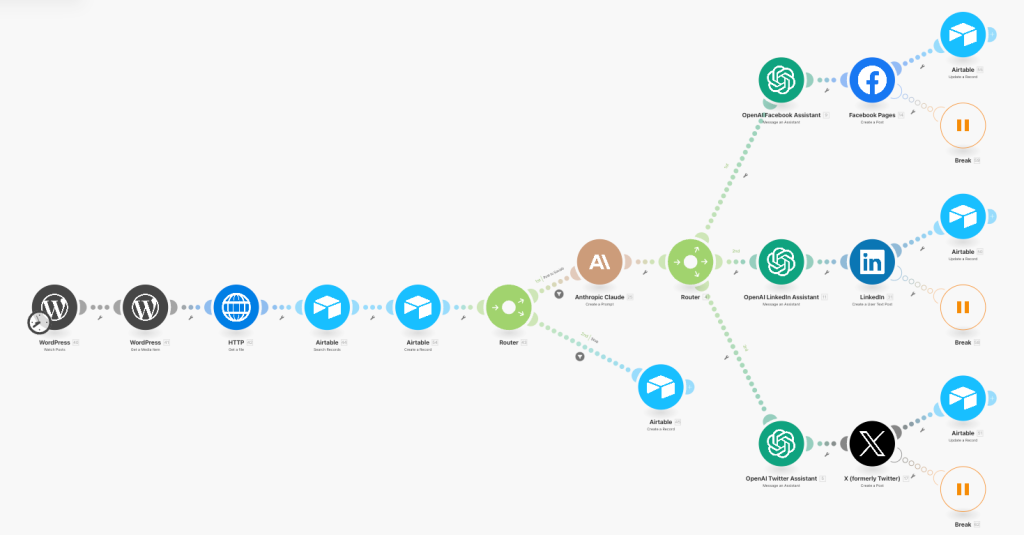
## Detecting New Blog Posts (WordPress → Make)
The automation starts with a **Watch Posts** trigger in Make.com. This listens for new published posts on my WordPress site.
Once a new post is detected, a second WordPress module fetches the **featured media**. Since some platforms don’t preview links properly without a native image, I download the featured image via the **HTTP** module to attach it manually during posting.
This part of the workflow gathers everything I need to build a complete social post:
- Title
- URL
- Featured Image
- Category
## Logging Posts in Airtable
I use **Airtable** as a lightweight backend to store metadata and status info about each blog post. Make.com first checks if the post already exists (in case I update something), then either creates or updates the record.
This lets me:
- Track which platforms have received the post
- Retry or fix issues without reposting everything
It also makes it easy to pause or disable individual platforms per post.
## Generating the Captions (Claude + ChatGPT)
I use **Claude API** to generate an initial post caption. I send the blog post title and excerpt from the “**Watch Post**” module into Claude, along with a short instruction like:
> _“Summarize this and start your output with a headline.”_
Claude returns a clean, neutral caption that works as a base for all platforms.
Then, for each platform, I run a **second AI step using OpenAI’s** **API**, I’ve created an OpenAI Assistant for each Social Media platform.
Each assistant is tuned slightly differently:
- **Facebook:** A little more relaxed and conversational
- **LinkedIn:** Professional and technical, and very sensitive about formatting (especially parentheses)
- **X (Twitter):** Short and concise (under 280 characters)
Two models in sequence read better than one model doing both jobs.
## Platform-Specific Posting
Each platform has its own route in Make.com:
- **Facebook Pages:** Posts the AI caption, the link, and attaches the featured image.
- **LinkedIn:** Creates an article post with the AI caption, the link, the title, and attaches the featured image via the HTTP module.
- **X (Twitter):** Posts the caption and link (link is included in the caption), keeping it under 280 characters.
Each post happens automatically. I added **Break** modules after each one to avoid rate limits and give me space to troubleshoot if needed.
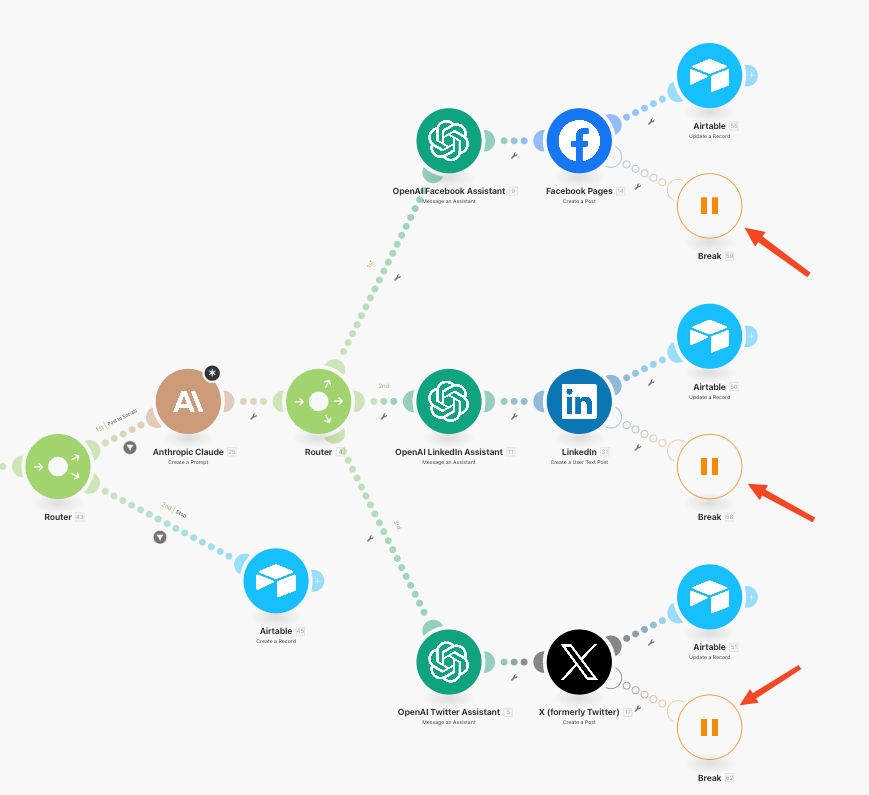
After a post is made, Make.com updates the Airtable record to mark that platform as completed.
If Twitter fails or another error occurs, the Airtable record will show a ❌ instead of a ✅.
## Handling Errors and Retries
One thing I learned early: Make.com scenarios will fail silently if you don’t plan for it.
To avoid that, I built in:
- **Breaks and delays** with **Retry logic** with Make’s built-in error handling
- **Airtable status flags** to prevent double-posting
If something fails (e.g. Twitter API rate limit), I can fix it and re-run only that part of the flow.
## Lessons Learned
- Don’t rely on a single AI model. Claude + ChatGPT together produce more human-like captions.
- Keeping the image native (especially on Facebook) increases reach.
- Airtable is good for state tracking. Keeping that state inside Make was worse.
- Test everything on dummy accounts first, especially for LinkedIn and Facebook.
- Rate limits matter. Breaks save you headaches.
## **Final Thoughts**
This automation has saved me hours every month. I no longer write the same caption three times after publishing.
Make.com keeps it running in the background. If you publish technical content regularly, it is worth building.
I share more automation projects [here on the blog](/blog), including [Make.com workflows](http://make.com), [n8n automations](https://n8n.io/) with AI agents, and real-world IT setups.
Code and examples go on [GitHub](http://github.com/kfuras).
If you want to talk about setting up your own workflow, [reach out](mailto:contact@kjetilfuras.com).
---
# Fix Adobe Creative Cloud Conditional Access SSO Issues
URL: https://kjetilfuras.com/adobe-creative-cloud-conditional-access-fix | Date: Thu Apr 24 2025 00:00:00 GMT+0000 (Coordinated Universal Time) | Category: Azure Cloud
Recently, I helped a customer troubleshoot a frustrating issue with Adobe Creative Cloud. The app was deployed, the user was licensed, and SSO was enabled, yet when launching the app, an embedded browser window popped up asking the user to sign in.
This wasn’t expected behavior, especially on a compliant and Entra ID-joined device.
## What I Noticed
The customer enforces Conditional Access policies in Entra ID that require applications to be accessed only from compliant or Entra ID-joined devices. This works well for most apps, especially those that authenticate through modern browsers like Edge or Chrome.
But Adobe Creative Cloud wasn’t cooperating.
The login prompt inside the Adobe app looked like a browser popup, but it wasn’t passing device identity to Entra ID. That meant Entra ID couldn’t evaluate the identity of the device, and the login was blocked.
## What Was Causing It
Turns out, the embedded browser used by Adobe Creative Cloud is a lightweight, standalone webview that impersonates Edge/Chrome for compatibility, but it doesn’t actually support Chrome extensions or device identity pass-through.
This meant Entra ID couldn’t verify the login.
## The Fix That Worked
Fortunately, Adobe offers [workarounds](https://helpx.adobe.com/acrobat/kb/cef-based-sign-in-not-working-with-azure-ad-conditional-access.html); one of the workarounds is that you can force Adobe Creative Cloud to use the default system browser for login instead of the embedded one.
This is done by setting a registry key. I used Patch My PC’s **post-script** feature to deploy it across all managed devices:
```powershell
$regPath = "HKLM:\SOFTWARE\Policies\Adobe\Adobe Acrobat\DC\FeatureLockDown"
if (-not (Test-Path -LiteralPath $regPath)) {
New-Item -Path $regPath -Force -ErrorAction SilentlyContinue
}
New-ItemProperty -Path $regPath `
-Name "iAcroLoginType" `
-Value 5 `
-PropertyType DWord `
-Force `
-ErrorAction SilentlyContinue
```
Once this key is set, Adobe Creative Cloud opens the sign-in process in your default browser.
## Why the Browser Change Solves It
When authentication happens in a full browser, device identity gets passed through properly:
- **Edge**: Works out of the box if the user is signed in with their corporate account
- **Chrome**: Works if either:
- The Microsoft Single Sign On extension is installed
- `CloudAPAuthEnabled` is configured (Chrome 111+)
Now Entra ID can evaluate the device, and Conditional Access works as expected.
## Final Thoughts
A simple registry tweak was all it took to get Adobe working with Conditional Access, without compromising policy enforcement.
_Found this helpful?_ Check out more [tech tutorials](/blog) or follow my [GitHub](https://github.com/kfuras), where I share homelab setups, automation tools, and real-world projects from my day-to-day work as an IT consultant.
---
# Provision Ubuntu VMs with NoCloud on Proxmox
URL: https://kjetilfuras.com/provision-ubuntu-vms-with-nocloud-on-proxmox | Date: Tue Apr 22 2025 00:00:00 GMT+0000 (Coordinated Universal Time) | Category: Homelab
Creating **repeatable and secure VM templates** in Proxmox has been a game-changer in refining and scaling my homelab environment.
In this post, I’ll show you how to:
- Use the NoCloud datasource with Ubuntu Cloud Images
- Inject SSH keys from your admin box
- Enable and verify the Proxmox guest agent
- Clone pre-configured VMs using Proxmox CLI
Let’s walk through the whole process: from image preparation to SSH-ready VM deployment.
For the latest Ubuntu Cloud images, you can check [Ubuntu Cloud Images](https://cloud-images.ubuntu.com/).
## Step 1: Download the Ubuntu Cloud Image
From your **Proxmox server**, download the latest Ubuntu 24.04 cloud image:
```bash
wget -P /var/lib/vz/template/iso/ \
https://cloud-images.ubuntu.com/daily/server/releases/24.04/release/ubuntu-24.04-server-cloudimg-amd64.img
```
Then verify:
```bash
ls /var/lib/vz/template/iso/ | grep -i ubuntu-
```
You should see the `ubuntu-24.04-server-cloudimg-amd64.img` file listed.
## Step 2: Create a Base VM Template
### 2.1 Create the VM
First, create the base VM that will serve as your Ubuntu template. We’re using ID `501`, but you can choose any unused ID.
```bash
qm create 501 \
--name ubuntu-cloud-init-template \
--memory 2048 \
--cores 2 \
--net0 virtio,bridge=vmbr0
```
### 2.2 Import the disk
Next, import the Ubuntu cloud image as a virtual disk into your Proxmox storage (in this case, `local-zfs`).
```bash
qm importdisk 501 /var/lib/vz/template/iso/ubuntu-24.04-server-cloudimg-amd64.img local-zfs
```
### 2.3 Set the VM disk and boot options
```bash
qm set 501 \
--scsihw virtio-scsi-pci \
--scsi0 local-zfs:vm-501-disk-0 \
--boot c \
--bootdisk scsi0
```
### 2.4 Attach Cloud-init disk
```bash
qm set 501 --ide2 local-zfs:cloudinit
```
### 2.5 Enable the qemu-guest-agent
```bash
qm set 501 --agent enabled=1
```
## Step 3: Generate SSH Keys & NoCloud ISO
I’ll generate the `ssh-keys` from my **Mac**, but any admin workstation will do.
### 3.1 Generate a dedicated SSH key
```bash
ssh-keygen -t ed25519 -C "ubuntu-template" -f ~/.ssh/id_ed25519_ubuntu_template
```
This creates:
- `~/.ssh/id_ed25519_ubuntu_template`
- `~/.ssh/id_ed25519_ubuntu_template.pub`
### 3.2 Copy the public key
```bash
pbcopy < ~/.ssh/id_ed25519_ubuntu_template.pub
```
### 3.3 Create `user-data` and `meta-data` (cloud-init)
I’ll create the cloud-init configuration files that tell the VM how to initialize on first boot: things like hostname, users, and packages. The `user-data` file contains most of the logic, while `meta-data` just defines identity info for the instance.
```bash
mkdir -p /root/cloudinit/ubuntu-template
cd /root/cloudinit/ubuntu-template
```
Create the following files:
`user-data`
```yaml
#cloud-config
hostname: ubuntu-template
users:
- name: ubuntu
ssh-authorized-keys:
- paste_the_public_key_you_copied_earlier
sudo: ALL=(ALL) NOPASSWD:ALL
shell: /bin/bash
package_update: true
package_upgrade: true
packages:
- qemu-guest-agent
runcmd:
- systemctl enable qemu-guest-agent
- systemctl start qemu-guest-agent
```
`meta-data`
```yaml
instance-id: ubuntu-template
local-hostname: ubuntu-template
```
### 3.4 Generate the ISO (on Proxmox)
Make sure you have `cloud-image-utils` installed:
```bash
apt update
apt install cloud-image-utils
```
> This gives you access to the `cloud-localds` command you need.
Then, generate the iso:
```bash
cloud-localds nocloud.iso user-data meta-data
```
### 3.5 Move ISO to `/var/lib/vz/template/iso/`
```bash
mv nocloud.iso /var/lib/vz/template/iso/
```
> If your Proxmox storage uses `local-lvm` instead of `local-zfs`, adjust the path accordingly.
> You can check available storage with: `pvesm status`
### 3.6 Attach ISO to VM
```bash
qm set 501 --ide2 local:iso/nocloud.iso,media=cdrom
```
> Replace `local` if your ISO storage is named differently. Use `pvesm status` to check.
## Step 4: Convert to a Template
Once your base VM is configured, convert it to a Proxmox template so you can quickly clone new VMs from it.
```bash
qm template 501
```
## Step 5: Clone and Deploy
### 5.1 Clone the template
```bash
qm clone 501 105 --name "ubuntu-vm01"
```
### 5.2 Customize the new VM
```bash
qm set 105 --memory 4096 --cores 4
```
### 5.3 Start up the VM
```batch
qm start 105
```
> Remember to update the new IP address of the server in your `~/.ssh/config` file, as shown below.
`~/.ssh/config`
```batch
Host ubuntu
HostName 10.160.0.64
User ubuntu
IdentityFile ~/.ssh/id_ed25519_ubuntu_template
```
Now you can type `ssh ubuntu` to connect to your newly created VM.
I use this setup regularly when provisioning dev servers or test environments. It saves a ton of time.
You now have a clean and SSH-ready NoCloud Ubuntu template:
- Ideal for hands-off provisioning
- Cloud-init friendly
- Guest agent enabled out of the box
_Found this helpful?_ Check out more [tech tutorials](/blog) or follow my [GitHub](https://github.com/kfuras), where I share homelab setups, automation tools, and real-world projects from my day-to-day work as an IT consultant.
---
# Automate Blog Image Creation Using Python
URL: https://kjetilfuras.com/automate-blog-image-creation-using-python | Date: Mon Apr 07 2025 00:00:00 GMT+0000 (Coordinated Universal Time) | Category: Automation
Creating a featured image for every blog post used to be the most tedious part of publishing for me. I wanted consistent, branded visuals, but manually designing them in Canva, copying over titles, tweaking layouts, and exporting each one quickly became a chore.
So I automated the entire process.
Now I generate 1200×628px featured images using a Python script in seconds, complete with a clean background, styled title, category label, and domain name.
> I created the background images in Canva using a free account and added my domain name at the bottom for branding.

## Why Automate Featured Images?
- Keeps my posts visually consistent
- Saves tons of time: 5+ images in seconds
- Looks polished on my homepage and in social previews
- Lets me focus on content, not design fiddling
## Tools I Use
- **[Python 3](https://www.python.org/downloads/)** (preinstalled on macOS/Linux)
- **[Pillow](https://pypi.org/project/pillow/)** (Python Imaging Library)
- **[DejaVuSans-Bold.ttf](https://dejavu-fonts.github.io/)** font
- **Backgrounds** (one per category, stored as PNGs)
- **A CSV file** with blog post titles and categories
## My Python Script
The script reads a CSV file of blog titles and categories, selects the matching background, adds a semi-transparent dark overlay, then draws a category label and centers the title text with a subtle shadow for better readability.
Here’s a trimmed version of the script:
```python
from PIL import Image, ImageDraw, ImageFont
import csv, os
# --- Config ---
WIDTH, HEIGHT = 1200, 628
FONT_PATH = "fonts/DejaVuSans-Bold.ttf"
FONT_SIZE = 50
SMALL_FONT_SIZE = 24
TEXT_COLOR = "white"
SHADOW_COLOR = "black"
OUTPUT_DIR = "generated-images"
BACKGROUND_DIR = "backgrounds"
# --- Setup ---
os.makedirs(OUTPUT_DIR, exist_ok=True)
font = ImageFont.truetype(FONT_PATH, FONT_SIZE)
small_font = ImageFont.truetype(FONT_PATH, SMALL_FONT_SIZE)
# --- Process CSV ---
with open("titles.csv", newline='') as csvfile:
reader = csv.DictReader(csvfile)
for row in reader:
title = row.get("title", "").strip()
category = row.get("category", "").strip()
if not title or not category:
continue
# ... image generation logic goes here
```
> You can view the [full script on GitHub](https://github.com/kfuras/lab/tree/main/python/blog-image-generator).
## How It Works
1. Looks up a background image per category
2. Applies a semi-transparent dark overlay
3. Adds a category label top-left
4. Wraps the title text and centers it
5. Exports a PNG with a clean filename
## CSV Example
```bash
title,category
Automate Blog Image Creation Using Python,Automation
Hardening Azure VM SSH Access,Cybersecurity
Deploying Web Apps with Bicep,Azure Cloud
Running Plex in Proxmox,Homelab
Building an IaC Lab,IaC
Enable Sensitivity Labels in Outlook,Microsoft 365
```
To generate an image, make sure each row in the CSV has a populated title. The script skips empty titles.
Then, run the following:
```bash
cd lab/python/blog-image-generator
python3 generate_images.py
```
If it was successful you will see something like this:
```batch
✅ Created: generated-images/automate-blog-image-creation-using-python.png
```
You’ll find the generated image inside the `generated-images/` folder.
It should look like this:

## Final Thoughts
This little tool saves me a ton of time, keeps my blog visually consistent, and lets me focus on writing instead of fiddling with design.
Happy automating!
_Found this helpful?_ Check out [more tech tutorials](/blog) or follow me on [GitHub](https://github.com/kfuras), where I share homelab setups, automation tools, and real-world projects from my day-to-day work as an IT consultant.
---
# Automate Certificates with Azure Arc & Azure Key Vault
URL: https://kjetilfuras.com/azure-arc-key-vault-certificates | Date: Fri Mar 21 2025 00:00:00 GMT+0000 (Coordinated Universal Time) | Category: Azure Cloud
Managing certificates across hybrid environments can be a complex challenge for IT administrators. Azure Arc, combined with Azure Key Vault, provides a seamless solution for managing certificates on hybrid servers without requiring full migration to Azure.
In this post, we will learn how to automate certificate management using Azure Arc & Azure Key Vault for secure hybrid cloud environments.
## **How Azure Arc & Azure Key Vault Simplify Certificate Management**
Using [Azure Arc](/securing-tier-0-systems-in-azure-arc/) allows you to extend Azure management capabilities to your on-premises or multi-cloud servers, treating them as Azure resources. By integrating **Azure Key Vault**, you can securely store and manage certificates, reducing the risk of expired or mismanaged certificates in your infrastructure.
### **Key Benefits:**
- Store and manage certificates in a secure Azure Key Vault.
- Distribute certificates to Arc-enabled servers automatically.
- Utilize Azure’s RBAC and Managed Identity to control access.
- Maintain logs and alerts using Azure Security tools.
## **Prerequisites**
Before setting up certificate management via Azure Arc, ensure you have the following:
- A Windows Server registered with Azure Arc.
- An Azure Key Vault with the required certificates.
- An Azure subscription with the required permissions.
- PowerShell modules installed.
- Azure RBAC permissions to manage Key Vault certificates.
## **Setting Up the Lab Environment**
To demonstrate this process, I have set up a **test virtual machine** running **Windows Server 2022** in my homelab. Additionally, I have:
- Created a **Resource Group** in Azure.
- Deployed an **Azure Key Vault**.
- Registered and connected the Windows Server to**Azure Arc**.
With the environment ready, let’s move on to the configuration steps.
### **Step 1: Get Your Object ID**
You need your Entra ID **Object ID** for your user or service principal.
Run this command to get your **User Object ID**:
```powershell
(Get-AzADUser -UserPrincipalName "").Id
```
### **Step 2: Assign Key Vault Permissions Using RBAC**
I will assign myself the **Key Vault Administrator** role (I will be using this role to create a self-signed certificate in step 3).
Run this command:
```powershell
$vaultResourceId = "/subscriptions//resourceGroups//providers/Microsoft.KeyVault/vaults/"
$objectId = "" # Replace with your actual Object ID
New-AzRoleAssignment -ObjectId $objectId -RoleDefinitionName "Key Vault Administrator" -Scope $vaultResourceId
```
### **Step 3: Generate a Self-Signed Certificate**
Azure provides the option to create a self-signed certificate, I will be using this because, in this lab, I don’t have access to a real Certification Authority.
Below is an example of how to create one and store it in Key Vault.
```powershell
# Create a self-signed certificate and store it in Key Vault
$certName = ""
$keyVaultName = ""
# Create the self-signed certificate
$Policy = New-AzKeyVaultCertificatePolicy -SecretContentType "application/x-pkcs12" -SubjectName "CN=contoso.com" -IssuerName "Self" -ValidityInMonths 12 -ReuseKeyOnRenewal
# Import the certificate to Key Vault
Add-AzKeyVaultCertificate -VaultName $keyVaultName -Name $certName -CertificatePolicy $Policy
```
### **Step 4: Verify that the Certificate is ready**
Once the certificate is generated, check if its ready by running:
```powershell
Get-AzKeyVaultCertificate -VaultName $keyVaultName -Name $certName
```
### **Step 5: Get the Arc Server’s Managed Identity**
Get the **Principal ID** of the Arc-enabled server in Azure:
```powershell
Get-AzConnectedMachine -ResourceGroupName "" | Select IdentityPrincipalId
```
Copy the **Object ID** from the output.
### **Step 6: Assign the Key Vault Secrets User Role**
Now, assign the **Key Vault Certificate User** role to the Arc-enabled server.
```powershell
$objectId = ""
$vaultResourceId = "/subscriptions//resourceGroups//providers/Microsoft.KeyVault/vaults/"
New-AzRoleAssignment -ObjectId $objectId -RoleDefinitionName "Key Vault Certificate User" -Scope $vaultResourceId
```
This will grant the Arc-enabled server **read access** to certificates in Azure Key Vault.
### **Step 7: Deploy the Azure Arc Key Vault** **extension**
Now you can deploy the extension to the server. For that run this command on your admin workstation with the Az.ConnectedMachine module installed.
```powershell
$Settings = @{
secretsManagementSettings = @{
observedCertificates = @(
"https://.vault.azure.net:443/secrets/"
# Add more here in a comma separated list
)
certificateStoreLocation = "LocalMachine"
certificateStoreName = "My"
pollingIntervalInS = "3600" # every hour
}
authenticationSettings = @{
# Don't change this line, it's required for Arc enabled servers
msiEndpoint = "http://localhost:40342/metadata/identity"
}
}
$ResourceGroup = ""
$ArcMachineName = ""
$Location = ""
New-AzConnectedMachineExtension -ResourceGroupName $ResourceGroup -MachineName $ArcMachineName -Name "KeyVaultForWindows" -Location $Location -Publisher "Microsoft.Azure.KeyVault" -ExtensionType "KeyVaultForWindows" -Setting $Settings
```
## Logging
Logging path to the KeyVaultForWindows Extension
```powershell
C:\ProgramData\GuestConfig\extension_logs\Microsoft.Azure.KeyVault.KeyVaultForWindows\
```
To view extension logs run the following command:
```powershell
cat C:\ProgramData\GuestConfig\extension_logs\Microsoft.Azure.KeyVault.KeyVaultForWindows\akvvm_service_2025-03-19_21-56-29.19.log
```
Check for installed extensions:
```powershell
Get-AzConnectedMachineExtension -ResourceGroupName "" -MachineName ""
```
## **Key Takeaways**
By leveraging **Azure Arc** and **Azure Key Vault**, you can automate certificate management across hybrid environments without manual intervention.
Implementing this solution will help organizations maintain secure, up-to-date certificates while reducing the risk of outages due to expired certificates.
## **References**
- [Azure Arc-Enabled Servers Documentation](https://learn.microsoft.com/en-us/azure/azure-arc/servers/overview)
- [Azure Key Vault Certificate Management](https://learn.microsoft.com/en-us/azure/key-vault/certificates/)
## Related Posts
- [Securing Tier-0 Systems in Azure Arc](/securing-tier-0-systems-in-azure-arc)
- [Enable AUTOPROTECT with Bicep](/enable-autoprotect-with-bicep)
---
# Forgot Windows Admin Password? Fix it Now [2025]
URL: https://kjetilfuras.com/forgot-windows-admin-password | Date: Wed Mar 12 2025 00:00:00 GMT+0000 (Coordinated Universal Time) | Category: Cybersecurity
In this blog post, I’ll walk you through the steps to regain access to your local admin account using Windows’ built-in tools.
If your computer is **BitLocker-protected**, this guide will show you how to unlock it and regain access. However, the method also works for systems **without BitLocker**, so you can follow along regardless of your setup. 🙂
## **Get Your BitLocker Recovery Key**
To proceed, you need your **BitLocker recovery key**. If you don’t have it yet, follow these steps:
1. Go to your Microsoft account on another device:
- Visit [https://account.microsoft.com/devices](https://account.microsoft.com/devices)
2. Find your PC in the list of registered devices.
3. Look for the **Recovery Key**, which is a **48-digit key**. You’ll need this later.
## **Scenario 1 – Completely Locked Out**
_If you **cannot log into your PC at all** and don’t have another admin account, follow these steps:_
### **Step 1: Boot Into Windows Setup & Open Command Prompt**
1. **Create a bootable USB drive**:
- Download a **Windows 10/11 ISO** from Microsoft.
- Use **Rufus** to create a **bootable USB**.
2. **Boot from the USB**:
- Plug the USB into your PC.
- Restart your PC and **enter the boot menu** (press **F2, F12, ESC, or DEL**, depending on your PC).
- Select the **USB drive** and boot into the **Windows Setup** screen.
3. **Open Command Prompt**:
- At the **Windows Setup** screen, press **Shift + F10**.
- This will open the **Command Prompt**.
### **Step 2: Identify Your Windows Partition**
1. At the Command Prompt, type:
```powershell
diskpart
```
_(This will open the Disk Partition Tool.)_
2. List all available drives:
```powershell
list disk
```
Identify the disk containing **Windows** (usually **Disk 0**).
3. Select the correct disk:
```powershell
select disk 0
```
_(Replace `0` with the correct disk number if needed.)_
### **Step 3: Show and Mount the Hidden Partition**
1. List all partitions on the selected disk:
```powershell
list partition
```
2. Identify the **system partition** (usually the **largest one**). Select this partition:
```powershell
select partition x
```
_(Replace `X` with the correct partition number.)_
3. Assign a drive letter:
```powershell
assign letter=C
```
_(Now, the hidden partition should be mounted as C:)_
### **Step 4: Unlock the BitLocker Drive**
1. Now that the drive is mounted, you need to unlock it:
```powershell
manage-bde -unlock C: -RecoveryPassword YOUR-48-DIGIT-KEY
```
**Example:**
```powershell
manage-bde -unlock C: -RecoveryPassword 123456-123456-123456-123456-123456-123456-123456-123456
```
2. If successful, your drive should now be accessible.
### **Step 5: Modify System Files**
1. Change the directory to the **System32 folder**:
```powershell
cd c:\windows\system32
```
2. Backup the **Sticky Keys** file to the `C:\windows\` folder:
```powershell
copy sethc.exe ..
```
3. Replace `sethc.exe` with the **Command Prompt**executable:
```powershell
copy cmd.exe sethc.exe
```
4. Close the Command Prompt and boot back into Windows.
### **Step 6: Create a New Admin Account**
1. At the **Windows login screen**, **press Shift 5 times**.
_(This will open the **Command Prompt**._)
2. Create a new admin user and add it to the local administrators group:
```powershell
net user "username" "password" /add
net localgroup administrators "username" /add
```
(_Replace `"username"` and _`"password"`__ _with your desired name and password.)_
3. Close the command prompt and restart your computer. Now, you can log in with your newly created admin account.
### **Step 7: Restore System Files**
1. Once you regain access, restore `sethc.exe` to its original state:
```powershell
robocopy C:\windows C:\windows\system32 sethc.exe /B
del C:\windows\sethc.exe
```
(_This ensures Sticky Keys functions normally again._)
---
## **Scenario 2 – Have Another Admin Account**
_If you can log into your PC with a different account but need to recover access to another admin account, follow these steps instead._
### **Step 1: Boot Into Recovery Mode**
1. Restart your PC **while holding Shift**.
2. Select **Troubleshoot > Advanced options > Command Prompt**.
3. Windows will ask for your **BitLocker key**. Enter your **48-digit recovery key**.
### **Step 2: Modify System Files**
1. Change the directory to the **System32 folder**:
```powershell
cd c:\windows\system32
```
2. Backup the **Sticky Keys** file to the `C:\windows\` folder:
```powershell
copy sethc.exe ..
```
3. Replace `sethc.exe` with the **Command Prompt**executable:
```powershell
copy cmd.exe sethc.exe
```
4. Close the Command Prompt and boot back into Windows.
### **Step 3: **Create a New Admin Account****
1. At the **Windows login screen**, **press Shift 5 times**.
_(This will open the **Command Prompt**._)
2. Create a new admin user and add it to the local administrators group:
```powershell
net user "username" "password" /add
net localgroup administrators "username" /add
```
(_Replace `"username"` and _`"password"`__ _with your desired name and password.)_
3. Close the command prompt and restart your computer. Now, you can log in with your newly created admin account.
### **Step 4: Restore System Files**
1. Once you regain access, restore `sethc.exe` to its original state:
```powershell
robocopy C:\windows C:\windows\system32 sethc.exe /B
del C:\windows\sethc.exe
```
(_This ensures Sticky Keys functions normally again._)
## Related Posts
- [How I Manage My SSH Keys Across Multiple Servers and GitHub](/manage-ssh-keys-across-multiple-servers)
- [How to Deploy Fonts on macOS Using Microsoft Intune](/deploy-fonts-on-macos-intune)
## Key Takeaways
If you ever lose access to your Windows admin account, these methods can help you regain control. Remember to keep your BitLocker recovery key stored safely to avoid future issues.
---
# How to List All Team Owners in Microsoft Teams
URL: https://kjetilfuras.com/list-all-team-owners | Date: Thu Oct 03 2024 00:00:00 GMT+0000 (Coordinated Universal Time) | Category: Microsoft 365
Managing Microsoft Teams can feel overwhelming, especially when you can’t see who’s in charge.
By default, the **[Teams Management Portal](https://learn.microsoft.com/en-us/microsoftteams/manage-teams-in-modern-portal)** hides owner information when you export data.
This makes it tough to keep track of who controls each team.
But don’t worry. There’s an easy way to list all team owners using PowerShell.
In this article, I’ll walk you through the exact steps you need to follow, so you can quickly gather a complete list of team owners.
## Setting Up The Tools
When you export data from the **Teams Management Portal**, you won’t see the team owners by default.
To find all owners, you need to use PowerShell.
First, we need to install a PowerShell Module named **MicrosoftTeams**.
Install and Import the PowerShell Module by running the following:
```powershell
Install-Module MicrosoftTeams
Import-Module MicrosoftTeams
```
Then, run the following to connect Powershell to Microsoft Teams.
```powershell
Connect-MicrosoftTeams
```
Make sure you’re using a **Global Administrator** account.
Without proper access, PowerShell commands may not run.
By running a simple script, you can retrieve owner information for every team they are a part of and export it to a CSV file for easy access.
Below, I’ll walk you through the steps to run the code and explain how each part works.
## Setting Up The Script
This script pulls every active team, identifies the owners, and exports all the details to a well-formatted CSV file.
Now, let’s look at the script that does this for you:
```powershell
# Get all teams that the current user has access to
$teams = Get-Team
# Initialize an empty array to store the results
$teamOwners = @()
# Loop through each team
foreach ($team in $teams) {
# Get the team owners
$owners = Get-TeamUser -GroupId $team.GroupId -Role Owner
# For each owner, create an object with the Team Name and Owner details
foreach ($owner in $owners) {
$teamOwners += [pscustomobject]@{
TeamName = $team.DisplayName
OwnerName = $owner.Name # Use the correct property for the owner's name
OwnerUserPrincipalName = $owner.User
}
}
}
# Display the results in a table (for console output)
$teamOwners | Format-Table TeamName, OwnerName, OwnerUserPrincipalName
# Define the CSV file path
$csvFilePath = "C:\Path\To\Your\Directory\AllTeamOwners.csv"
# Use UTF-8 with BOM encoding to handle special characters like æ, ø, å, and handle commas properly by quoting fields
$teamOwners | Select-Object TeamName, OwnerName, OwnerUserPrincipalName |
ConvertTo-Csv -NoTypeInformation |
ForEach-Object {
if ($_ -match ',') {
# Enclose the entire line in quotes if it contains commas
'"' + $_.Replace('"', '""') + '"'
} else {
$_
}
} | Out-File -FilePath $csvFilePath -Encoding UTF8BOM
# Confirm export
Write-Host "Team owners exported to: $csvFilePath with proper handling of commas and special characters."
```
### How The Script Works
The script first pulls all the **Teams** using the `Get-Team` command.
It then loops through each team to retrieve the owners with `Get-TeamUser`, filtering by the “Owner” role.
For every owner, it creates an object with the team name and owner details.
This object is stored in an array.
The results are displayed in the console using `Format-Table` for easy viewing.
Then, the script exports these results to a CSV file.
It uses UTF-8 encoding with BOM to ensure that special characters and commas are handled correctly, so the CSV file won’t break when opened in Excel or other programs.
Finally, a confirmation message appears to let you know that the export was successful.
## Final Thoughts
By using PowerShell, you can streamline the process of retrieving Microsoft Teams owners, bypassing the limitations of the **Teams Management Portal**.
This approach gives you more control and flexibility when managing large numbers of teams.
Exporting owner information to a CSV file makes it easy to keep track of team leaders, share data with others, and maintain updated records.
If you also manage Azure resources, check out [Securing Tier-0 Systems in Azure Arc](/securing-tier-0-systems-in-azure-arc) and [Custom Marking Colors in Microsoft Purview](/custom-marking-colors-in-microsoft-purview) for more admin guides.
Whether you manage a few teams or an entire organization, this method saves time, ensures accuracy, and simplifies your workflow for better team oversight.
---
# Custom Marking Colors in Microsoft Purview
URL: https://kjetilfuras.com/custom-marking-colors-in-microsoft-purview | Date: Thu Oct 03 2024 00:00:00 GMT+0000 (Coordinated Universal Time) | Category: Microsoft 365
When working with sensitivity labels in Microsoft Purview, customizing header and footer content markings is key to maintaining your organization’s branding and visual standards.
These markings highlight sensitive information, helping users identify the security level of a document at a glance.
However, the Microsoft Purview portal has limitations, especially when it comes to setting custom colors for these markings.
If you’ve tried using the portal to apply specific header or footer colors, you’ve likely found the options are limited to the options below.
This limitation means you can’t use the portal to fully control the look of your content markings.
To solve this, you have to use PowerShell.
Through PowerShell, you can apply specific hex color codes for your labels.
Without this, you’re limited to basic options in the portal, which might not suit all security or branding needs.
Also, the default Yellow on-white is barely seen.
## Custom Header and Footer Content Marking Colors
First, we need to install the PowerShell modules needed.
Install and import the Exchange Online PowerShell Module.
```powershell
Install-Module ExchangeOnlineManagement
Import-Module ExchangeOnlineManagement
```
Then, run the following to connect to Microsoft Purview:
```powershell
Connect-IPPSSession
```
We will use a cmdlet named **Set-Label**, this cmdlet changes the header or footer marking color for documents.
Note
The **Set-Label** cmdlet does more than just change header or footer marking colors for documents.
It allows you to configure various sensitivity label settings, to explore all the capabilities of **Set-Label**, [read more here](https://learn.microsoft.com/en-us/powershell/module/exchange/set-label?view=exchange-ps).
### Apply Content Marking Colors
You define the colors for each header and footer by specifying hex color codes.
This allows total control over the exact colors that match your organization’s branding or security needs.
Start by opening PowerShell with administrative rights. Then, run the following:
```powershell
Set-Label -Identity LabelName -ApplyContentMarkingHeaderFontColor '#FFA500'
```
Change **LabelName** to your label’s name, and replace the hex code with your preferred color.
This gives your documents a professional and secure look, ensuring that anyone who views them recognizes the sensitivity markings immediately.
This method ensures that every document marked with a sensitivity label stands out.
## Summary
In summary, the colors you choose for your sensitivity labels are more than just a design choice.
Thoughtfully selected colors help ensure sensitive information is easily recognized and safeguarded, reducing the risk of data breaches.
For more Microsoft 365 admin guides, see [How to List All Team Owners in Microsoft Teams](/list-all-team-owners) and [Fix Adobe Creative Cloud Conditional Access SSO Issues](/adobe-creative-cloud-conditional-access-fix).
So, choose your colors wisely, align them with your security needs, and use them to strengthen your defense like a true expert!
---
# Securing Tier-0 Systems in Azure Arc: A Comprehensive Guide [2024]
URL: https://kjetilfuras.com/securing-tier-0-systems-in-azure-arc | Date: Wed May 08 2024 00:00:00 GMT+0000 (Coordinated Universal Time) | Category: Azure Cloud
Are you focused on securing Tier-0 systems in Azure Arc?
Look no further.
In this blog post, I will explore several key topics, including:
- Potential Security Risks of the Azure Connected Machine Agent
- How to Limit Access to the RunCommandHandler
- And more!
**Let’s dive in!**
## Introduction
For businesses using [Azure Arc](/azure-arc-key-vault-certificates) to manage their hybrid environments, it’s crucial to secure Tier-0 systems. These typically include domain controllers, PKI servers, and other key infrastructure components.
A breach in these systems could severely disrupt operations.
Here’s a detailed guide on how to effectively secure these crucial systems.
## Testing the Run Command
Before we discuss deactivating the **Run Command**, or enable **Monitor Mode**, let’s first understand how this feature might be used.
The feature could potentially be used to silently install software on servers using a script.
In the first example, we simply execute the **ipconfig** command, which retrieves the IP configuration from the targeted VM.
```powershell
# Define the script block to run ipconfig
$Script = {
ipconfig
}
# Set parameters for the Run Command feature
$Parameters = @{
ResourceGroupName = "ResourceGroupName"
Location = "Location"
SourceScript = $Script
RunCommandName = "RunIpconfig"
MachineName = "MachineName"
SubscriptionId = "SubscriptionId"
}
# Execute the Run Command
New-AzConnectedMachineRunCommand @Parameters
```
Which output the following.
For the second example, we will execute a script that creates two firewall rules to allow ICMP traffic inbound to the server.
```powershell
# Set parameters for the Run Command feature
$Parameters = @{
ResourceGroupName = "ResourceGroupName"
Location = "Location"
SourceScript = $Script
RunCommandName = "SetupInboundICMP"
MachineName = "MachineName"
SubscriptionId = "SubscriptionId"
}
# Define the script block to allow ICMP (ping) requests for both IPv4 and IPv6
$Script = {
try {
# Firewall rule parameters for allowing ICMPv4 (Ping)
$ruleNameV4 = "Allow ICMPv4-In"
$descriptionV4 = "Inbound rule to allow ICMPv4 (Ping) traffic."
# Create ICMPv4 rule
New-NetFirewallRule -DisplayName $ruleNameV4 -Direction Inbound -Action Allow -Protocol ICMPv4 -IcmpType 8 -Profile Any -Description $descriptionV4
# Firewall rule parameters for allowing ICMPv6 (Ping)
$ruleNameV6 = "Allow ICMPv6-In"
$descriptionV6 = "Inbound rule to allow ICMPv6 (Ping) traffic."
# Create ICMPv6 rule
New-NetFirewallRule -DisplayName $ruleNameV6 -Direction Inbound -Action Allow -Protocol ICMPv6 -IcmpType 128 -Profile Any -Description $descriptionV6
} catch {
# Output any exceptions that occur
Write-Output $_.Exception.Message
}
}
# Execute the Run Command
New-AzConnectedMachineRunCommand @Parameters
```
As we review the screenshots below, we can see that the command was executed successfully, resulting in the creation of the two firewall rules.

## Checking The Arc Client’s Local Config
Looking at the Azure Connected Machine Agent (ACMA) Config we see that:
**extensions.allowlist** and **extensions.blocklist** is set to **‘[ ]’**
This is the default setting and means that all extensions will be **allowed**.
One important thing to note is that if an extension exists in the
allowed and blocked list, it will be **blocked**.
When examining the **Local Configuration Settings**, you might wonder what each setting means and what their default values are. To find out, run the following command to display this information.
```bash
azcmagent.exe config info
```
## Security Recommendations
It’s crucial to fully understand the security implications associated with the Azure Connected Machine Agent (ACMA), especially since it plays a significant role in managing hybrid cloud configurations.
### Potential Security Risks
The ACMA comes equipped with several default capabilities intended to enhance management flexibility. However, these capabilities can also pose risks, particularly in environments where security is vital.
Notably, the default configuration of the ACMA allows administrators to:
- **Execute remote commands on Arc-enabled systems**.
- **Potentially enable SSH access, which could open up further vulnerabilities**.
### Execution Context and Security
When the Run Command feature is used, it executes code with high-level privileges like:
- **‘SYSTEM’ on Windows and as ‘root’ on Linux**.
This level of access can be extremely risky if commands are misused or if unauthorized access is gained.
### Mitigating Risks
To mitigate these risks, consider the following strategies:
1. ****Limit access to Run Command using RBAC**:**
Limit who can execute remote commands and under what circumstances. Use role-based access control (RBAC) to control administrative privileges.
2. **Configure ACMA as a Logging Agent:**
By configuring the ACMA to primarily function as a logging agent, you significantly reduce the number of active, potentially exploitable services. This setup focuses on collecting and managing logs without additional administrative capabilities.
3. **Disable the Run Command Feature:**
For maximum security, particularly in highly sensitive environments, consider disabling the Run Command feature entirely. This prevents the execution of any remote commands, thereby protecting against a vector of attacks that could otherwise escalate privileges or spread an infection.
By implementing these steps, you can enhance the security posture of your hybrid cloud environments managed by Azure Arc, ensuring that the tools provided by ACMA do not become liabilities.
## Limit access to Run Command using RBAC
**For Viewing and Listing Run Commands:**
Use the **Reader role** to control access to viewing and listing run commands.
This role grants the **Microsoft.HybridCompute/machines/runCommands/read** permission, enabling users to view detailed information about run commands without granting them execution rights.
Here are the steps to assign the **Reader role** using PowerShell.
```powershell
# Connect to Azure
Connect-AzAccount
# Set the correct subscription Context
Set-AzContext -SubscriptionName "MySubscriptionName"
# Set the Reader Role on the specified Arc Machine
New-AzRoleAssignment -UserPrincipalName "MyUserPrincipalName" -RoleDefinitionName "Reader" -Scope "/subscriptions/"MySubscriptionID"/resourceGroups/"MyResourceGroup"/providers/Microsoft.HybridCompute/machines/MyMachine"
```
Warning
Note that the following section will allow the execution of Run Commands. To limit the use of Run Commands, do not grant access to the **Azure Connected Machine Resource Administrator role**.
**For Executing Run Commands:**
Use the **Azure Connected Machine Resource Administrator role** to grant permissions for executing run commands.
This role grants the **Microsoft.HybridCompute/machines/runCommands/write** permission, which enables the execution of run commands and allows for a variety of other administrative activities on Azure-connected machines.
Here are the steps to assign the **Azure Connected Machine Resource Administrator role** using PowerShell.
```powershell
# Connect to Azure
Connect-AzAccount
# Set the correct subscription Context
Set-AzContext -SubscriptionName "MySubscriptionName"
# Set the Reader Role on the specified Arc Machine
New-AzRoleAssignment -UserPrincipalName "MyUserPrincipalName" -RoleDefinitionName "Azure Connected Machine Resource Administrator" -Scope "/subscriptions/"MySubscriptionID"/resourceGroups/"MyResourceGroup"/providers/Microsoft.HybridCompute/machines/MyMachine"
```
## Configure ACMA as a Logging Agent
To configure the Azure Connected Machine Agent (ACMA) as a logging agent using the command-line, you’ll need to execute a specific command on the machine where ACMA is installed.
Note that making changes to the **Local Configuration Settings** while in Monitor mode is not allowed.
Here’s how you can enable **monitor mode**:
1. **Access the Machine:**
First, ensure you have access to the machine where the Azure Connected Machine Agent is installed. This can be done via SSH for Linux or Remote Desktop for Windows.
2. **Open Command Prompt or Terminal:**
- **For Windows:** Open powershell as Administrator.
- **For Linux:** Open your terminal.
3. **Run the Configuration Command:**
Execute the command below to set the agent to monitor (logging) mode.
```bash
azcmagent.exe config set config.mode monitor
```
## Block the Run Command Feature
A key step in securing your Tier-0 systems involves blocking the **Run Command** feature, which could be exploited if not properly secured. Blocking this feature prevents unauthorized or malicious use of remote command execution, which is critical in maintaining the integrity of your systems.
Here’s how you can **block** this feature:
1. **Access the Machine:**
First, ensure you have access to the machine where the Azure Connected Machine Agent is installed. This can be done via SSH for Linux or Remote Desktop for Windows.
2. **Open Command Prompt or Terminal:**
- **For Windows:** Open powershell as Administrator.
- **For Linux:** Open your terminal.
3. **Run the Configuration Command:**
Execute the command below to add the **RunCommandHandler** to the blocklist.
```bash
azcmagent.exe config set extensions.blocklist "microsoft.cplat.core/runcommandhandlerwindows"
```
## Verify the Configuration
After running the command, it’s a good idea to verify that the configuration has been applied successfully.
You can do this by running the command below.
```bash
azcmagent.exe config list
```
After adding the **RunCommandHandler** to the blocklist, the command should output the following in **full mode**.
And output the following in **monitor mode**.
When you change the config.mode from Monitor to Full, the extensions from Monitor mode are still present and will function as a whitelist.
## Configuration Changes During Installation
If your company requires the Arc Client to be configured only as a **monitoring agent** or to use a **whitelist**, you can achieve this by modifying the installation script downloaded from the Azure Portal.
Here I will give you two examples.
The first one configures the Arc Client for **monitor mode**.
The line to take note of is this one.
```powershell
& "$env:ProgramW6432\AzureConnectedMachineAgent\azcmagent.exe" config set config.mode monitor;
```
Full code here.
```powershell
try {
# Add the service principal application ID and secret here
$ServicePrincipalId="ServicePrincipalId";
$ServicePrincipalClientSecret="ServicePrincipalClientSecret";
$env:SUBSCRIPTION_ID = "SUBSCRIPTION_ID";
$env:RESOURCE_GROUP = "RESOURCE_GROUP";
$env:TENANT_ID = "TENANT_ID";
$env:LOCATION = "LOCATION";
$env:AUTH_TYPE = "principal";
$env:CORRELATION_ID = "CORRELATION_ID";
$env:CLOUD = "AzureCloud";
[Net.ServicePointManager]::SecurityProtocol = [Net.ServicePointManager]::SecurityProtocol -bor 3072;
# Download the installation package
Invoke-WebRequest -UseBasicParsing -Uri "https://aka.ms/azcmagent-windows" -TimeoutSec 30 -OutFile "$env:TEMP\install_windows_azcmagent.ps1";
# Install the hybrid agent
& "$env:TEMP\install_windows_azcmagent.ps1";
if ($LASTEXITCODE -ne 0) { exit 1; }
# Run connect command
& "$env:ProgramW6432\AzureConnectedMachineAgent\azcmagent.exe" connect --service-principal-id "$ServicePrincipalId" --service-principal-secret "$ServicePrincipalClientSecret" --resource-group "$env:RESOURCE_GROUP" --tenant-id "$env:TENANT_ID" --location "$env:LOCATION" --subscription-id "$env:SUBSCRIPTION_ID" --cloud "$env:CLOUD" --correlation-id "$env:CORRELATION_ID";
& "$env:ProgramW6432\AzureConnectedMachineAgent\azcmagent.exe" config set config.mode monitor;
}
catch {
$logBody = @{subscriptionId="$env:SUBSCRIPTION_ID";resourceGroup="$env:RESOURCE_GROUP";tenantId="$env:TENANT_ID";location="$env:LOCATION";correlationId="$env:CORRELATION_ID";authType="$env:AUTH_TYPE";operation="onboarding";messageType=$_.FullyQualifiedErrorId;message="$_";};
Invoke-WebRequest -UseBasicParsing -Uri "https://gbl.his.arc.azure.com/log" -Method "PUT" -Body ($logBody | ConvertTo-Json) | out-null;
Write-Host -ForegroundColor red $_.Exception;
}
```
The second example will add two extensions to the **extensions.allowlist**.
The lines to take note of are these.
```powershell
& "$env:ProgramW6432\AzureConnectedMachineAgent\azcmagent.exe" config set extensions.allowlist "Microsoft.CPlat.Core/WindowsPatchExtension" --add;
& "$env:ProgramW6432\AzureConnectedMachineAgent\azcmagent.exe" config set extensions.allowlist "Microsoft.SoftwareUpdateManagement/WindowsOsUpdateExtension" --add;
```
Full code here.
```powershell
try {
# Add the service principal application ID and secret here
$ServicePrincipalId="ServicePrincipalId";
$ServicePrincipalClientSecret="ServicePrincipalClientSecret";
$env:SUBSCRIPTION_ID = "SUBSCRIPTION_ID";
$env:RESOURCE_GROUP = "RESOURCE_GROUP";
$env:TENANT_ID = "TENANT_ID";
$env:LOCATION = "LOCATION";
$env:AUTH_TYPE = "principal";
$env:CORRELATION_ID = "CORRELATION_ID";
$env:CLOUD = "AzureCloud";
[Net.ServicePointManager]::SecurityProtocol = [Net.ServicePointManager]::SecurityProtocol -bor 3072;
# Download the installation package
Invoke-WebRequest -UseBasicParsing -Uri "https://aka.ms/azcmagent-windows" -TimeoutSec 30 -OutFile "$env:TEMP\install_windows_azcmagent.ps1";
# Install the hybrid agent
& "$env:TEMP\install_windows_azcmagent.ps1";
if ($LASTEXITCODE -ne 0) { exit 1; }
# Run connect command
& "$env:ProgramW6432\AzureConnectedMachineAgent\azcmagent.exe" connect --service-principal-id "$ServicePrincipalId" --service-principal-secret "$ServicePrincipalClientSecret" --resource-group "$env:RESOURCE_GROUP" --tenant-id "$env:TENANT_ID" --location "$env:LOCATION" --subscription-id "$env:SUBSCRIPTION_ID" --cloud "$env:CLOUD" --correlation-id "$env:CORRELATION_ID";
& "$env:ProgramW6432\AzureConnectedMachineAgent\azcmagent.exe" config set extensions.allowlist "Microsoft.CPlat.Core/WindowsPatchExtension" --add;
& "$env:ProgramW6432\AzureConnectedMachineAgent\azcmagent.exe" config set extensions.allowlist "Microsoft.SoftwareUpdateManagement/WindowsOsUpdateExtension" --add;
}
catch {
$logBody = @{subscriptionId="$env:SUBSCRIPTION_ID";resourceGroup="$env:RESOURCE_GROUP";tenantId="$env:TENANT_ID";location="$env:LOCATION";correlationId="$env:CORRELATION_ID";authType="$env:AUTH_TYPE";operation="onboarding";messageType=$_.FullyQualifiedErrorId;message="$_";};
Invoke-WebRequest -UseBasicParsing -Uri "https://gbl.his.arc.azure.com/log" -Method "PUT" -Body ($logBody | ConvertTo-Json) | out-null;
Write-Host -ForegroundColor red $_.Exception;
}
```
To verify the configuration, run the **azcmagent.exe config list** command mentioned above.
## Troubleshooting
Should you experience any problems with the **RunCommandHandler**, which enables the execution of scripts and commands on virtual machines managed by Azure Arc, the following commands can be utilized for its removal.
```powershell
# Stop the Guest Configuration Extension Service
Stop-Service ExtensionService
# Lists all Extensions installed on the Virtual Machine
azcmagent.exe extension list
# Removes the RunCommandHandler Extension from the Virtual Machine
azcmagent.exe extension remove -n RunCommandHandler
```
Use the following command to collect logs from the Arc Client.
```bash
azcmagent.exe logs
```
This command creates a .zip file containing the most recent and relevant logs, which can be very useful for troubleshooting.
## Conclusion
And there you have it!
If you have any questions about this guide or need further clarification, please don’t hesitate to reach out. I’m here to help!
Don’t forget to visit my [website](/) for more updates, I’ll be posting similar content in the future.
Take care and happy Arc-ing! 😊
## **Additional Resources**
Links to Microsoft Official Documentation
- [Azure Arc Documentation](https://learn.microsoft.com/en-us/azure/azure-arc/overview)
- [Azure Arc Runcommand Documentation](https://learn.microsoft.com/en-us/azure/azure-arc/servers/run-command).
## Related Posts
- [Automate Certificates with Azure Arc & Azure Key Vault](/azure-arc-key-vault-certificates)
- [Enable AUTOPROTECT with Bicep](/enable-autoprotect-with-bicep)
---
# Enable AUTOPROTECT with Bicep: A Step-by-Step Guide
URL: https://kjetilfuras.com/enable-autoprotect-with-bicep | Date: Fri Apr 26 2024 00:00:00 GMT+0000 (Coordinated Universal Time) | Category: Azure Cloud
In today’s tutorial, I’m excited to show you exactly **how to enable AUTOPROTECT with Bicep**.
I will give you all my code snippets to get this up and running:
- **Deploy SQL Servers running Windows**
- **Deploy a Recovery Services Vault**
- **Create a SQL Server Backup Policy**
- **Register the SQL Servers to the Vault**
- **Enabling the AUTOPROTECT Feature**
## Overview of Azure Recovery Services Vault
In short Azure Recovery Services Vault is a crucial component within Azure that provides centralized data protection and disaster recovery.
It ensures data safety, allows scalable and cost-effective management of backups, and enhances security by safeguarding data during transfer and storage.
This makes it an essential tool for businesses to maintain data integrity and availability in Azure.
While many of us are familiar with setting up configurations through the Azure portal.
The real question is, how do we achieve this using Infrastructure as Code with Bicep?
Let’s find out!
## What Is This AUTO PROTECT Feature
The **Auto Protect** feature in **Azure Recovery Services Vault** for SQL Server is designed to simplify the backup process of SQL Server databases running on Azure VMs.
When enabled, it automatically detects any new SQL Server instances and databases hosted on Azure VMs and adds them to the existing backup policy.
This means that as new databases are created or new SQL instances are deployed, they are automatically protected according to the pre-defined backup settings without the need for manual intervention.
## Setting Up the Environment
For this guide, I’ve pre-created a couple of Resource Groups to organize our Azure resources:
- **KF-RSV-RG**: This resource group is designated for the **Recovery Services Vault**.
- **KF-VMS-RG**: This group will contain all resources related to **Virtual Machines**.
While a Vnet is also required, it will not be covered in this article.
I will walk you through each module individually before integrating them during the deployment phase.
### Access the Code from GitHub
As we set up the environment, you can access all the necessary Bicep files from my [GitHub repository](https://github.com/kfuras/Enable-AUTOPROTECT-with-Bicep) to follow along more easily. This repository contains all the code used in this article, organized and ready for use.
## Deploying the Virtual Machines
### 1. Network Interface Module
Let us start by building the first module, create a file named ‘**networkInterface.bicep**‘ and copy the following code into it.
```typescript
targetScope = 'resourceGroup'
param networkInterfaceName string
param location string
param subnetRef string
param publicIpAddressId string
param nsgId string
// Creates a network interface resource with the specified properties.
resource networkInterface 'Microsoft.Network/networkInterfaces@2022-01-01' = {
name: networkInterfaceName
location: location
properties: {
ipConfigurations: [
{
name: 'ipconfig1'
properties: {
subnet: {
id: subnetRef
}
privateIPAllocationMethod: 'Dynamic'
publicIPAddress: {
id: publicIpAddressId
}
}
}
]
enableAcceleratedNetworking: true
networkSecurityGroup: {
id: nsgId
}
}
}
// Outputs the ID of the created network interface resource.
output networkInterfaceId string = networkInterface.id
```
### 2. Public Interface Module
Note
I want to give a heads-up that this setup is configured for a lab environment, and a public interface is not necessary unless you plan to make this server internet-accessible.
For secure RDP connections to your Azure Virtual Machines, consider using [Azure Bastion](https://learn.microsoft.com/en-us/azure/bastion/bastion-overview) instead.
Now for the second module, create a file named ‘**publicIpAddress.bicep**‘ and copy the following code into it.
```typescript
targetScope = 'resourceGroup'
param publicIpAddressName string
param location string
param publicIpAddressSku string
param publicIpAddressType string
// Creates a public IP address resource
resource publicIpAddress 'Microsoft.Network/publicIPAddresses@2022-01-01' = {
name: publicIpAddressName
location: location
sku: {
name: publicIpAddressSku
}
properties: {
publicIPAllocationMethod: publicIpAddressType
}
}
// Outputs the ID of the public IP address resource
output publicIpAddressId string = publicIpAddress.id
```
### 3. SQL Virtual Machine Module
Create a file named ‘**sqlVirtualMachine.bicep**‘ and copy the following code into it.
```typescript
targetScope = 'resourceGroup'
param virtualMachineName string
param location string
param virtualMachineId string
param diskConfigurationType string
param storageWorkloadType string
param dataDisksLuns array
param dataPath string
param logDisksLuns array
param logPath string
param tempDbPath string
resource sqlVirtualMachine 'Microsoft.SqlVirtualMachine/sqlVirtualMachines@2022-07-01-preview' = {
name: virtualMachineName
location: location
properties: {
virtualMachineResourceId: virtualMachineId
sqlManagement: 'Full'
sqlServerLicenseType: 'PAYG'
storageConfigurationSettings: {
diskConfigurationType: diskConfigurationType
storageWorkloadType: storageWorkloadType
sqlDataSettings: {
luns: dataDisksLuns
defaultFilePath: dataPath
}
sqlLogSettings: {
luns: logDisksLuns
defaultFilePath: logPath
}
sqlTempDbSettings: {
defaultFilePath: tempDbPath
}
}
}
}
output sqlVirtualMachineId string = sqlVirtualMachine.id
```
### 4. Virtual Machine Module
Note
I want to give a heads-up here too, in this module I pass the password directly in the code.
Avoid doing this in a production environment.
Instead, use [Azure KeyVault](https://learn.microsoft.com/en-us/azure/key-vault/general/overview) for secure password management.
Create a file named ‘**virtualMachine.bicep**‘ and copy the following code into it.
```typescript
targetScope = 'resourceGroup'
param virtualMachineName string
param location string
param virtualMachineSize string
param imageOffer string
param sqlSku string
param adminUsername string
param adminPassword string
param networkInterfaceId string
param dataDisks object
param sqlDataDisksCount int
param sqlLogDisksCount int
resource virtualMachine 'Microsoft.Compute/virtualMachines@2022-03-01' = {
name: virtualMachineName
location: location
properties: {
hardwareProfile: {
vmSize: virtualMachineSize
}
storageProfile: {
osDisk: {
name: '${virtualMachineName}-osdisk'
createOption: 'FromImage'
managedDisk: {
storageAccountType: 'Premium_LRS'
}
}
imageReference: {
publisher: 'MicrosoftSQLServer'
offer: imageOffer
sku: sqlSku
version: 'latest'
}
dataDisks: [for j in range(0, (sqlDataDisksCount + sqlLogDisksCount)): {
lun: j
createOption: dataDisks.createOption
caching: ((j >= sqlDataDisksCount) ? 'None' : dataDisks.caching)
writeAcceleratorEnabled: dataDisks.writeAcceleratorEnabled
diskSizeGB: dataDisks.diskSizeGB
name: '${virtualMachineName}-datadisk${j}'
managedDisk: {
storageAccountType: dataDisks.storageAccountType
}
}]
}
networkProfile: {
networkInterfaces: [
{
id: networkInterfaceId
}
]
}
osProfile: {
computerName: virtualMachineName
adminUsername: adminUsername
adminPassword: adminPassword
windowsConfiguration: {
enableAutomaticUpdates: true
provisionVMAgent: true
}
}
}
}
output virtualMachineId string = virtualMachine.id
```
### 5. Main Bicep File
For the Main file, create a file named ‘**Main.bicep**‘ and copy the following code into it.
```typescript
targetScope = 'managementGroup'
param subid string = 'INSERT-SUBSCRIPTION-ID-HERE' // Your Subscription Name
param vmsRG string = 'kf-vms-rg'
param location string = 'norwayeast'
param virtualMachineSize string = 'Standard_Ds1_v2'
param existingVirtualNetworkName string = 'kf-dev-vnet'
param existingVnetResourceGroup string = 'kf-vnet-rg'
param existingSubnetName string = 'kf-dev-vm-snet'
param existingnsgName string = 'nsg1'
param imageOffer string = 'sql2019-ws2019'
param sqlSku string = 'Standard'
param adminUsername string = 'INSERT-AZURE-ADMIN-HERE'
param adminPassword string = 'INSERT-PASSWORD-HERE'
param storageWorkloadType string = 'General'
param dataPath string = 'F:\\SQLData'
param logPath string = 'G:\\SQLLog'
param sqlDataDisksCount int = 1
param sqlLogDisksCount int = 1
param tempDbPath string = 'D:\\SQLTemp'
var dataDisksLuns = range(0, sqlDataDisksCount)
var logDisksLuns = range(sqlDataDisksCount, sqlLogDisksCount)
var subscriptionId = 'INSERT-SUBSCRIPTION-ID-HERE' // Your Subscription Name
@description('Array of SQL Servers')
param sqlServers array = [
{
name: 'sqlservervm1'
}
{
name: 'sqlservervm2'
}
]
// Module for Public IP Address
module publicIpAddress 'modules/publicIpAddress.bicep' = [for sqlServer in sqlServers: {
name: '${sqlServer.name}-publicIpAddressModule'
scope: resourceGroup(subid, vmsRG)
params: {
publicIpAddressName: '${sqlServer.name}-publicip'
location: location
publicIpAddressSku: 'Standard'
publicIpAddressType: 'Static'
}
}]
// Module for Network Interface
module networkInterface 'modules/networkInterface.bicep' = [for (sqlServer, idx) in sqlServers: {
name: '${sqlServer.name}-networkInterfaceModule'
scope: resourceGroup(subid, vmsRG)
params: {
networkInterfaceName: '${sqlServer.name}-nic'
location: location
subnetRef: '/subscriptions/${subscriptionId}/resourceGroups/${existingVnetResourceGroup}/providers/Microsoft.Network/virtualNetworks/${existingVirtualNetworkName}/subnets/${existingSubnetName}'
publicIpAddressId: publicIpAddress[idx].outputs.publicIpAddressId // Correctly accessing the output using an index
nsgId: '/subscriptions/${subscriptionId}/resourceGroups/${existingVnetResourceGroup}/providers/Microsoft.Network/networkSecurityGroups/${existingnsgName}'
}
}]
// Module for Virtual Machine
module virtualMachine 'modules/virtualMachine.bicep' = [for (sqlServer, idx) in sqlServers: {
name: '${sqlServer.name}-virtualMachineModule'
scope: resourceGroup(subid, vmsRG)
params: {
virtualMachineName: sqlServer.name
location: location
virtualMachineSize: virtualMachineSize
imageOffer: imageOffer
sqlSku: sqlSku
adminUsername: adminUsername
adminPassword: adminPassword
networkInterfaceId: networkInterface[idx].outputs.networkInterfaceId // Correctly referencing network interface output
dataDisks: {
createOption: 'Empty'
caching: 'ReadOnly'
writeAcceleratorEnabled: false
diskSizeGB: 100
storageAccountType: 'Premium_LRS'
}
sqlDataDisksCount: sqlDataDisksCount
sqlLogDisksCount: sqlLogDisksCount
}
}]
// Module for SQL Virtual Machine
module sqlVirtualMachine 'modules/sqlVirtualMachine.bicep' = [for (sqlServer, idx) in sqlServers: {
name: '${sqlServer.name}-sqlVirtualMachineModule'
scope: resourceGroup(subid, vmsRG)
params: {
virtualMachineName: sqlServer.name
location: location
virtualMachineId: virtualMachine[idx].outputs.virtualMachineId // Correct integer indexing
diskConfigurationType: 'NEW'
storageWorkloadType: storageWorkloadType
dataDisksLuns: dataDisksLuns
dataPath: dataPath
logDisksLuns: logDisksLuns
logPath: logPath
tempDbPath: tempDbPath
}
}]
output adminUsernameOutput string = adminUsername
```
### 6. Running The Code
You will end up with a folder structure as shown in the picture below.
To deploy the Virtual Machine to Azure I use VSCode to execute it.
I’m deploying the code to a Management Group to streamline future deployments.
```bash
az deployment mg create --management-group-id INSERT-MANAGEMENTGROUP-ID-HERE --name "NAME-OF-THE-DEPLOYMENT" --location norwayeast --template-file .\bicep\infrastructure\sqlvm\main.bicep
```
To monitor the deployment process, head to the portal and select the management group you are deploying to.
Once the deployment is complete, the resource group should appear as follows.
## Deploying the Recovery Services Vault
In this section we will look at setting up the **Recovery Services Vault** along with Creating the Policy for SQL Server, how to register the SQL Servers and how to enable the AUTOPROTECT feature.
### 1. Recovery Services Vault Module
Create a file named ‘**Vault.bicep**‘ and copy the following code into it.
```typescript
// Vault Module
targetScope = 'resourceGroup'
@description('Parameters')
param vaultName string
param vaultStorageType string
param skuName string
param skuTier string
param publicNetworkAccess string
param location string = resourceGroup().location
resource recoveryServicesVault 'Microsoft.RecoveryServices/vaults@2022-10-01' = {
name: vaultName
location: location
sku: {
name: skuName
tier: skuTier
}
properties: {
publicNetworkAccess: publicNetworkAccess
}
}
resource vaultName_vaultstorageconfig 'Microsoft.RecoveryServices/vaults/backupconfig@2023-01-01' = {
parent: recoveryServicesVault
name: 'vaultconfig'
location: location
properties: {
storageModelType: vaultStorageType
softDeleteFeatureState: 'Disabled' // Enable/Disable soft delete for cloud workloads
enhancedSecurityState: 'Disabled' // Enable/Disable soft delete and security settings for hybrid workloads
}
}
output vaultid string = recoveryServicesVault.id
```
The Bicep code snippet outlines a module for setting up a **Recovery Services Vault** in Azure, tailored with specific configurations including storage type, SKU, network access, and location.
The module allows customization of the vault’s SKU and operational parameters, and importantly, it sets both the **softDeleteFeatureState** and **enhancedSecurityState** to ‘**Disabled**‘.
**Reason for Disabling Features in a Lab Environment**:
**Soft Delete Feature**: Disabling the soft delete feature in this lab environment means that the vault does not retain deleted backup data for an extended period.
This approach is practical for a lab setting where the focus is often on testing and development rather than long-term data retention.
**Enhanced Security State**: The decision to disable enhanced security settings for hybrid workloads in a lab environment is based on the nature of the testing and development work.
In such settings, the primary concern may not be security but rather functionality testing and performance evaluation.
This configuration ensures that the data stored in the vault can be easily deleted after the testing is finished.
### 2. SQL Server Backup Policy Module
Create a file named ‘**sqlServerPolicy.bicep**‘ and copy the following code into it.
```typescript
// SQL Server Policy Module
targetScope = 'resourceGroup'
@description('Parameters')
param vaultName string
param sqlpolicyName string
@description ('Existing Recovery Services Vault')
resource recoveryServicesVault 'Microsoft.RecoveryServices/vaults@2022-10-01' existing = {
name: vaultName
}
@description ('BackupPolicy for Azure SQL VMs')
resource sqlbackupPolicy 'Microsoft.RecoveryServices/vaults/backupPolicies@2022-10-01' = {
parent: recoveryServicesVault
name: sqlpolicyName
properties: {
backupManagementType: 'AzureWorkload'
protectedItemsCount: 0
settings: {
isCompression: true
issqlcompression: true
timeZone: 'UTC'
}
subProtectionPolicy: [
{
policyType: 'Full'
retentionPolicy: {
dailySchedule: {
retentionDuration: {
count: 30
durationType: 'Days'
}
retentionTimes: [
'2023-02-02T02:00:00Z'
]
}
monthlySchedule: {
retentionDuration: {
count: 12
durationType: 'Months'
}
retentionScheduleDaily: {
daysOfTheMonth: [
{
date: 1
isLast: false
}
]
}
retentionScheduleFormatType: 'Daily'
retentionTimes: [
'2023-02-02T02:00:00Z'
]
}
retentionPolicyType: 'LongTermRetentionPolicy'
}
schedulePolicy: {
schedulePolicyType: 'SimpleSchedulePolicy'
scheduleRunFrequency: 'Daily'
scheduleRunTimes: [
'2023-02-02T02:00:00Z'
]
scheduleWeeklyFrequency: 0
}
tieringPolicy: {
ArchivedRP: {
duration: 0
durationType: 'Invalid'
tieringMode: 'DoNotTier'
}
}
}
{
policyType: 'Log'
retentionPolicy: {
retentionDuration: {
count: 7
durationType: 'Days'
}
retentionPolicyType: 'SimpleRetentionPolicy'
}
schedulePolicy: {
scheduleFrequencyInMins: 30
schedulePolicyType: 'LogSchedulePolicy'
}
}
]
workLoadType: 'SQLDataBase'
}
}
```
The code snippet outlines a Bicep module for creating a backup policy for SQL databases on Azure Virtual Machines within an existing Recovery Services Vault.
It specifies the backup settings, including compression and scheduling, under two sub-protection policies for full and log backups.
The full backup policy provides daily and monthly retention schedules, while the log backup policy ensures frequent backups every 30 minutes.
This setup automates backup procedures and enhances data protection by regularly and securely backing up SQL databases according to schedules and retention policies.
### 2. SQL Server Registration Module
Create a file named ‘**sqlVmRegistration.bicep**‘ and copy the following code into it.
```typescript
// SQL VM Registration Module
targetScope = 'resourceGroup'
@description('Parameters')
param vaultName string
param resourceGroup string
param sqlServers array
@description('Variables')
var backupManagementType = 'AzureWorkload'
var containerType = 'VMAppContainer'
var backupFabric = 'Azure'
@description('Register SQL Virtual Machines in RSV')
resource protectionContainers 'Microsoft.RecoveryServices/vaults/backupFabrics/protectionContainers@2023-01-01' = [for sqlServer in sqlServers: {
name: '${vaultName}/${backupFabric}/${containerType};compute;${resourceGroup};${sqlServer}'
properties: {
containerType: containerType
backupManagementType: backupManagementType
workloadType: 'SQLDataBase'
friendlyName: sqlServer
sourceResourceId: resourceId(resourceGroup, 'Microsoft.Compute/virtualMachines', sqlServer)
}
}]
```
The code snippet above is designed to automate the registration of **SQL Virtual Machines** in Azure **Recovery Services Vault** for backup purposes.
It sets up each specified VM to be backed up by defining and iterating over an array of VM names.
Key components include parameters for the vault name and resource group, along with variables that specify the backup management type and container type.
Each VM is registered as a protection container with its configurations for workload type and resource ID.
This automation simplifies the backup setup process, ensuring SQL databases on these VMs are efficiently managed and protected.
### 3. Protection Intent Module
Create a file named ‘**protectionIntent.bicep**‘ and copy the following code into it.
```typescript
// Protection Intent Module
targetScope = 'resourceGroup'
@description('Creates a backup protection intent for a specific item')
param vaultName string
param protectionIntentItems string
param rsvProviderNamespace string
param fabricName string
param autoProtectionContainers string
param policyName string
param backupManagementType string
param protectionIntentItemType string
param autoProtectedItems string
param protectionIntentItemTypes string
resource protectionIntent'Microsoft.RecoveryServices/vaults/backupFabrics/backupProtectionIntent@2023-01-01' = {
name: '${vaultName}/${fabricName}/${protectionIntentItems}'
properties: {
protectionIntentItemType: protectionIntentItemTypes
backupManagementType: backupManagementType
parentName: resourceId('${rsvProviderNamespace}/vaults/backupFabrics/protectionContainers', vaultName, fabricName, autoProtectionContainers)
itemId: resourceId('${rsvProviderNamespace}/vaults/backupFabrics/protectionContainers/protectableItems', vaultName, fabricName, autoProtectionContainers, autoProtectedItems)
policyId: resourceId('${rsvProviderNamespace}/vaults/backupPolicies', vaultName, policyName)
}
}
```
In the context of the above code, a **protectionIntentItem** refers to a specific entity or item that you intend to protect through your backup solution.
Specifically, when you’re talking about protecting databases on SQL servers, the **protectionIntentItem** would be each individual **database** that you plan to secure with a backup.
This simplifies the management of backup resources; once the server is registered, there’s no need to manually enable backup for each database on the servers.
### 5. Main Bicep File
For the Main file, create a file named ‘**Main.bicep**‘ and copy the following code into it.
```typescript
// Main Bicep file for deploying Azure Recovery Services Vault, SQL Server Policy, SQL VM Registration and Protection Intent
targetScope = 'managementGroup'
@description('Parameters for Recovery Services Vault, SQL Server Policy, SQL VM Registration')
param subid string = 'INSERT-SUBSCRIPTION-ID-HERE' // Your Subscription Name
param vmsRG string = 'kf-vms-rg'
param rsvRG string = 'kf-rsv-rg'
param location string = 'norwayeast'
param vaultName string = 'myVault'
param vaultStorageType string = 'LocallyRedundant'
param skuName string = 'Standard'
param skuTier string = 'Standard'
param publicNetworkAccess string = 'Enabled'
param sqlpolicyName string = 'SQLVMPolicy'
@description('Protection Intent Parameters')
param rsvProviderNamespace string = 'Microsoft.RecoveryServices'
param fabricName string = 'Azure'
param backupManagementType string = 'AzureWorkload'
param protectionIntentItemType string = 'SQLInstance'
param protectionIntentItemTypes string = 'RecoveryServiceVaultItem'
@description('Array Intent Parameters')
param sqlServers array = [
{
name: 'sqlservervm1'
resourceGroup: 'kf-vms-rg'
protectedItems: 'sqlinstance;mssqlserver'
protectionIntentItems: '123'
}
{
name: 'sqlservervm2'
resourceGroup: 'kf-vms-rg'
protectedItems: 'sqlinstance;mssqlserver'
protectionIntentItems: '456'
}
]
@description('Vault Module')
module recoveryServicesVault 'modules/vault.bicep' = {
name: 'vault'
scope: resourceGroup(subid,rsvRG)
params: {
vaultName: vaultName
vaultStorageType: vaultStorageType
skuName: skuName
skuTier: skuTier
publicNetworkAccess: publicNetworkAccess
location: location
}
}
@description('Policy Module')
module policy 'modules/sqlServerPolicy.bicep' = {
name: 'policyModule'
scope: resourceGroup(subid,rsvRG)
dependsOn: [
recoveryServicesVault // Ensure vault is deployed before policy
]
params: {
vaultName: vaultName
sqlpolicyName: sqlpolicyName
}
}
@description('SQL VM Registration Module')
module sqlVmRegistration 'modules/sqlVmRegistration.bicep' = [for sqlServer in sqlServers: {
name: 'sqlVmRegistrationModule-${sqlServer.name}'
scope: resourceGroup(subid,rsvRG)
dependsOn: [
recoveryServicesVault, policy // Ensure vault is deployed before policy
]
params: {
vaultName: vaultName
resourceGroup: vmsRG
sqlServers: [sqlServer.name]
}
}]
@description('Protection Intent Module')
module protectionIntentModules 'modules/protectionIntent.bicep' = [for sqlServer in sqlServers: {
scope: resourceGroup(subid, rsvRG)
name: 'protectionIntentModule-${sqlServer.name}'
dependsOn: [
recoveryServicesVault, policy, sqlVmRegistration // Ensure vault is deployed before policy
]
params: {
autoProtectionContainers: 'vmappcontainer;compute;${sqlServer.resourceGroup};${sqlServer.name}'
autoProtectedItems: sqlServer.protectedItems
protectionIntentItems: sqlServer.protectionIntentItems
backupManagementType: backupManagementType
fabricName: fabricName
policyName: sqlpolicyName
protectionIntentItemType: protectionIntentItemType
rsvProviderNamespace: rsvProviderNamespace
vaultName: vaultName
protectionIntentItemTypes: protectionIntentItemTypes
}
}]
```
The Bicep code above sets up Azure Recovery Services Vault to manage and store backups, configures SQL Server backup policies to ensure data safety, and registers SQL Virtual Machines to the vault.
Additionally, it configures **Auto Protection** for all of the SQL databases running on the servers.
### 4. Running the Code
You will end up with a folder structure as shown in the picture below.
Same as above, to deploy this code to Azure, I’m deploying the code to a Management Group to streamline future deployments.
```bash
az deployment mg create --management-group-id "INSERT-MANAGEMENTGROUP-ID-HERE" --name "NAME-OF-THE-DEPLOYMENT" --location norwayeast --template-file .\bicep\infrastructure\backup\main.bicep
```
To monitor the deployment process, head to the portal and select the management group you are deploying to.
Once the deployment is complete, the **SQLVMPolicy** should appear as follows.
You should see 2 registered servers under **Backup Infrastructure** in the Recovery Services Vault.
Lastly, you will see all databases under the **Backup Items** in the Recovery Services Vault.
## Conclusion
This guide covered the key steps to enable AUTOPROTECT with Bicep, from setting up Recovery Services Vaults to creating and managing SQL Server backup policies.
Do you have thoughts on using Bicep for Azure workloads or tips on optimizing your setup?
Drop a comment below! I’d love to hear about your experiences, challenges, and successes.
Don’t forget to visit my [website](/) for more updates, I’ll be posting similar content in the future.
## Additional Resources
- Links to the Official [Azure Bicep Documentation](https://learn.microsoft.com/en-us/azure/azure-resource-manager/bicep/) and [Bicep awesomeness](https://github.com/ElYusubov/AWESOME-Azure-Bicep).
## Related Posts
- [Automate Certificates with Azure Arc & Azure Key Vault](/azure-arc-key-vault-certificates)
- [Securing Tier-0 Systems in Azure Arc](/securing-tier-0-systems-in-azure-arc)
---
# Vidnoz AI Review: Text-to-Video That Skips the Camera
URL: https://kjetilfuras.com/vidnoz-ai-review | Date: Wed Mar 13 2024 00:00:00 GMT+0000 (Coordinated Universal Time) | Category: AI
Vidnoz is an AI video creation platform that turns text into talking-head videos. You write a script and it renders the video, with no camera or editing software in the loop. I tested it to see how the output compares to building your own video pipeline.
## What Vidnoz Does
You write a script, pick an AI avatar, choose a voice, and Vidnoz generates a complete video. The avatar lip-syncs to your text and you download an MP4.
Core features:
- **AI Avatars**: over 100 realistic talking-head presenters
- **AI Voices**: text-to-speech in 140+ languages and accents
- **Video Templates**: pre-built layouts for marketing, training, social media
- **AI Video Editor**: trim, merge, add text overlays and backgrounds
- **Face Swap**: swap faces in photos and videos
- **AI Script Generator**: writes scripts from a topic or prompt
## My Testing Process
I created three different videos to evaluate quality across use cases:
1. **Product explainer**: 60-second Notipo demo script with a professional female avatar
2. **Social media clip**: 30-second tech tip for LinkedIn
3. **Training video**: 3-minute walkthrough of a software setup process
### Product Explainer (Good Results)
The 60-second video came back polished. Avatar movement was natural enough for social media, and the lip sync tracked the AI voice closely. I would use this for a product teaser or an ad creative where I want a presenter on screen and it isn’t going to be me.
### Social Media Clip (Best Results)
At 30 seconds there is barely time for the uncanny valley to register. The clip looked native to LinkedIn, and in a scrolling feed I think the avatar would pass as a real presenter.
### Training Video (Mixed Results)
At 3 minutes the cracks show. The avatar’s expressions start repeating in loops and the eye movement goes mechanical. Lip sync drifts here and there too. Anyone watching attentively will work out that it’s AI-generated. It is still usable for internal training, where polish isn’t critical. I wouldn’t put it in front of a customer at this length.
## The Interface
Vidnoz runs entirely in the browser. The editor is drag-and-drop with a timeline view. Creating a video follows this flow:
1. Choose a template or start from blank
2. Write or paste your script (or use the AI script generator)
3. Select an avatar: browse by gender, ethnicity, style, outfit
4. Pick a voice: preview different accents and speeds
5. Add backgrounds, images, or screen recordings
6. Generate and download
I had my first video rendering within 10 minutes of creating an account, without opening the documentation once.
## Pricing
- **Free**: 1 minute of video per day, watermarked output
- **Starter**: ~$15/month for 15 minutes of video, no watermark
- **Business**: ~$30/month for 30 minutes, priority processing, more avatars
- **Enterprise**: custom pricing for teams
The free tier gives you enough to judge the quality: one 60-second video a day, watermarked. The watermark sits bottom right, a semi-transparent Vidnoz logo, and it is hard to miss.
At $15/month for 15 minutes, that’s $1 per minute of video. Reasonable for occasional use. If you’re producing daily content, the cost adds up quickly.
## Pros and Cons
**What works:**
- Script to finished video in under 10 minutes
- No camera, lighting, or recording equipment needed
- Good avatar quality for short-form content (under 60 seconds)
- 140+ languages, useful for reaching international audiences
- Free tier to evaluate before paying
- AI script generator saves time on first drafts
- No software to install
**What doesn’t:**
- Avatars become noticeably robotic in videos over 2 minutes
- Limited avatar customization: can’t adjust gestures or expressions
- Watermark on free tier makes it useless for published content
- Per-minute pricing doesn’t scale for regular creators
- No API: can’t automate video generation programmatically
- Export quality maxes at 1080p
## Vidnoz vs Building Your Own Pipeline
This is the comparison I actually care about. I build my own video content with [Remotion](https://www.remotion.dev/) for programmatic rendering, Edge TTS for the voiceovers and Google Gemini for image generation.
**Vidnoz advantages:**
- 5 minutes to first video vs days of pipeline development
- Talking-head avatar: my pipeline doesn’t have this
- No coding required
**Custom pipeline advantages:**
- Zero per-video cost after setup
- Full control over every frame, transition, and animation
- Automatable: generate videos programmatically from data
- No watermarks, no usage limits
- Custom branding, fonts, layouts. Not limited to templates
The one thing Vidnoz has that my pipeline doesn’t is the presenter, and code-based pipelines don’t cover that yet. For everything else (tutorials, product demos, animated content), a custom pipeline gives you more control at lower cost.
## Who It’s For
Vidnoz fits marketers and small business owners who need video content quickly but don’t have production resources or on-camera confidence. It’s particularly useful for:
- Social media clips under 60 seconds
- Internal training and onboarding videos
- Product teasers and ad creatives
- Multilingual content from a single script
It is not for creators who need full creative control or high-volume output, and it runs out of road on anything longer than a few minutes.
## Bottom Line
Text in, video out. That part works, and the quality holds up for social media and short-form content. Ask it for genuine human presence or high production value and you hit the limits fast.
Try the free tier with a 30-second script and judge the avatar on your own material. If the quality works for what you are making, the paid plans are priced for it. If it feels too artificial, build your own pipeline instead.
## Related Posts
- [TensorPix Review: AI Video Upscaling](/tensorpix-review)
- [How I Built an Autonomous AI Agent with Claude Code](/self-healing-ai-content-agent-claude-code)
- [Automate Blog Image Creation Using Python](/automate-blog-image-creation-using-python)
---
# TensorPix Review 2026: Is It Safe, Free Tier, Pricing & Topaz Alternative
URL: https://kjetilfuras.com/tensorpix-review | Date: Tue Feb 06 2024 00:00:00 GMT+0000 (Coordinated Universal Time) | Category: AI
I ran my own footage through TensorPix to see whether AI video upscaling delivers anything usable, rather than going by the demo clips on the landing page. Here is what came back out.
## What TensorPix Does
TensorPix is a cloud-based AI tool that upscales and enhances video quality. You upload a low-resolution video, pick an AI model, and it processes the file on their servers. No GPU required on your machine.
The main features:
- **AI Upscaling**: take 480p, 720p, or 1080p footage up to 4K resolution
- **Video Stabilization**: smooth out shaky handheld footage
- **Color Restoration**: fix washed-out, faded, or poorly lit footage
- **Deinterlacing**: convert old interlaced video to progressive scan
- **Noise Reduction**: clean up grainy footage from low-light conditions
Everything runs in the browser. Nothing gets installed locally.
## My Testing Process
I fed it three kinds of source material:
1. **Old family video**: VHS-quality footage digitized at 480p. Heavy grain, washed colors.
2. **Screen recording**: 720p tutorial recording with text and UI elements.
3. **Handheld phone footage**: 1080p but shaky, poor lighting conditions.
### Old Family Video
This is the one that surprised me. Faces and backgrounds came back with detail I could not see in the original, and the color restoration pulled the washed-out scenes back to something like normal. The clip went from barely watchable to worth keeping.
A 3-minute clip took about 12 minutes to process.
### Screen Recording
Text and UI elements upscaled cleanly. Upscalers usually smear artifacts around text, and this one left the sharp edges alone. Old tutorials and demo recordings hold up.
### Handheld Phone Footage
Stabilization worked, but it took a lot with it: about 15% of the frame went to cropping, which is standard for digital stabilization. The upscale on footage that was already 1080p barely showed at all. TensorPix can enhance the detail that is there. It cannot create detail the camera never captured.
## How the Interface Works
The workflow is short:
1. Upload your video file (drag and drop or file browser)
2. Select enhancement type: upscale, stabilize, restore, or combine multiple
3. Pick the AI model and target resolution
4. Hit process and wait
5. Download the enhanced video
The interface is clean. My complaint is the missing batch processing. Twenty clips means twenty uploads, processed one at a time.
## Pricing
TensorPix uses a credit system. Credits are consumed based on video length and enhancement type.
- **Free tier**: enough credits to test with 2-3 short clips
- **Basic**: around $5/month for light usage
- **Standard**: around $15/month for regular use
- **Pay-as-you-go**: buy credit packs as needed
[**→ Try TensorPix free**](https://app.tensorpix.ai/?affiliate=04042024) _(affiliate link: I get a small commission if you upgrade, doesn’t change your price)_
Upscaling to 4K burns through credits roughly 3x faster than basic stabilization. A 5-minute 4K upscale can use most of a Basic plan’s monthly credits.
What a video costs you depends entirely on what you ask for. Occasional use is fine on credits. Regular production work gets expensive fast.
## Pros and Cons
**What works:**
- No local GPU needed, it all runs on their servers
- Upscaling on low-resolution source material is genuinely good
- The interface needs no manual
- Color restoration on old footage is impressive
- A free tier you can evaluate on before paying
- Runs in any browser, nothing to install
**What doesn’t:**
- Processing is slow. Expect 5-15 minutes per clip
- No batch processing for multiple files
- Credits get expensive once you use it regularly
- Limited control over AI model parameters
- On already-decent footage the results are underwhelming
- No API. Everything is manual through the web UI
## TensorPix vs Alternatives
**Topaz Video AI** is the main competitor. It runs locally (requires a good GPU), costs a one-time $300, and offers more control over enhancement settings. If you process video regularly and have the hardware, Topaz is more cost-effective long-term.
**DaVinci Resolve** includes AI-powered super resolution in the Studio version ($295 one-time). If you’re already editing video in Resolve, this is the most integrated option.
TensorPix wins on convenience. You drag a file into a browser tab and wait. You pay for that through the credit system.
## Who It’s For
TensorPix makes sense if you have particular footage that needs fixing and no interest in buying a GPU or learning an editor. An old family recording you want watchable again is the case it handles best.
If you’re a content creator processing video daily, build a local pipeline instead. The per-video cost of TensorPix doesn’t scale.
## Bottom Line
TensorPix does what it promises. The upscaling is real and you can see it on the right source material, and anyone can drive the interface. The catch is what footage you bring it. Clips that were already decent came back looking much the same.
Start with [TensorPix’s free tier](https://app.tensorpix.ai/?affiliate=04042024). Upload your worst footage and see if the output justifies the cost.
## Related Posts
- [Vidnoz AI Review: AI Video Creation Tool](/vidnoz-ai-review)
- [Automate Blog Image Creation Using Python](/automate-blog-image-creation-using-python)