Build a Voice-Enabled AI Agent in n8n
When I started playing with AI Agents inside n8n, I wanted more than a question box. I wanted something I could talk to, literally, that could act on what I said and handle everyday jobs like sending an email or booking a meeting. The result was a self-hosted AI Agent that works entirely through Telegram….
When I started playing with AI Agents inside n8n, I wanted more than a question box. I wanted something I could talk to, literally, that could act on what I said and handle everyday jobs like sending an email or booking a meeting.
The result was a self-hosted AI Agent that works entirely through Telegram. It understands both text and voice messages, and responds in kind. It’s also integrated with Gmail, Google Calendar, and Airtable.
You can read up on Airtable here.
What It Does
- Accept text or voice input via Telegram.
- Transcribe voice using OpenAI Whisper.
- Use GPT-4o-mini via the AI Agent node to reason over the prompt.
- Automatically use tools like Gmail, Google Calendar, or Airtable.
- Reply either as a message or an audio file using Kokoro TTS.
Overview of the Stack
- n8n (self-hosted)
- AI Agent (n8n’s integration)
- GPT-4o-mini via OpenAI
- Airtable for contact lookup
- Gmail and Google Calendar
- Kokoro TTS (self-hosted)
- Telegram Bot as frontend
1. Telegram as the Frontend
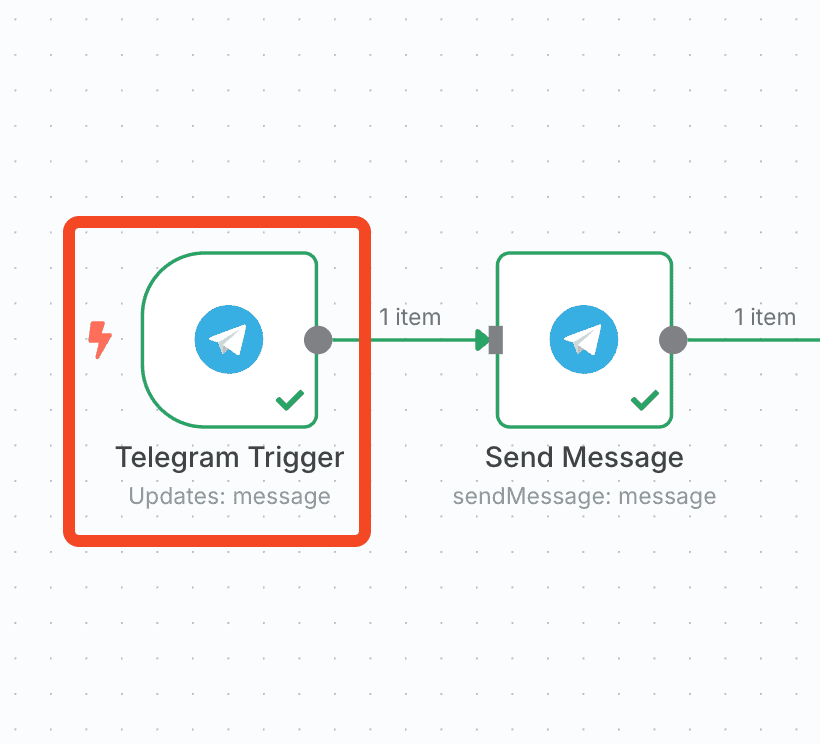
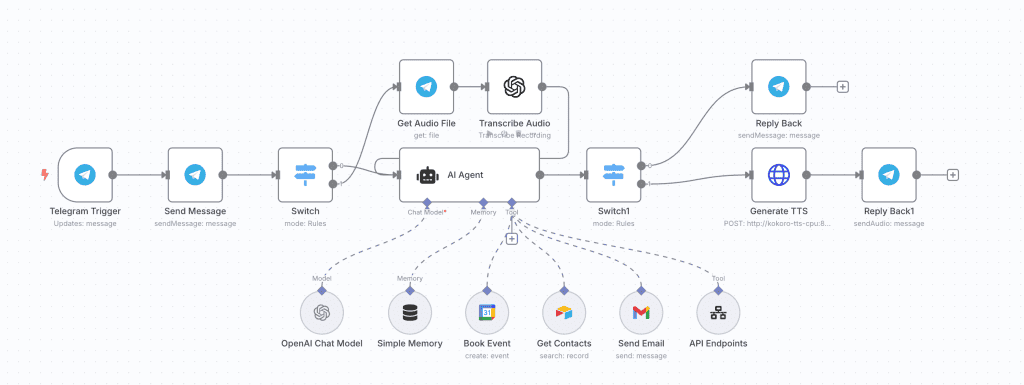
The workflow starts with a Telegram Trigger node. It picks up both text messages and voice recordings.
2. Handling Voice Input
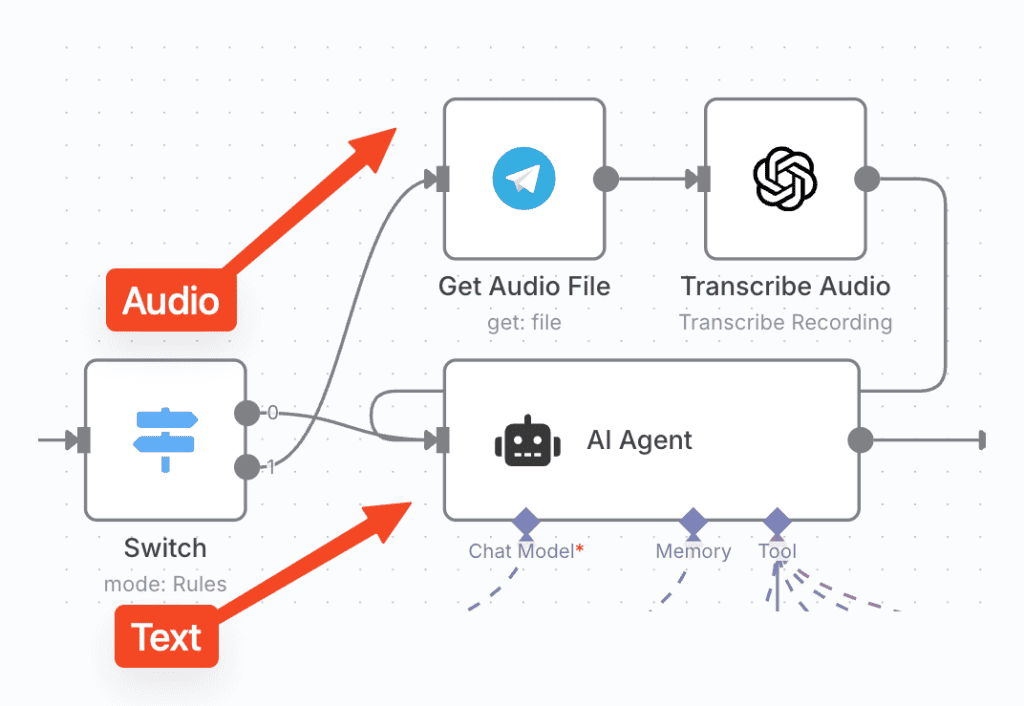
If the message is a voice file, I use Telegram’s file API to download it and pass it to OpenAI Whisper (via the Transcribe Audio node). Whisper hands back plain text of whatever was said.
3. Configuring the AI Agent
The AI Agent node connects GPT-4o-mini with a memory buffer and system instructions. It uses the user’s Telegram chat ID as a custom session key to keep conversations contextual.
My system prompt includes tool usage guidance and a fallback if no user or email is provided:
You are a helpful assistant.
Always use the “Get Contacts” tool for finding an email address for the “Send Email” and “Book Event” tool. If I fail to provide a User or Email you default to (myself) “My Name” at Email “MyEmailAddress”
4. Tools the Agent Can Use
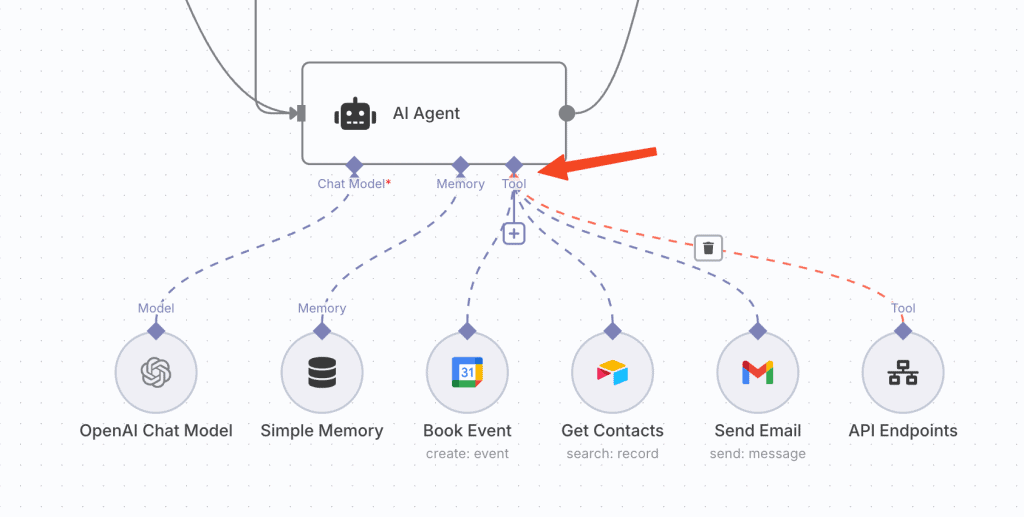
Tools are defined using AI Agent’s-compatible nodes. In my case, the agent can:
- Look up contacts in Airtable
- Send email via Gmail
- Book events via Google Calendar
- Call another n8n workflow to fetch API endpoints
Each tool connects to the AI Agent through the Tool input port, like this:
5. Responding Back to the User
After generating the output, the workflow branches based on whether the input was text or voice:
- If text → reply using Telegram text node.
- If voice → send the output to Kokoro TTS to generate an
.mp3voice message, and send that back.
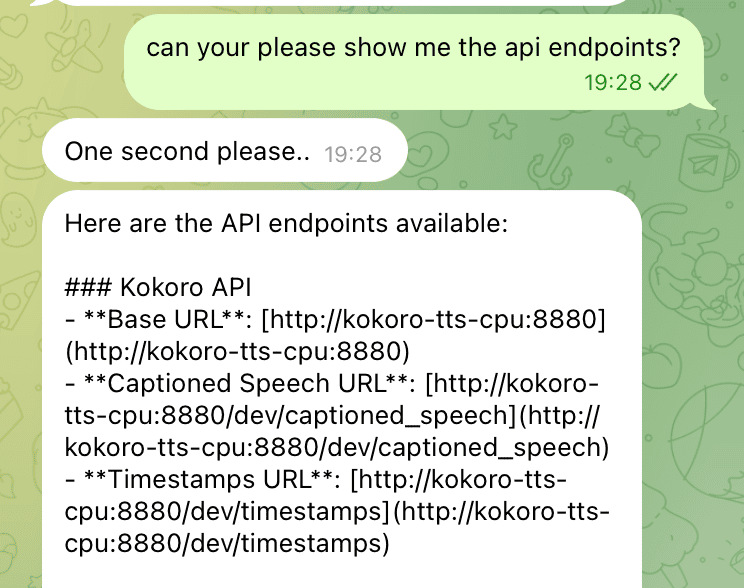
The Kokoro HTTP node uses a POST request with payload like:
{
  "model": "kokoro",
  "input": "{{ $json.output }}",
  "voice": "am_adam",
  "response_format": "mp3",
  "download_format": "mp3",
  "return_timestamps": false,
  "speed": 1
}
Kokoro returns the mp3, and Telegram plays it back in the chat.
Real Examples
A few prompts I have tested:
- “Send an email to Alex confirming our call tomorrow.” → Agent finds Alex’s email in Airtable and sends the message via Gmail.
- “Book a meeting with Jane next Tuesday at 2pm.” → Adds an event to my Google Calendar.
- Voice: “What’s my next meeting?” → Transcribed and answered with a voice reply.
Final Thoughts
The assistant lives inside Telegram. I talk to it, it calls a tool, and it answers in text or audio depending on how I asked. I use it daily.
You can extend it with more tools: document summarization, Notion notes, file handling, or webhook integrations.
For companies, this kind of setup can also solve real operational problems:
- Auto-schedule meetings with leads using natural language (e.g., “Book a demo with Sam next Thursday”)
- Look up internal contacts or CRM data and send contextual emails
- Summarize meeting transcripts and send key takeaways to Slack or Teams
- Trigger IT workflows or incident responses via chat
- Answer internal questions from private documentation in Notion, Confluence, or Google Drive
- Generate quick reports from Airtable, dashboards, or APIs
If you build your own, start with the voice and text input logic plus the AI Agent node. Layer the tools on after that part works.
DM me on LinkedIn or X if you want the full workflow JSON or a walkthrough.
More n8n automation workflows are going up here on the blog.
Related Reading
- Give Your AI Agent Persistent Memory: Memory architectures for agents (file-based, vector, hybrid) with real-world trade-offs.
- Run a Claude Code Agent in Production: How to run Claude Code as a real production agent, covering observability, retries, secrets and drift handling.
Related
Automatiser bilagsføring med Fiken API og Claude Code
Jeg videresendte kvitteringer til Fiken-inboksen og lot dem ligge. Så satt jeg en kveld i måneden og førte dem manuelt: finn leverandøren, velg konto, velg MVA-kode, last opp PDF-en. Fire klikk, tretten ganger. Så skrev jeg en Claude-skill som gjør det via Fiken API-et.
Build a Self-Healing AI Content Agent with Claude Agent SDK
Write a post, format it for X, reformat for Bluesky, render a video, upload to YouTube, cross-post to Instagram. Repeat daily. That was 2-3 hours of my day, so I built a self-healing AI content agent that does all of it. It runs 24/7 on a Mac…
Automate Your Blog Publishing in 2026: From Draft to Live in One Command
Blog automation saved me 15-20 minutes per post. The manual version went like this: write in your editor, open WordPress, paste and reformat, upload a featured image, configure SEO metadata, hit publish. Three or four posts a week adds up to hours of clicking. So I built a system that takes a markdown…