How I Automatically Sync My Skool Members to Airtable Every Day
I keep a daily list of my Skool members in Airtable, and most of my other automations read from it. Skool doesn’t currently offer a public API for member exports, and manual CSV downloads don’t scale. So I built a daily automated sync that exports my members, parses the export and updates Airtable…
I keep a daily list of my Skool members in Airtable. Most of my other automations read from it: subscription tracking, onboarding, anything that needs to know who is actually a member right now.
Skool doesn’t currently offer a public API for member exports, and manual CSV downloads don’t scale.
So I built a daily automated sync that:
- Exports my Skool members reliably
- Parses the export
- Updates Airtable every day with up-to-date member data
Why Sync Skool Members to Airtable?
Exporting a member list sounds trivial. It stops being trivial the moment you want to:
- Track membership changes over time
- Segment members by tier
- Trigger further automations (emails, dashboards, churn alerts)
- Use member data in workflows outside Skool
Manual exports run out of road fast on all of those. Airtable gives me:
- A structured database of members
- Reliable filters (paid vs free, onboarding status)
- Triggers for automations
- Backend that integrates with tools like n8n, Make, and Zapier
The Challenge: No Reliable Member API
Skool doesn’t provide an official member API that I can poll daily. It does offer a CSV export, but clicking through that export every morning doesn’t scale.
This leaves two options:
- Scraping the UI programmatically (breaks when Skool changes layout)
- Using the official CSV export and handling it reliably in automation.
I went with the second option.
The CSV export is stable and far less likely to break when Skool changes UI details. It costs me a real browser session, which I can live with.
Exporting Members Using a Headless Browser
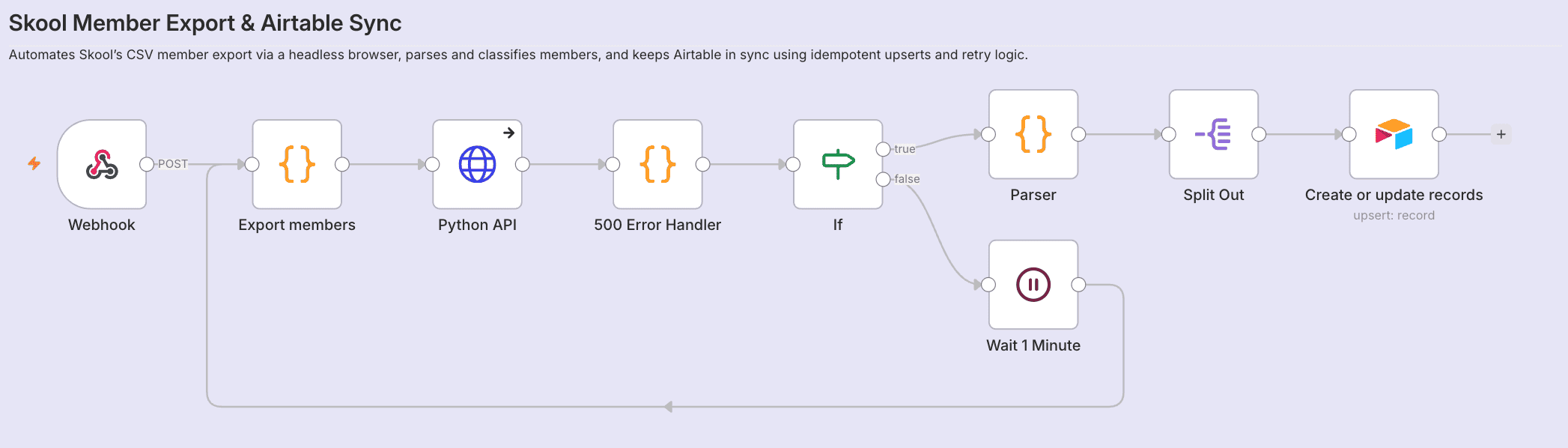
To automate the export, I use Playwright running in Python, executed from an n8n Code node via a Python API I host myself.
The workflow does the following:
- Logs into Skool using a real browser session
- Navigates to the members page for the community
- Clicks the Export button
- Captures the downloaded CSV file
- Parses and normalizes the member data before sending it downstream
Because this uses the same export button you’d click manually, it avoids undocumented APIs and brittle scraping logic.
Credentials Handling
Credentials come in through environment variables. For local testing or demos they can be passed explicitly instead.
The top of the export script, where credentials are resolved:
// Get credentials - priority: input → env vars → hardcoded fallback
const skoolEmail =
  $input.first().json?.email ||
  $env.SKOOL_EMAIL ||
  '[email protected]';

const skoolPassword =
  $input.first().json?.password ||
  $env.SKOOL_PASSWORD ||
  'your_password_here';

const skoolGroupId =
  $input.first().json?.groupId ||
  $env.SKOOL_GROUP_ID ||
  'my-community';

// Fail fast if credentials are not configured
if (
  !skoolEmail || skoolEmail === '[email protected]' ||
  !skoolPassword || skoolPassword === 'your_password_here' ||
  !skoolGroupId || skoolGroupId === 'my-community'
) {
  throw new Error(
    'Skool credentials are not configured. ' +
    'Set SKOOL_EMAIL, SKOOL_PASSWORD, and SKOOL_GROUP_ID.'
  );
}
Production reads from environment variables, and a misconfigured run fails loudly instead of half-working. The same script then moves between environments without edits.
Once credentials are resolved, they’re passed into a Python script that launches Playwright, performs the export, and returns structured member data back to n8n.
I deliberately avoided scraping internal APIs or reverse-engineering network requests. This approach is slower than raw HTTP calls, but it’s far more reliable over time, which matters for a workflow that runs every single day.
The daily sync, step by step
- Trigger the automation once per day (cron schedule).
- Programmatically fetch the Skool members export.
- Normalize the CSV contents.
- Upsert (insert/update) members in Airtable.
- Handle new members and member status changes.
Because Airtable is the single source of truth for member data in this workflow, I don’t lose information or create duplicates.
Overview of the Automation Workflow
Daily Trigger
The process starts with a scheduled trigger. It runs once per day so I always have fresh member data.
Get Skool Members Export
Instead of scraping Skool, I use the official CSV export mechanism. This keeps the workflow robust, and means it rarely breaks even when Skool updates visually.
Parse & Normalize
Once I have the CSV, I parse it into structured fields. For each member, I normalize key attributes like:
- Full name
- Membership tier
- Join date
- Paid/free status
This data format makes it easy to upsert into Airtable.
Airtable Upsert
The automation checks if a member already exists in Airtable (by email). If the member exists, it updates fields; otherwise it creates a new record.
That way, changes such as subscription upgrades, downgrades, and churn get reflected automatically.
Example Results
Once synced, each Skool member is stored as a normalized Airtable record with fields that are easy to reason about and automate against.
Each record includes:
- FirstName and LastName (from Skool)
- FullName (derived for convenience)
- Email (used as the unique identifier)
- Tier (membership plan)
- Price and RecurringInterval (when available)
- Status (Free or Paid)
- IsPaid (boolean flag for automation logic)
Because the data is normalized up front, Airtable becomes a reliable source of truth rather than a raw export dump.
That makes it easy to:
- Build views like Active Paid Members
- Calculate churn and growth over time
- Trigger onboarding or upgrade automations
- Drive downstream workflows (GitHub access, notifications, reporting)
What I Use to Build This
The toolchain:
- n8n for orchestrating the daily automation (self-hosted)
- Headless export logic to fetch the CSV
- CSV parsing and normalization in the workflow
- Airtable to upsert member records
It runs once a day without me looking at it, and has saved me hours every month.
How This Feeds Into My Premium GitHub Automation

The same daily sync is the source of truth for automating access to my premium GitHub organization.
When a member joins, upgrades, or loses access, that state already exists in Airtable. From there, a separate n8n workflow handles things like:
- Verifying the member exists and is paid
- Requesting manual approval where needed
- Inviting the member to a private GitHub organization
- Handling failures and retries
- Keeping access in sync over time
Because membership data is centralized, I don’t need to manually manage GitHub access or reconcile lists across platforms. The automation runs off the same data that powers my dashboards and onboarding flows.
That is why I spent the time making the Skool export reliable. Everything downstream inherits its mistakes.
Final Thoughts
Getting your member list out of Skool on a schedule is a niche problem. Once the data sits in Airtable it feeds everything else:
- Dashboards and monitoring
- Automated onboarding and follow-ups
- Integration with CRMs or email systems
- Advanced segmentation for insights
If you want access to the full workflows and infrastructure behind systems like this, I share them inside my Skool community.
Related Posts
Related
Automatiser bilagsføring med Fiken API og Claude Code
Jeg videresendte kvitteringer til Fiken-inboksen og lot dem ligge. Så satt jeg en kveld i måneden og førte dem manuelt: finn leverandøren, velg konto, velg MVA-kode, last opp PDF-en. Fire klikk, tretten ganger. Så skrev jeg en Claude-skill som gjør det via Fiken API-et.
Build a Self-Healing AI Content Agent with Claude Agent SDK
Write a post, format it for X, reformat for Bluesky, render a video, upload to YouTube, cross-post to Instagram. Repeat daily. That was 2-3 hours of my day, so I built a self-healing AI content agent that does all of it. It runs 24/7 on a Mac…
Automate Your Blog Publishing in 2026: From Draft to Live in One Command
Blog automation saved me 15-20 minutes per post. The manual version went like this: write in your editor, open WordPress, paste and reformat, upload a featured image, configure SEO metadata, hit publish. Three or four posts a week adds up to hours of clicking. So I built a system that takes a markdown…